AMI Connection Issue Resolution in Asterisk: Login Failures, Permissions, and Network Fixes
Step-by-step troubleshooting for Asterisk AMI connection problems including authentication errors, bind address issues, and firewall blocking.
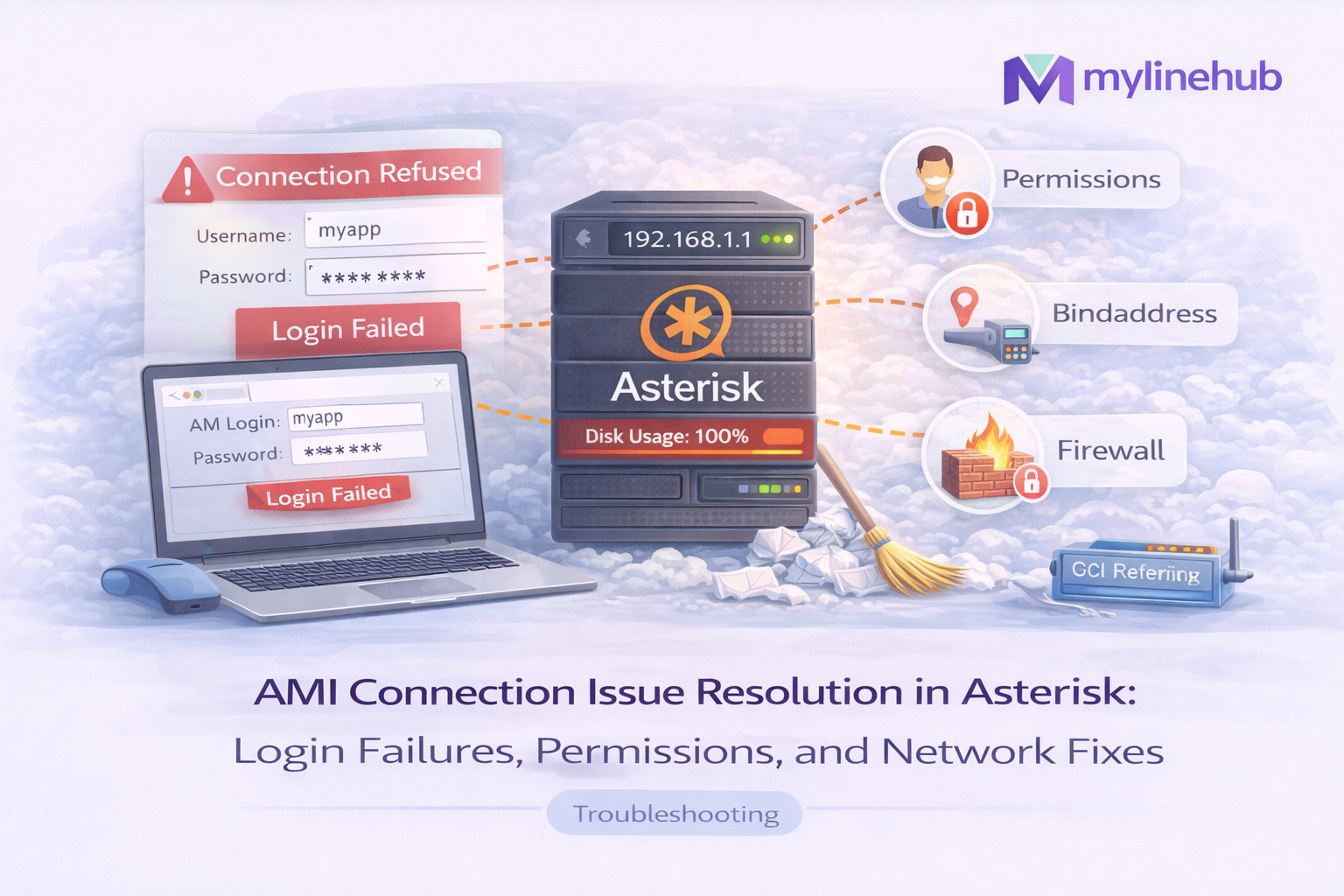
AMI (Asterisk Manager Interface) is commonly used for: dialer control, CRM popups, call events, live monitoring, and automation. When AMI breaks, integrations fail immediately: “login failed”, “connection refused”, “no response from AMI”, “events not coming”.
This guide is a step-by-step production troubleshooting flow to fix AMI connection issues: credentials, permissions, bind address, firewall, and real test commands.
AMI Connection Path Diagram
Step 1: Confirm AMI Is Enabled and Listening (Server Side)
On Asterisk CLI:
sudo asterisk -rx "manager show settings"You should see something like:
AMI Enabled: Yes
Port: 5038
Bindaddress: 0.0.0.0
Also verify OS-level listening socket:
sudo ss -lntp | grep 5038If nothing is listening, AMI is not enabled or Asterisk needs reload/restart.
Step 2: Check manager.conf (Most Common Misconfig)
AMI configuration is typically in:
/etc/asterisk/manager.conf
A safe baseline:
; /etc/asterisk/manager.conf
[general]
enabled = yes
port = 5038
bindaddr = 0.0.0.0
; or bindaddr = 192.168.10.20 (LAN only - recommended if app is on LAN)

; Example user
[myapp]
secret = STRONG_PASSWORD_HERE
read = system,call,log,verbose,command,agent,user,config
write = system,call,log,verbose,command,agent,user,config
deny=0.0.0.0/0.0.0.0
permit=192.168.10.0/255.255.255.0
Key points:
- bindaddr decides which interface AMI listens on
- permit/deny decides which client IPs can authenticate
- read/write permissions decide what actions/events are allowed
Apply changes:
sudo asterisk -rx "module reload manager"Step 3: Fix “Connection Refused” (Network / Bind Address)
“Connection refused” means the TCP connection is rejected immediately. Typical causes:
- AMI not listening (service disabled)
- Asterisk listening only on localhost (bindaddr = 127.0.0.1)
- Wrong server IP/port
If your app is remote, do not bind only to 127.0.0.1. Bind to LAN IP or 0.0.0.0 + firewall allowlist.
Step 4: Fix “Login Failed” (Credentials / Permit-Deny / Permissions)
“Login failed” usually means AMI is reachable but authentication fails due to:
- Wrong username/secret
- Client IP not permitted (permit/deny rules)
- Special characters mis-parsed by client library (rare but happens)
Confirm user exists and permissions:
sudo asterisk -rx "manager show users"
sudo asterisk -rx "manager show user myapp"
Step 5: Firewall Checks (Ubuntu & Debian)
If server is using UFW:
sudo ufw status verbose
sudo ufw allow from <APP_IP> to any port 5038 proto tcp
Validate from app server:
nc -vz <ASTERISK_IP> 5038If you see "succeeded", TCP path is open.
Step 6: Test AMI Manually (No Guessing)
From the client machine:
telnet <ASTERISK_IP> 5038You should see an AMI banner. Then login:
Action: Login
Username: myapp
Secret: STRONG_PASSWORD_HERE
Events: on
If login succeeds you will get a success response. Then test an action:
Action: Ping
If you get Pong, AMI is working end-to-end.
Step 7: “Events Not Coming” (Read Permissions / Events Setting)
If connection works but events are missing:
- Client did not enable events (Events: on)
- read permissions insufficient
- Integration is subscribing incorrectly
Confirm manager settings again:
sudo asterisk -rx "manager show settings"Security Best Practices (Do This in Production)
- Never expose AMI to the public internet
- Bind AMI to LAN IP or firewall allowlist strictly
- Use strong secrets and least-privilege permissions
- Log and monitor failed attempts
Reference: Asterisk official documentation
Key Takeaway
AMI issues are almost always one of four categories:
not listening, wrong bind address, firewall blocked, or permit/deny/auth mismatch.
Use the CLI + ss + nc + manual login to prove each layer.
Want to see API-driven CRM + Telecom workflows in action? Try the WhatsApp bot or explore the demos.
Comments (0)
Be the first to comment.