Fetch & Clear Backend Service Logs (MYLINEHUB Debugging Guide)
How to view, export, and safely clear MYLINEHUB backend logs—journalctl commands, rotation, and troubleshooting flow.
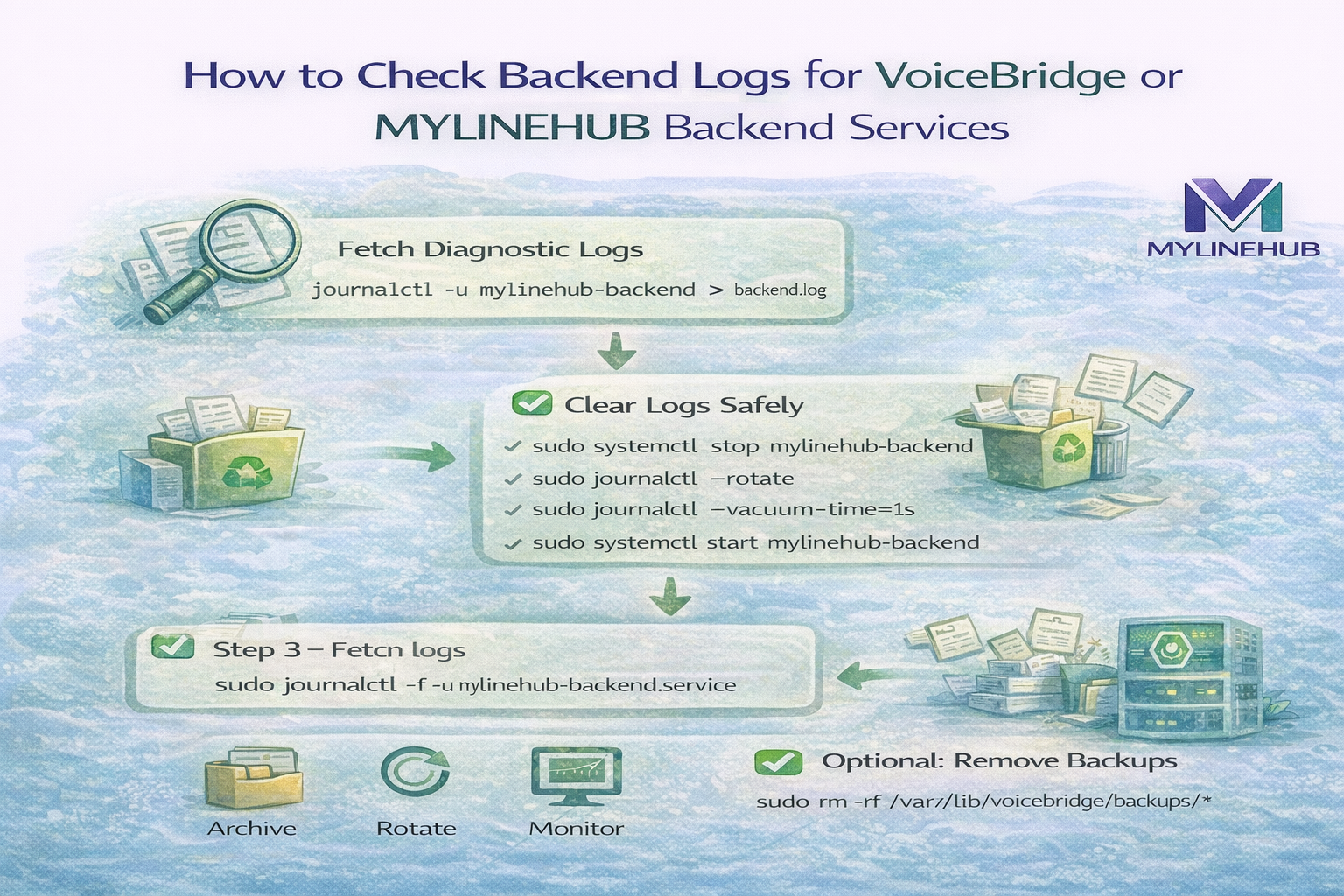
In any production telecom or AI platform, logs are the first source of truth. When MYLINEHUB backend or VoiceBridge behaves unexpectedly, engineers must quickly:
- Fetch service logs
- Analyze failures
- Clear old logs safely
- Resume clean monitoring
This guide explains how to correctly view, export, and reset logs for MYLINEHUB backend and VoiceBridge services running on Linux using systemd journalctl.
Why Log Monitoring Is Critical
Most real production issues are visible in logs before they become outages. Customers typically report:
- “Calls suddenly stopped processing.”
- “AI replies are delayed.”
- “System is slow but still running.”
Without logs, troubleshooting becomes guesswork. With proper log access, engineers can:
- Identify exact failure timestamps
- Trace API or database errors
- Detect memory or thread issues
- Confirm recovery after restart
Fetch All Backend Logs
Export complete MYLINEHUB backend logs into a file:
journalctl -u mylinehub-backend.service > mylinehub-backend.log
This is useful for:
- Sharing logs with support teams
- Archiving incident history
- Offline debugging
Clear Backend Logs Safely
To reset logs without damaging the service:
sudo systemctl stop mylinehub-backend.service
sudo journalctl --rotate
sudo journalctl --vacuum-time=1s --unit=mylinehub-backend.service
sudo systemctl start mylinehub-backend.service
After restart, monitor fresh logs:
sudo journalctl -f -n 1000 -u mylinehub-backend
sudo journalctl -f -u mylinehub-backend
sudo journalctl -f -u mylinehub-backend --since "2026-01-16 11:25:00"
Fetch & Clear VoiceBridge Logs
VoiceBridge follows the same process:
sudo systemctl stop mylinehub-voicebridge.service
sudo journalctl --rotate
sudo journalctl --vacuum-time=1s --unit=mylinehub-voicebridge.service
sudo systemctl start mylinehub-voicebridge.service
Monitor real-time VoiceBridge activity:
sudo journalctl -f -n 1000 -u mylinehub-voicebridge
sudo journalctl -f -u mylinehub-voicebridge
sudo journalctl -f -u mylinehub-voicebridge --since "2026-01-16 11:25:00"
Clear AI Recording Storage
When debugging storage or disk-space issues, old AI recordings may be removed:
sudo rm -rf /var/lib/voicebridge/probroker-ai-recording/*
⚠️ Perform this only when recordings are no longer required.
Network-Level Debugging Commands
If call audio or signaling is failing, capture packets using:
sudo tcpdump -n -i any host 122.180.253.252 and udp -c 30
sudo tcpdump -n -i any host 103.212.22.115 and udp -c 30
Monitor active TCP connections on a service port:
watch -n 1 "ss -ntpi '( sport = :8088 )'"
sudo tcpdump -nn -i any 'tcp port 8088 and (tcp[tcpflags] & (tcp-fin|tcp-rst) != 0)'
FreePBX Backup Reference
Example backup file location:
/var/spool/asterisk/backup/20260119-202541-1768854341-17.0.24-1847061877.tar.gz
Always verify backups before performing major cleanup or upgrades.
Best Practices for Production Log Management
- Rotate logs regularly to avoid disk exhaustion
- Export logs before clearing during incidents
- Monitor logs after every deployment
- Combine logs with JMX and system metrics for full visibility
Final Thought
Stable telecom and AI platforms are maintained through visibility, not assumptions.
Proper log monitoring allows MYLINEHUB teams to:
- Detect failures early
- Resolve incidents faster
- Keep customer communication uninterrupted
Logs are not just debugging tools — they are part of reliable system design.
Want to see API-driven CRM + Telecom workflows in action? Try the WhatsApp bot or explore the demos.
Comments (0)
Be the first to comment.