How to Load Initial Telecom Data Safely in MYLINEHUB (Organization, AMI, SSH, Users, IVR, Queue)
A safe, practical guide to seeding initial MYLINEHUB telecom data (organization, AMI/SSH, users, providers, IVR, queues) using placeholders—while keeping secrets out of SQL and ensuring Asterisk values match.
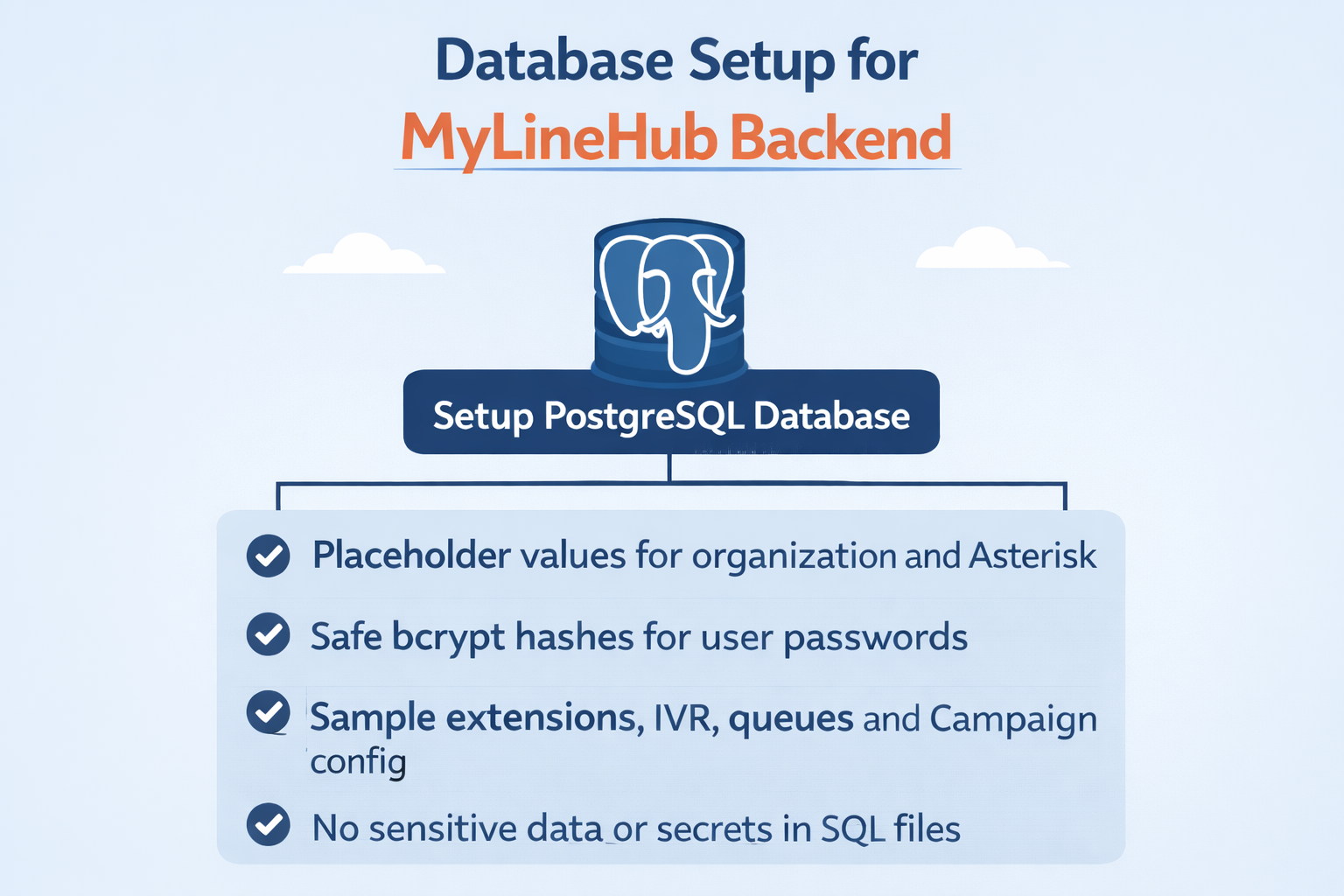
How to Load Initial Telecom Data Safely in MYLINEHUB
When you deploy MYLINEHUB for a new customer, you usually need initial seed data so the platform knows: which organization exists, which Asterisk server to talk to, how agents/extensions are mapped, and which IVR / Queue / Campaign to use.
This article shows a safe approach to loading initial data in PostgreSQL using placeholders and explains what each important field means, what must match across tables, and which ports/protocols must match your Asterisk/FreePBX configuration.
Important: Do NOT Put Sensitive Data in SQL Files
Seed SQL often gets copied into Git, sent on WhatsApp, or stored in tickets. That’s risky. Use placeholders and inject secrets using environment variables or admin UI whenever possible.
- Never commit: AMI passwords, SSH passwords, private keys, tokens, real customer phone numbers, emails
- Use placeholders:
<ORG_NAME>,<DOMAIN>,<AMI_PASSWORD>,<SSH_PASSWORD>,<EXTENSION_SECRET> - For passwords in DB: store bcrypt hashes only for app users (not plain passwords)
- For SSH keys: store only file reference (pem name/location) or use secrets store
Golden Rule: These Values Must Match Everywhere
Most onboarding failures happen because one of these values is inconsistent between tables or does not match Asterisk. Keep them aligned:
- organization (string identifier) → must match across all MYLINEHUB tables
- domain / second_domain → must match connection configs and routing logic
- phone_context → must match your Asterisk dialplan context (example:
from-internal) - protocol → must match your dial string style (example:
PJSIP/) - sip_path + sip_port → must match your WebRTC WS/WSS config if you use browser calling
Step-by-Step: What to Insert First (Correct Order)
- Organization (defines telecom defaults + domains)
- SSH Connection (optional, used for server operations)
- AMI Connection (required for dialer control + events)
- SIP Providers (numbers/trunks inventory)
- Users (extensions/agents mapped to Asterisk)
- IVR (MYLINEHUB references an IVR that must already exist in FreePBX)
- Queue (MYLINEHUB references a Queue that must already exist in FreePBX)
- Conference (optional; if used, FreePBX/Asterisk must have the conference extension)
- Customers (optional test data only)
- Campaign (dialer strategy + routing config)
FreePBX/Asterisk Rule: MYLINEHUB Only References IVR/Queue/Conference
Very important: When you create records in ivr, queue, or campaign tables,
MYLINEHUB does not create those telephony objects inside Asterisk automatically.
MYLINEHUB expects that the following already exist in Asterisk/FreePBX:
- IVR extension is created in FreePBX IVR module (example:
351) - Queue extension is created in FreePBX Queues module (example:
302) - Conference extension is created in FreePBX Conferences module (example:
99or700) - Agent extensions are created in FreePBX (PJSIP extensions like
201,202, etc.) - Dialplan context exists (example:
from-internal)
Think of it like this: FreePBX builds the telephony objects (IVR/Queue/Conference/extensions), and MYLINEHUB stores mappings + business logic (campaign rules, retries, reporting, scheduling).
1) Organization Seed (What Each Field Means)
Organization is the root configuration. It links to trunks, domain, protocol style, and SIP/WebRTC parameters.
INSERT INTO public.organization
(org_id, cost_calculation, organization, phone_context, phone_trunk, protocol, timezone,
 trunk_names_primary, trunk_names_secondary, call_limit,
 domain, second_domain, sip_path, sip_port, use_secondary_alloted_line, email, phone_number)
VALUES
(1, 'UNLIMITED', '<ORG_NAME>', '<ASTERISK_CONTEXT>', '<DEFAULT_TRUNK>', 'PJSIP/', 'Asia/Kolkata',
 '<TRUNK_EXT_LIST_SEMICOLON>', '<TRUNK_EXT_LIST_SEMICOLON>', -1,
 '<DOMAIN>', '<SECOND_DOMAIN>', '/ws', 8089, false, NULL, NULL);
Key fields explained
- organization: Your tenant key. Example:
{{your_organization_as_per_gst}}. Must match everywhere. - phone_context: Dialplan context. Common examples:
from-internal,from-trunk, or custom. - protocol: Dial prefix used to call extensions. Typical:
PJSIP/(Asterisk PJSIP). - domain / second_domain: Used by UI + routing + server mapping. Keep consistent.
- sip_path: WebSocket path used by WebRTC endpoints (common:
/ws). - sip_port: WS/WSS port for SIP over WebSocket.
Typical:
8088for WS,8089for WSS (depends on your Asterisk http.conf). - trunk_names_primary: A semicolon list like
1001;1002;1003. This is a MYLINEHUB trunk/line inventory list, not mandatory for all setups. - call_limit: Use
-1for unlimited in many setups (your app logic may interpret this).
2) SSH Connection Seed (Server Operations)
SSH connection is commonly used for FreePBX/Asterisk server operations: log fetching, config checks, service restarts (if your platform supports it). Do not store real passwords in shared SQL.
INSERT INTO public.ssh_connection
(id, active, auth_type, connection_string, domain, extra_key, organization,
 password, pem_file_location, pem_file_name, phonecontext, port, ssh_user, type)
VALUES
(108, true, 'PASSWORD_OR_PEM', '', '<DOMAIN>', '', '<ORG_NAME>',
 '<SSH_PASSWORD_PLACEHOLDER>', '<PEM_PATH_IF_USED>', '<PEM_FILENAME_IF_USED>',
 '<ASTERISK_CONTEXT>', 22, '<SSH_USER>', 'FREEPBX');
Rules
- If you use PEM auth, keep pem file path in DB and store the actual PEM securely.
- If you use password auth, do not commit the password. Replace at install time.
3) AMI Connection Seed (Dialer Control + Events)
AMI is critical for dialer actions and realtime events.
Default AMI port is often 5038.
INSERT INTO public.ami_connection
(id, amiuser, domain, isactive, organization, password, phonecontext, port)
VALUES
(1, '<AMI_USER>', '<DOMAIN>', true, '<ORG_NAME>', '<AMI_PASSWORD_PLACEHOLDER>', '<ASTERISK_CONTEXT>', 5038);
Rules
- amiuser/password must match
manager.confin Asterisk. - phonecontext should match your dialplan context used for originate actions (commonly
from-internal). - Keep AMI open only to trusted IPs (CRM server → Asterisk server) via firewall.
4) Insert Users (Agents/Extensions) Safely
Users map your MYLINEHUB agent accounts to real Asterisk extensions. Your example includes many fields (SIP/WebRTC UI settings, devices, media, etc.). For initial seed: keep only the required fields and keep the rest as defaults.
Minimum fields you must get correct
- domain, organization, phone_context, protocol
- extension: the real FreePBX/Asterisk extension (e.g., 201, 202)
- extensionpassword: the SIP secret used by the phone/softphone (do not publish)
- sip_path, sip_port: only needed for browser/WebRTC calling
-- Example (use placeholders for secrets)
INSERT INTO public.sys_user
(user_id, domain, extension, extensionpassword, first_name, last_name,
 organization, password, phone_context, protocol, timezone,
 sip_path, sip_port, is_enabled, is_locked, user_role, type)
VALUES
(11, '<DOMAIN>', '201', '<EXTENSION_SECRET>', 'Agent', 'One',
 '<ORG_NAME>', '<BCRYPT_APP_LOGIN_PASSWORD_HASH>', '<ASTERISK_CONTEXT>', 'PJSIP/', 'Asia/Kolkata',
 '/ws', 8089, true, false, 'ADMIN', 'External');
Why two passwords exist?
- password (hashed): login to MYLINEHUB UI (web/app)
- extensionpassword (secret): SIP auth for phone/WebRTC client for that extension
5) SIP Provider (Numbers/Trunks Inventory)
This table stores your DID/phone number inventory or provider mapping. Use test numbers and placeholders in documentation.
INSERT INTO public.sip_provider
(id, active, company, cost_calculation, metered_plan_amount, organization, phone_number, provider_name)
VALUES
(1, true, '<DOMAIN>', 'UNLIMITED', 'PM1', '<ORG_NAME>', '<PROVIDER_NUMBER_PLACEHOLDER>', 'airtel');
6) IVR (MYLINEHUB References an Existing FreePBX IVR)
Creating a record in public.ivr tells MYLINEHUB: “this organization has an IVR target extension.”
It does not create IVR in Asterisk.
Recommendation: Create IVR in FreePBX first (Admin → IVR), note the IVR extension, then insert it into MYLINEHUB.
INSERT INTO public.ivr
(id, domain, extension, isactive, organization, phone_context, protocol)
VALUES
(1, '<DOMAIN>', '<FREEPBX_IVR_EXTENSION>', true, '<ORG_NAME>', '<ASTERISK_CONTEXT>', 'PJSIP/');
What must be true in FreePBX
- IVR extension exists (example:
351) - IVR routes to proper destinations (queue, ring group, operator, etc.)
- Dialplan context permits calling that IVR from the originating context
7) Queue (MYLINEHUB References an Existing FreePBX Queue)
Creating a record in public.queue tells MYLINEHUB: “this organization has a queue target extension.”
It does not create the Queue in Asterisk.
Recommendation: Create Queue in FreePBX first (Applications → Queues), note the Queue number, then insert into MYLINEHUB.
INSERT INTO public.queue
(id, domain, extension, isactive, name, organization, phone_context, protocol, type)
VALUES
(1, '<DOMAIN>', '<FREEPBX_QUEUE_EXTENSION>', true, 'Sales Queue', '<ORG_NAME>', '<ASTERISK_CONTEXT>', 'PJSIP/', 'Ring All');
What must be true in FreePBX
- Queue extension exists (example:
302) - Queue members/agents are assigned (extensions like 201, 202, etc.)
- Queue strategy is configured (ringall, leastrecent, fewestcalls, etc.)
8) Conference (If Campaign Uses Conference / Auto-Conference)
If your dialer or user settings use conference features (example: conf_extension, auto-conference, supervisor listening),
then the conference extension must already exist in FreePBX/Asterisk.
- Common conference extensions:
99,700, or any number you choose in FreePBX - Create in FreePBX: Applications → Conferences
If your campaign table contains a conf_extension, ensure it matches the FreePBX conference number.
(If you do not use conference features, keep conf_extension empty or NULL.)
9) Customers and Campaign: Use Only Safe Sample Data
Customers and campaigns are business data. For documentation or seed templates, never use real customer phone numbers or emails. Keep sample values like:
+919999999999as placeholder phonetest@example.comas placeholder email- Never store real ID numbers (Aadhaar, PAN, etc.) in seed docs
Asterisk Ports & Protocols Cheatsheet (What Must Match)
- SIP (UDP/TCP): commonly
5060(PJSIP listens here by default) - AMI: commonly
5038(manager interface) - ARI: often
8088(HTTP) /8089(HTTPS) depending on config - WS/WSS (SIP over WebSocket):
8088typically used for WS8089typically used for WSS- Path is often
/ws
- RTP: UDP range like
10000-20000(checkrtp.conf)
In MYLINEHUB seed data:
sip_port + sip_path are used mainly when you enable browser/WebRTC calling.
For classic softphone/hardware phones, your SIP clients connect to 5060 instead.
How the Call Flow Works (Simple Mental Model)
- Agent clicks call in MYLINEHUB UI
- Backend uses AMI to originate/control calls (dialer logic, retries, callbacks)
- Asterisk executes dialplan using the configured phone_context
- If AI/IVR automation is needed, VoiceBridge uses ARI/Stasis to control call + media
- CDR/logs/events are stored back in CRM tables for reporting
Recommended Practice: Keep a “Seed Template” and a “Customer Secret File”
- seed-template.sql: only placeholders + safe defaults
- customer-secrets.env: real AMI password, SSH secrets, extension secrets (not in Git)
- During deployment, replace placeholders using secure install scripts or admin UI
Next Steps
- In FreePBX, create: extensions, IVR, Queues, Conferences first
- Validate Asterisk config: AMI user, ARI enabled, WS/WSS path, firewall ports
- Confirm phone_context exists and can originate calls
- Test: extension-to-extension, then IVR, then queue, then campaign
- Enable VoiceBridge (ARI/Stasis) only after basic dialing works
Want to see API-driven CRM + Telecom workflows in action? Try the WhatsApp bot or explore the demos.
Comments (0)
Be the first to comment.