Troubleshoot HTTP Connection Reset Issues in MYLINEHUB
Identify and fix HTTP connection reset problems caused by NGINX, JVM limits, firewall rules, or timeout misconfiguration.
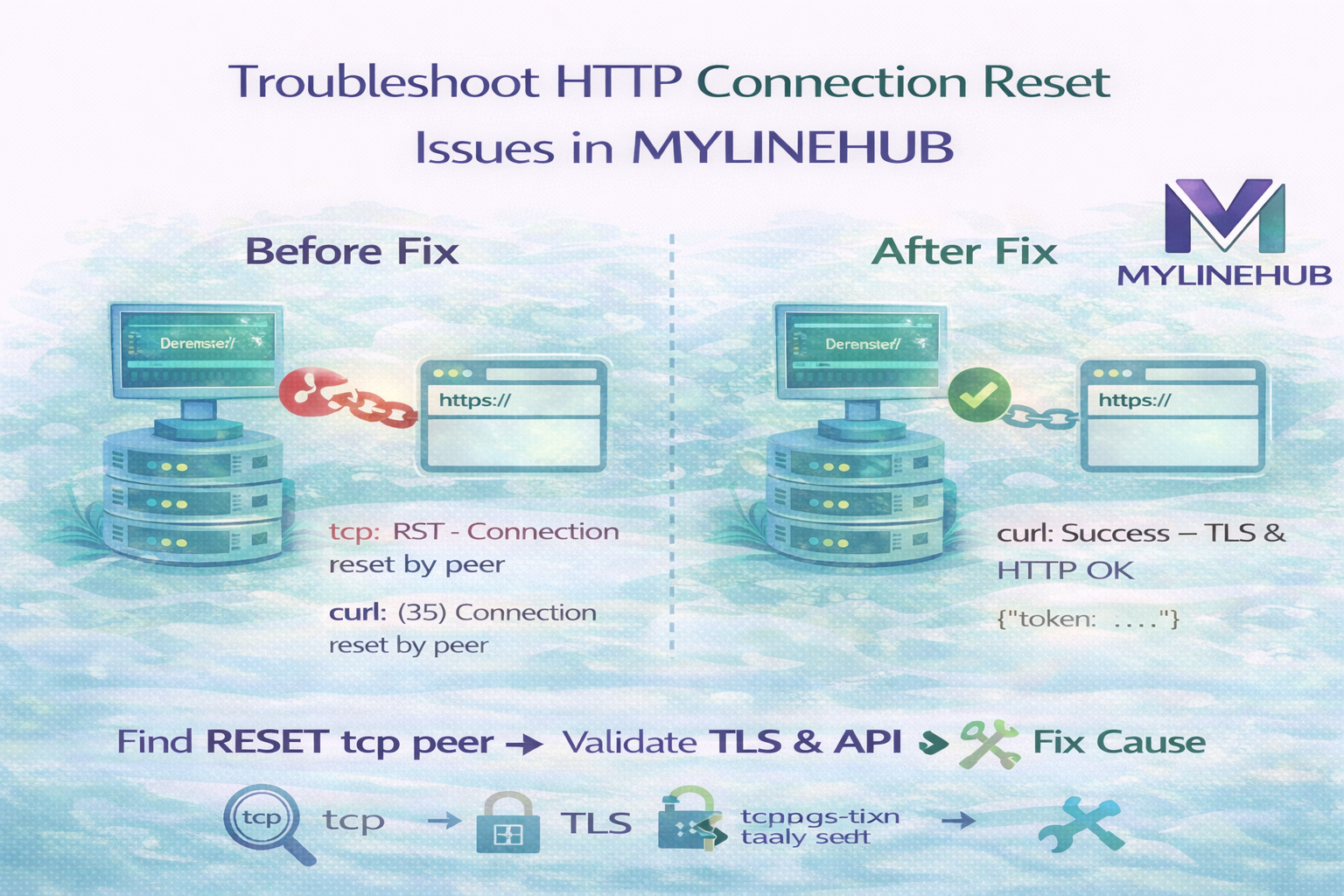
“Connection reset” is one of the most frustrating production errors because it is not a clean HTTP error. It means the TCP connection was force-closed (RST) before the request/response completed. In MYLINEHUB, this usually shows up when: Angular → MYLINEHUB backend is stable, but backend calls to an external HTTPS API fail, or when NGINX reverse proxy cuts a connection due to timeout/size limits.
This guide shows how to find the exact source of the reset using tcpdump, validate TLS using openssl, and reproduce the failure with curl — so you can fix it with confidence instead of restarting services blindly.
What “HTTP Connection Reset” Actually Means
HTTP runs on TCP. A “reset” happens when one side (client/server) sends a TCP packet with the RST flag, meaning: “stop this connection immediately”.
- RST from your server (Spring Boot): app/client aborted (timeout, TLS failure, app closed socket).
- RST from remote server: remote rejected (rate limit, WAF, TLS/SNI mismatch, policy block).
- RST from router/firewall: network injected reset (NAT/conntrack issue, policy, port conflict).
Typical MYLINEHUB Scenarios
- Customer symptom: “System becomes slow after some hours.”
- Customer symptom: “Calls stop processing but service is still running.”
- Integration symptom: “External API works in Postman but fails from backend.”
- Proxy symptom: “Angular loads but API calls randomly fail.”
The goal is to prove exactly which hop is breaking: Browser → NGINX → Spring Boot → External API
Step 1 — Identify the Correct Network Interface
Run:
ip a
Example:
enp7s0: ... state UP ...
inet 192.168.0.3/24 ...
Here, enp7s0 is the active interface for your server IP 192.168.0.3. We will sniff traffic on this interface.
Step 2 — Capture ONLY Reset Packets (Fastest Signal)
This captures only TCP packets with RST flag:
sudo tcpdump -i enp7s0 'tcp[tcpflags] & tcp-rst != 0' -n -vv
Alternative filter (RST both directions):
sudo tcpdump -i enp7s0 'tcp[13] & 4 != 0' -n
Step 3 — Interpret the Output (Who Sent the Reset?)
A typical RST line looks like:
SrcIP.SrcPort > DstIP.DstPort: Flags [R]
- If source IP is your server → your app is aborting.
- If source IP is the remote server → remote is rejecting.
- If source IP is router/firewall → network is injecting resets.
Step 4 — Capture Full Trace for Wireshark (Proof-Level Debugging)
When you need full context (SYN, TLS handshake, HTTP, teardown):
sudo tcpdump -i enp7s0 'tcp port 80 or port 443 or portrange 20001-30000' -w full-trace.pcap
Open in Wireshark and filter:
tcp.flags.reset == 1
To isolate a single host flow:
ip.addr == YOUR_SERVER_IP
Why capture port 443 even if your client uses ports 20001–30000? Because outbound HTTPS always targets destination port 443. Your ephemeral port is the source, but the remote replies from 443 back to your ephemeral port.
Step 5 — Validate TLS Outside Your Application
If the remote endpoint is HTTPS, test TLS handshake:
openssl s_client -connect production.deepvue.tech:443
If you test by IP (no hostname/SNI), you can reproduce SNI-related failures:
openssl s_client -connect 13.201.205.167:443
Notes:
- If “Verify return code: 0 (ok)” → certificate chain is acceptable to openssl.
- If it hangs at read R BLOCK → handshake completed but server may be waiting for HTTP request, or app layer is blocked.
- If it fails quickly → TLS negotiation / SNI / cipher mismatch / WAF policy.
Step 6 — Reproduce With Curl (Exact Request Shape Matters)
Many “works in Postman but fails in code” issues are simply different headers/body encodings. Test both JSON and x-www-form-urlencoded exactly:
JSON request
curl -v --location 'https://production.deepvue.tech/v1/authorize' \
  --header 'Content-Type: application/json' \
  --data '{"client_id":"...","client_secret":"..."}'
Form request
curl -v --location 'https://production.deepvue.tech/v1/authorize' \
  --header 'Content-Type: application/x-www-form-urlencoded' \
  --data 'client_id=...&client_secret=...'
If curl works from server but Spring Boot fails → client/JVM config issue (TLS, timeouts, proxy, HTTP client). If curl fails from server too → network/remote block issue.
Step 7 — Diagnose From Your Provided tcpdump Logs (Example)
You triggered HTTPS from 192.168.0.3:20003 to 13.201.205.167:443. Your tcpdump shows:
13.201.205.167.443 > 192.168.0.3.20003: Flags [R.], ... ack ...
192.168.0.3.20003 > 13.201.205.167.443: Flags [R], ...
Interpretation:
- The first reset is coming from the remote server (13.201.205.167). That means your server connected, but the remote side immediately terminated the connection.
- Your server then replies with its own RST packets (normal reaction after receiving a reset).
- The browser client 49.205.174.53 → 192.168.0.3:8080 also shows an RST. That is a separate connection — typically a browser retry/cancel, or the server closing a keep-alive.
- 160.191.88.232:53690 looks like another remote host your server contacted (or a NATed service). Without the full pcap we can’t identify the owner, but it’s clearly another TCP conversation that also reset.
So the primary problem in your first block is NOT “Spring Boot sending reset”. It is: remote server is rejecting/resetting your connection.
Most Common Root Causes When Remote Sends RST
- SNI/Host mismatch: calling by IP instead of domain, or wrong Host header.
- WAF / Rate limiting: IP flagged, too many requests, missing required headers.
- TLS policy mismatch: server requires TLS 1.2/1.3 only, specific ciphers, etc.
- Payload/Content-Type mismatch: server resets when it doesn’t like the request shape.
- Firewall/NAT interference: gateway injecting resets during NAT translation edge cases.
Step-by-Step Fix Checklist (MYLINEHUB Practical)
1) Stop calling by IP if the API expects a domain
- Prefer: https://production.deepvue.tech/...
- Avoid: https://13.201.205.167/... unless you know the service accepts IP + no SNI
2) Confirm TLS versions supported
nmap -sV --script ssl-enum-ciphers -p 443 production.deepvue.tech
Or use testssl.sh if needed:
git clone https://github.com/drwetter/testssl.sh.git
cd testssl.sh
./testssl.sh production.deepvue.tech
3) Force TLS version in curl to reproduce policy
curl --tlsv1.2 -v --location 'https://production.deepvue.tech/v1/authorize' \
  --header 'Content-Type: application/x-www-form-urlencoded' \
  --data 'client_id=...&client_secret=...'
4) If failures are random: check NAT/router behavior
- Try temporarily moving server to DMZ (test only)
- Check if firewall is doing DPI / SSL inspection / session limits
- Verify conntrack table capacity if high traffic (common in call environments)
5) If NGINX is involved: raise proxy timeouts and body size
client_max_body_sizeproxy_read_timeout,proxy_connect_timeout,proxy_send_timeout- Reload NGINX and re-test
6) Validate server-side connection states
netstat -antp | head
netstat -s | egrep -i 'reset|retransmit|timeout'
dmesg | grep -i tcp
journalctl -k | grep -i tcp
How the Problem Looks Before vs After Fix (Real Example Pattern)
Before (RST)
13.201.205.167.443 > 192.168.0.3.20003: Flags [R.]
curl: (35) OpenSSL SSL_connect: Connection reset by peer
After (Successful TLS + HTTP)
* TLSv1.3 handshake completed
> POST /v1/authorize HTTP/1.1
< HTTP/1.1 200 OK
{"token":"..."}
Once fixed, your tcpdump will stop showing RST bursts for that flow, and curl will show clean TLS negotiation + a valid HTTP status.
Final Thought
In multithreaded telecom environments (MYLINEHUB + VoiceBridge), “connection reset” can cascade quickly under load. The correct approach is always: prove who sends the RST → reproduce with curl/openssl → apply targeted fix.
Once you share a full-trace.pcap for one failed request, you can pinpoint the exact reset moment (SYN/ACK, TLS ClientHello, ServerHello, HTTP POST, etc.) and lock the fix permanently.
Want to see API-driven CRM + Telecom workflows in action? Try the WhatsApp bot or explore the demos.
Comments (0)
Be the first to comment.