Configure SSL Using Let’s Encrypt for MYLINEHUB
Generate, renew, and manage SSL certificates for MYLINEHUB using Certbot, PEM conversion, and secure HTTPS deployment.
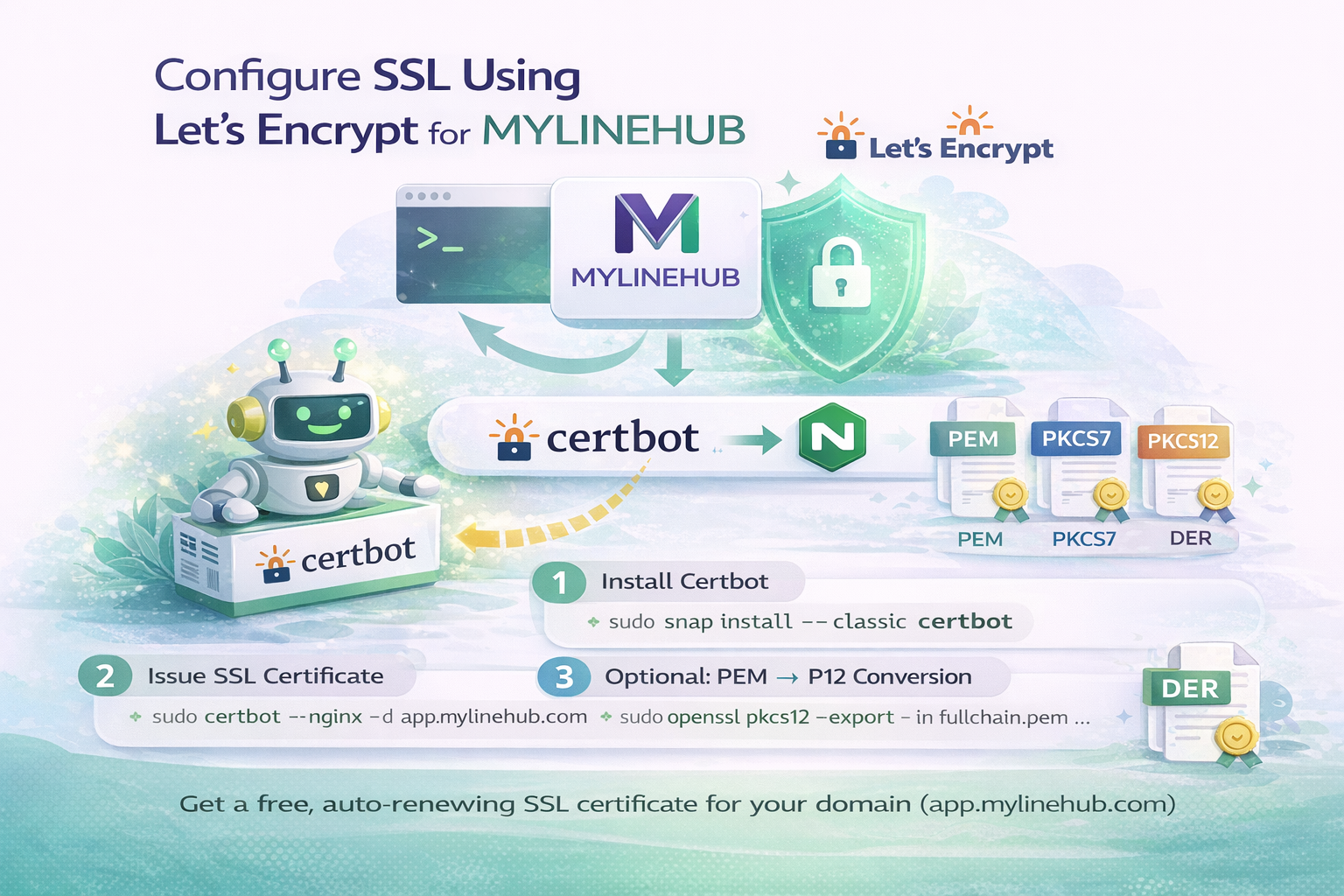
SSL is the difference between “it works” and “it’s production-ready”. Browsers, WebRTC, login sessions, and modern APIs all expect HTTPS. This guide shows how to generate and renew SSL using Let’s Encrypt (Certbot), and how to convert the certificate into formats you may need for Java/Spring Boot and other tools.
Target domain example used in this doc: app.mylinehub.com (replace it with your own domain everywhere).
Certificate Formats (Quick Understanding)
There are multiple ways certificates are represented. You’ll see these names often:
-
PEM — text format (base64). Common in open-source stacks (NGINX, Linux). Extensions may be
.pem,.key,.crt,.cer. - PKCS7 — common for certificate chains; does not include private key.
- PKCS12 (P12 / PFX) — can include private key + certificate chain. Great for Java/Windows.
- DER — binary form (think of it as binary PEM). Mostly used in some Windows scenarios.
In Let’s Encrypt + NGINX setups, you mainly get PEM files:
fullchain.pem and privkey.pem.
Prerequisites
- Your DNS must point to your server IP (A record for
app.mylinehub.com). - Ports 80 and 443 must be open in firewall / security group.
- NGINX must be installed and running.
- You should run commands as a user with sudo access.
Step 1: Install Certbot
You only do this once per server. After that, renewal is automatic via a timer.
Recommended (Snap) Install
sudo apt update
sudo apt install -y snapd
sudo snap install core
sudo snap refresh core
sudo snap install --classic certbot
sudo ln -s /snap/bin/certbot /usr/bin/certbot
NGINX Plugin
Some Ubuntu images also support apt-based packages. If you prefer apt plugin:
sudo apt update
sudo apt install -y certbot python3-certbot-nginx
Either approach works. Avoid mixing too many installation methods on the same server.
Deprecated / Not Needed
This is deprecated on many modern Ubuntu setups and generally not required now:
# Deprecated
sudo add-apt-repository ppa:certbot/certbot
If you already added it earlier, you can remove it:
sudo add-apt-repository -r ppa:certbot/certbotStep 2: Issue Certificate and Auto-Configure NGINX
This command will:
- Validate your domain
- Generate Let’s Encrypt PEM files
- Update your NGINX site to use HTTPS
sudo certbot --nginx -d app.mylinehub.comAfter success, your files will be here:
/etc/letsencrypt/live/app.mylinehub.com/fullchain.pem
/etc/letsencrypt/live/app.mylinehub.com/privkey.pem
And NGINX will be updated (commonly in):
/etc/nginx/sites-enabled/default
or your chosen server block file.
Step 3: Renewal (What Actually Happens in Production)
Certbot typically sets up a scheduled renewal. You can verify the timer:
sudo systemctl status certbot.timerTest renewal without changing anything:
sudo certbot renew --dry-runIn production, you usually do NOT need to manually delete folders or certificates. Just ensure renew works and NGINX reloads when required.
When You See app.mylinehub.com-0001 (Important)
Sometimes Certbot creates versioned directories like:
app.mylinehub.com-0001
while keeping the old folder.
Common safe actions:
-
If you want to switch back cleanly, you can rename:
sudo mv -T /etc/letsencrypt/live/app.mylinehub.com-0001 /etc/letsencrypt/live/app.mylinehub.com -
Copy contents from one to another (rarely needed, but sometimes used for cleanup):
sudo cp -a /etc/letsencrypt/live/app.mylinehub.com/. /etc/letsencrypt/live/app.mylinehub.com-0001/
Avoid blindly deleting folders unless you are sure what certificate is active. If you delete the wrong folder, NGINX may fail to restart due to missing files.
Optional: Convert PEM to PKCS12 (P12) for Java / Spring Boot
If your MYLINEHUB backend uses Java SSL keystore/truststore, you often want a P12 (or JKS) from Let’s Encrypt PEM files.
Install OpenSSL (One Time)
sudo apt update
sudo apt install -y openssl
Create keystore.p12 from fullchain.pem + privkey.pem
cd /etc/letsencrypt/live/app.mylinehub.com

sudo openssl pkcs12 -export \
  -in fullchain.pem \
  -inkey privkey.pem \
  -name "mylinehub" \
  -out keystore.p12
You will be prompted for an export password. Keep it safe.
(In internal environments some teams keep a known password like 123456, but for real production,
prefer a strong password and store it securely.)
Convert P12 to Java Keystore (JKS) (Optional)
sudo keytool -importkeystore \
  -srckeystore keystore.p12 -srcstoretype PKCS12 \
  -destkeystore keystore.jks -deststoretype JKS \
  -alias "mylinehub"
Create/Update Truststore (Optional)
If your app needs a truststore (outbound TLS verification / custom chain):
sudo keytool -import -alias "mylinehub" -file cert.pem -keystore truststore.jksNote: Let’s Encrypt typically provides a standard chain trusted by most systems. Truststore is usually only needed for special outbound TLS use-cases.
Spring Boot SSL Example (Backend application.properties)
If you run MYLINEHUB backend with embedded SSL:
server.ssl.enabled=true
server.ssl.key-store-type=PKCS12
server.ssl.key-store=classpath:keystore.p12
server.ssl.key-store-password=YOUR_PASSWORD
server.ssl.key-alias=mylinehub
If keystore is on disk (not inside jar), use a file path:
server.ssl.key-store=/home/ubuntu/keystore.p12Most production deployments also keep NGINX as the TLS terminator and reverse proxy to backend, which reduces Java SSL complexity. Choose based on your architecture.
Quick Troubleshooting Checklist
1) Certbot fails domain validation
- DNS A record not pointing to server IP
- Port 80 blocked
- Wrong NGINX server block
2) NGINX fails after renewal
- NGINX references old cert path
- Broken symlink in
/etc/letsencrypt/live/ - Folder mismatch (
-0001)
3) Browser still shows not secure
- Mixed content (HTTP assets on HTTPS page)
- Wrong domain (cert is for app.mylinehub.com, but you're using different host)
- Cached TLS / old redirect rules
Final Notes
For MYLINEHUB deployments, HTTPS is required for:
- Secure login sessions
- Modern browser features
- WebRTC / microphone permissions
- Stable API + reverse proxy routing
Once Certbot is installed and the first certificate is issued, renewal should be automatic. The only recurring work is confirming the timer is active and doing occasional dry-run renewal tests.
Want to see API-driven CRM + Telecom workflows in action? Try the WhatsApp bot or explore the demos.
Comments (0)
Be the first to comment.