Router Configuration for SIP/VoIP: NAT, Port Forwarding, and SIP ALG
Screenshot-based router/NAT guide to keep SIP + RTP stable for VoIP systems.
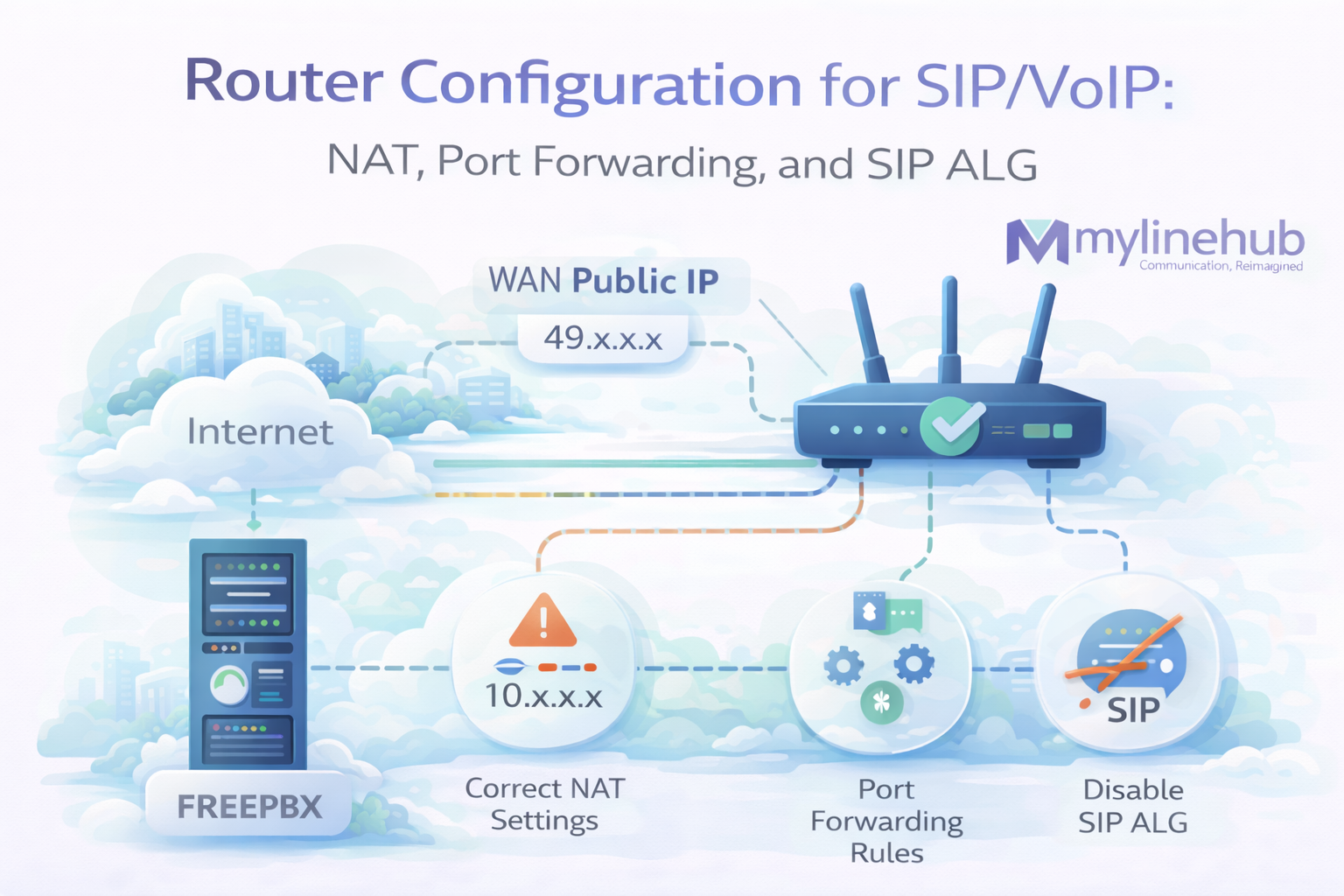
Home Router Configuration for SIP/VoIP: NAT, Port Forwarding, and SIP ALG
SIP/VoIP works great on a local network, but once you place your PBX behind a router (NAT), things can break in very confusing ways: inbound calls don’t arrive, outbound calls connect with no audio, or calls drop after 10–30 seconds.
This guide explains how to configure your router and network correctly for VoIP systems like FreePBX/Asterisk (and platforms like MYLINEHUB VoiceBridge that integrate with them). We’ll focus on the 3 real causes behind 90% of VoIP problems:
- NAT address mismatch (Asterisk tells the world the wrong IP)
- Port forwarding / firewall (SIP/RTP blocked or forwarded wrong)
- SIP ALG (router “helping” but actually corrupting SIP)
Before You Start: What You Must Know (This article takes example of one machine. You can reserve address for multiple machine, bifurcated required ports forwarded on different machines. Say you are configuring asterisk / freepbx server.
- PBX LAN IP: Example:
192.168.1.10 - Router WAN/Public IP: Example:
49.x.x.x(static IP is best) - SIP Port(s): usually
5060(UDP), sometimes5061(TLS) - RTP Port Range: FreePBX default is often
10000–20000UDP (can differ) - Do you need inbound from the internet? If yes, firewall + port forwarding must be correct.
If you do not have a static public IP, your provider may still work but inbound reliability suffers. For production calling (especially call centers), use a static public IP.
Understanding the Problem: NAT Breaks SIP and RTP in Different Ways
SIP signaling (call start)
- 5060 port is blockedSIP is like “call setup and control”. It tells the other side: who is calling, which number to ring, which codecs to use, and where to send media.
RTP media (audio)
- 100000-20000 ports blockedRTP is the actual audio packets. SIP can connect successfully even if RTP is blocked. That’s why you can see “Call connected” but hear silence (one-way/no audio).
Good routers handle NAT for web browsing, but SIP is sensitive because SIP messages often contain IP/port information inside the payload. Some routers try to modify SIP payload automatically — that feature is called SIP ALG — and it breaks more often than it helps.
Step 1: Reserve a Static LAN IP for Your PBX
Your PBX must not change its local IP. If the IP changes, port forwarding breaks instantly. Set a DHCP reservation on the router OR set a static IP on the server.
- Recommended: DHCP reservation based on MAC address
- Alternative: Static IP on server (ensure it’s outside DHCP pool)

Example: keep PBX fixed at 192.168.1.10.
If your router reboots and assigns a new IP, inbound calling will fail.
Step 2: Disable SIP ALG (Very Important)
SIP ALG is the #1 hidden reason behind random VoIP issues:
- Calls connect but audio is one-way
- DTMF doesn’t work in IVR
- Calls drop after 30 seconds
- Inbound works sometimes, fails sometimes
- REGISTER works but INVITE fails (or vice versa)
SIP ALG tries to rewrite SIP headers (Contact/Via/SDP). This often conflicts with Asterisk NAT settings. In modern VoIP networks, you almost always want SIP ALG OFF.
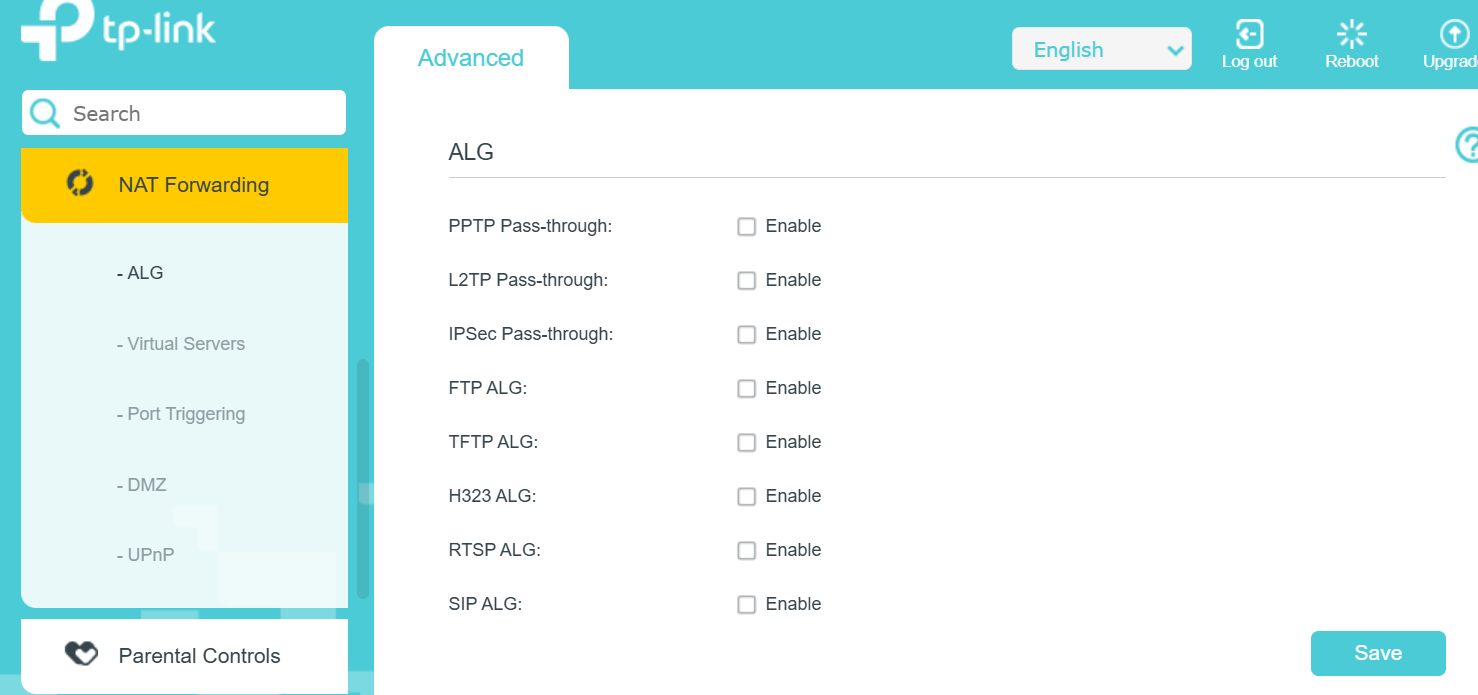
If your router doesn’t show “SIP ALG”, it may be under: NAT helpers, Security, Firewall, Advanced, or VoIP. Some ISP routers hide it completely — in that case, a better router is strongly recommended for production VoIP.
Step 3: Port Forwarding for Setup
If your PBX receives inbound calls from the internet (SIP provider sending calls to your server), you must forward ports from the router WAN to the PBX LAN IP.
Minimum required forwards (typical)
- SIP: UDP
5060→192.168.1.10:5060 - RTP: UDP
10000–20000→192.168.1.10
RTP forwarding is essential for inbound and outbound audio when endpoints are outside your LAN. Without RTP, calls can connect but audio will fail.
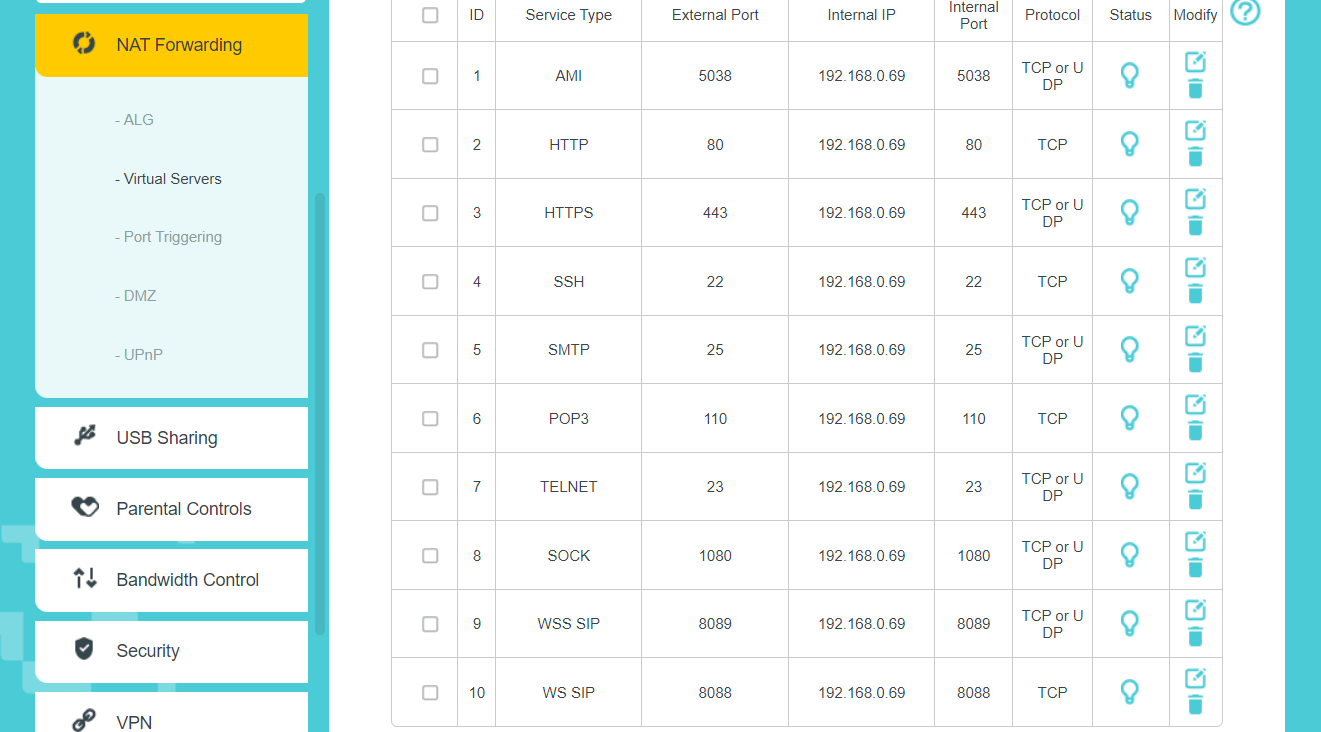
Production-safe rules
- Prefer forwarding SIP only from known provider IPs if your router supports source IP restrictions
- Keep RTP range as narrow as your real need (but don’t make it too small for call volume)
- Do not expose the FreePBX web UI to the internet unless absolutely required (use VPN instead)
Step 4: Firewall Rules and “Trusted” Sources - Make sure its turned off. We can setup firewall on ubuntu / freepbx system themselves.
Port forwarding opens the door, but firewall rules decide who can enter. SIP servers on the internet are constantly scanned by attackers. Your goal is:
- Allow SIP/RTP only from your SIP provider SBC IPs (if possible)
- Allow admin access only from your own IP/VPN
- Block unknown inbound SIP attempts
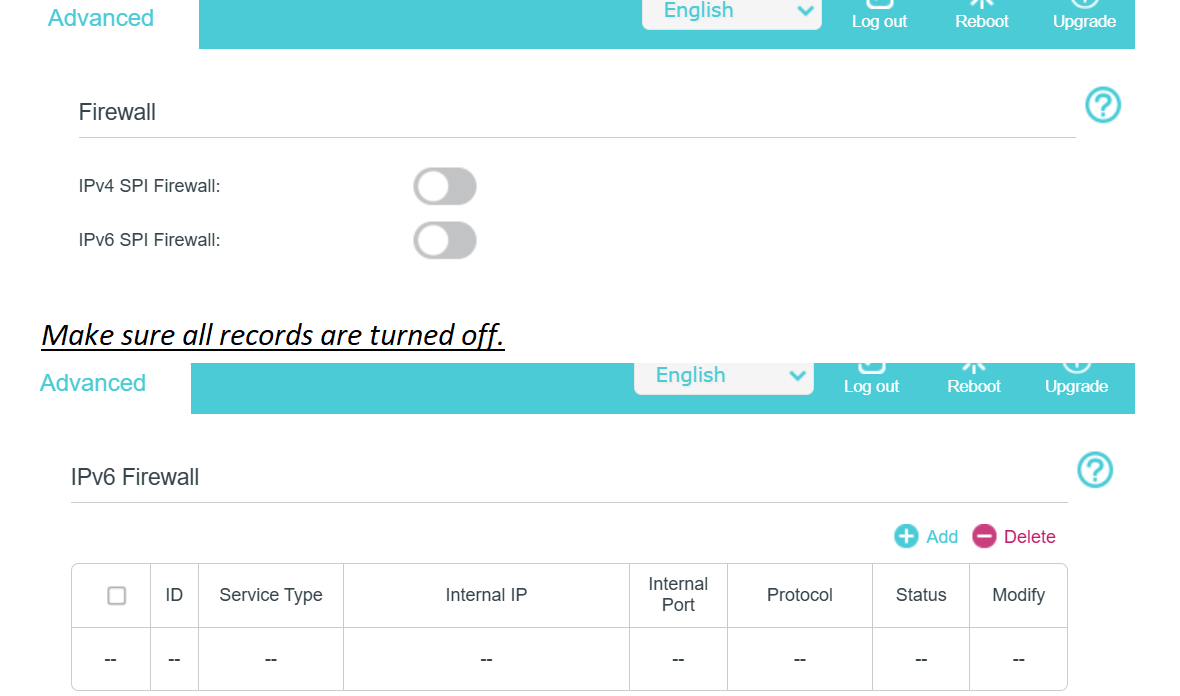
If your router cannot restrict by source IP, do it in FreePBX Firewall module: add your provider IPs as Trusted and keep SIP closed to “Internet” sources.
Step 5: NAT Mapping / External IP Awareness (Why One-Way Audio Happens)
Even with correct forwarding, Asterisk must know:
- What is my public IP? (External Address)
- Which networks are local? (Local Networks)
If Asterisk sends private LAN IP in SIP/SDP to the provider, the provider will try to send audio to
192.168.x.x (which is not reachable on the internet). Result: one-way audio.
What you should do inside FreePBX after router setup
- Go to Settings → Asterisk SIP Settings
- Set External Address to your static public IP (or dynamic DNS if unavoidable)
- Add Local Networks (example:
192.168.1.0/24) - Confirm RTP port range matches what you forwarded on the router
Recommended “Clean” Network Setup for Production VoIP
- Static public IP on WAN
- Stable LAN IP for PBX (DHCP reservation)
- SIP ALG OFF
- Port forwards SIP + RTP to PBX
- Restrict inbound SIP to provider IPs where possible
- FreePBX firewall configured with Trusted networks
- VPN for admin access instead of exposing ports
If you implement the above, you eliminate 90% of: one-way audio, random call drops, inbound not reaching PBX, and “works today / fails tomorrow” behavior.
Quick Troubleshooting Checklist
Problem: inbound calls not arriving
- Is port 5060 forwarded to PBX LAN IP?
- Does provider send from multiple IPs? (must trust/match all)
- FreePBX Firewall blocking SIP?
- Trunk Identify/Match missing provider IPs?
Problem: outbound works but no audio / one-way audio
- SIP ALG disabled?
- RTP port range forwarded and allowed?
- FreePBX External Address + Local Networks correct?
- Router has symmetric NAT or “restricted cone” behavior (some cheap routers cause issues)
Problem: calls drop after ~30 seconds
- SIP ALG still enabled (most common)
- NAT keep-alive/session timeout too low
- Provider not receiving correct ACK due to NAT rewrite
Next Articles to Read
- FreePBX SIP Settings: External Address, Local Networks, RTP range, codecs
- FreePBX Firewall: Trusted networks, enabling ARI/AMI access safely
- Trunks: Identify/Match so inbound calls map correctly
If you want, share your router model + whether you have static IP, and I’ll tell you the exact safe SIP/RTP rules to use.
Want to see API-driven CRM + Telecom workflows in action? Try the WhatsApp bot or explore the demos.
Comments (0)
Be the first to comment.