How to Connect Janus to Asterisk Extension 7000 (SIP Plugin + ARI)
Complete implementation guide to connect Janus WebRTC Gateway to Asterisk extension 7000 using SIP plugin and ARI voice bot control.
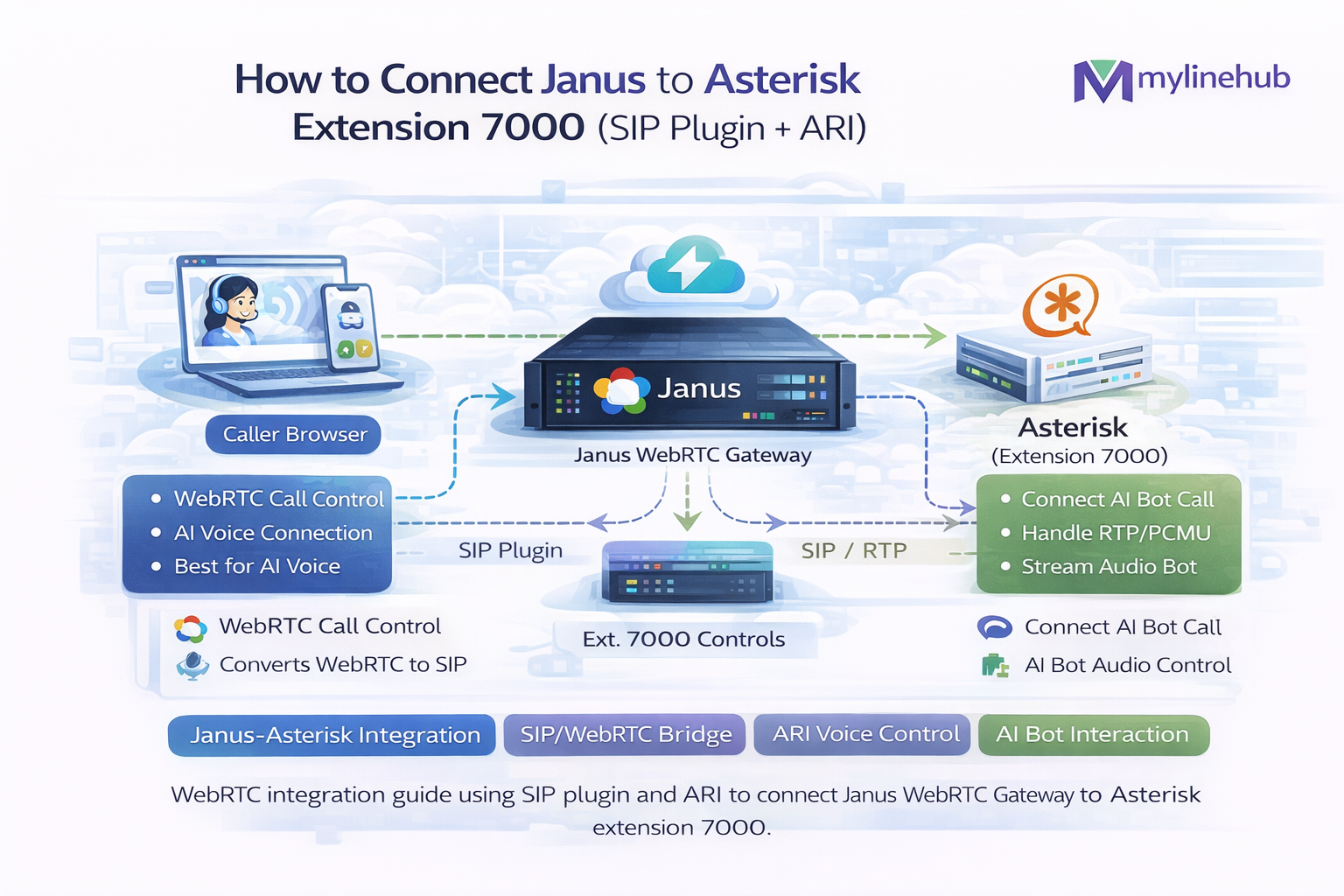
Janus ↔ Asterisk • SIP Extension 7000 • WebRTC Browser • ARI Stasis • ExternalMedia (AI)
Connect Janus to Asterisk Extension 7000 using SIP + ARI (End-to-End Guide)
This article shows how to connect a browser WebRTC call (via Janus) to an Asterisk SIP extension 7000, and then optionally hand the media to an ARI Stasis app so you can connect an AI bot using ExternalMedia.
Layman overview:
- Your browser can’t speak traditional SIP/RTP reliably across NAT.
- Janus speaks WebRTC to the browser, and SIP/RTP to Asterisk.
- Asterisk extension 7000 is just a normal SIP phone/user on your PBX.
- ARI lets your application control calls (bridges, playback, ExternalMedia).
Related reading: https://mylinehub.com/articles/ice-vs-stun-vs-turn-complete-webrtc-networking-guide
Table of contents
1) The goal and call flows 2) Choose your flow: Direct dial vs ARI-controlled 3) Network & ports checklist (tables) 4) Prepare Asterisk: extension 7000 + NAT + codecs 5) Configure Janus SIP plugin (register + call 7000) 6) Browser → Janus call (practical signaling) 7) Route calls into ARI (Stasis) when needed 8) ARI ExternalMedia: connect AI audio safely 9) Debugging: where one-way audio happens 10) Verification commands (CLI + tcpdump) 11) Production hardening checklist 12) ReferencesWhat you will build
- Flow A Browser (WebRTC) → Janus → Asterisk → Extension 7000
- Flow B Browser → Janus → Asterisk → ARI Stasis → ExternalMedia (AI) → back to caller
This is written to be novice-friendly first, then goes deeper into NAT, codecs, ARI bridges, and RTP verification.
1) The goal and call flows
Important: You can connect Janus to Asterisk without ARI at all (Flow A).
You add ARI only when you want application control: AI bot, recording, barge-in, custom routing, injecting audio, etc.
2) Choose your flow: Direct dial vs ARI-controlled
Flow A Direct dial extension 7000
Janus registers as a SIP user (or trunk) to Asterisk and places a call to 7000. Asterisk then rings extension 7000 normally.
- Best for: simple “browser calls my PBX extension” use cases
- Fewer moving parts
- Debugging is easier
Flow B Route to ARI for AI / ExternalMedia
The call lands in Asterisk and is immediately sent into a Stasis application. Your ARI app then decides what happens: ring 7000, conference, connect AI bot, etc.
- Best for: AI voice bot / IVR / full control
- Requires ARI app + correct bridges
- Requires RTP correctness for ExternalMedia (two-way)
ExternalMedia duplex reference: https://mylinehub.com/articles/send-audio-back-to-caller-using-ari-externalmedia-working-rtp-guide
3) Network & ports checklist (tables)
If you skip this section, you will eventually debug one-way audio. The most common production failures are blocked UDP port ranges and wrong advertised IPs behind NAT.
Port table: Janus + Asterisk + ARI + ExternalMedia
| Component | Purpose | Protocol | Port(s) | Who connects | Notes |
|---|---|---|---|---|---|
| Janus | WebRTC signaling (WS/HTTP) | TCP | 8188 / 8088 (example) | Browser / your app | Put behind TLS in production |
| Janus | WebRTC media (RTP) | UDP | 20000–40000 (example) | Browser (ICE) | Must be open |
| Asterisk | SIP signaling (PJSIP) | UDP/TCP | 5060 (or 5061 TLS) | Janus | Use TLS if crossing untrusted networks |
| Asterisk | RTP media range | UDP | 10000–20000 (typical) | Janus | Open both ways between Janus and Asterisk |
| Asterisk ARI | ARI REST | TCP | 8088 | Your ARI app | Keep private or secure |
| Asterisk ARI | ARI WebSocket | TCP | 8088 | Your ARI app | Same port, different endpoint |
| ExternalMedia host | RTP in/out (AI audio) | UDP | Your app port(s) | Asterisk | Must be reachable from Asterisk |
Beginner reality: “My signaling connects” does not mean “my audio works”.
Audio is UDP media. It needs open port ranges, correct NAT mapping, and correct codec negotiation.
4) Prepare Asterisk: extension 7000 + NAT + codecs
You can use FreePBX or raw Asterisk. The key requirement is that Asterisk has a working SIP endpoint 7000 and is correctly configured for NAT so it advertises reachable media addresses to Janus.
Extension 7000: simplest definition (pjsip.conf style)
If you already created extension 7000 in FreePBX, you can skip the endpoint creation and focus on NAT + codecs.
; /etc/asterisk/pjsip.conf (example minimal - adapt to your environment)
[7000]
type=endpoint
context=from-internal
disallow=all
allow=ulaw,alaw,opus
auth=7000
aors=7000
direct_media=no

[7000]
type=auth
auth_type=userpass
username=7000
password=StrongPasswordHere

[7000]
type=aor
max_contacts=1
Why direct_media=no?
Direct media can cause Asterisk to try to send RTP directly between endpoints, bypassing your intended bridge path. When you are integrating gateways and AI, disable direct media unless you fully understand the flow.
NAT settings (must be correct)
If Asterisk is behind NAT or has multiple IPs, it might advertise a private IP in SDP. Janus will then send media to an unreachable address → one-way or no audio.
; /etc/asterisk/pjsip.conf (global transport example)
[transport-udp]
type=transport
protocol=udp
bind=0.0.0.0:5060

; For NAT:
external_media_address=YOUR_PUBLIC_IP
external_signaling_address=YOUR_PUBLIC_IP
local_net=192.168.0.0/16
local_net=10.0.0.0/8
If you use FreePBX, these map to “Asterisk SIP Settings” NAT fields.
Codec strategy for Janus ↔ Asterisk
| Codec | Browser WebRTC | Asterisk SIP | Recommendation |
|---|---|---|---|
| Opus | Native (best) | Supported (modern) | Prefer Opus end-to-end if possible |
| PCMU (ulaw) | Often supported | Very common | Good fallback for simple PBX compatibility |
| PCMA (alaw) | Often supported | Very common | Use if your environment is PCMA-based |
Simple rule: pick one primary codec and keep it consistent.
If your AI pipeline expects PCM16, do conversion in your app, not “randomly” in the middle of RTP legs.
5) Configure Janus SIP plugin (register + call 7000)
Janus connects to Asterisk using its SIP plugin. There are two common ways:
- Register mode: Janus logs in as a SIP user (like extension 7010) then calls 7000
- Trunk mode: Janus acts like a trunk and sends calls without registering (more complex)
For beginners: use register mode. It is easier to debug.
Step A: Create a Janus SIP user in Asterisk
Create a SIP endpoint for Janus, for example extension 7010. This is the identity Janus will register as.
; pjsip.conf example for Janus "user"
[7010]
type=endpoint
context=from-internal
disallow=all
allow=ulaw,alaw,opus
auth=7010
aors=7010
direct_media=no

[7010]
type=auth
auth_type=userpass
username=7010
password=AnotherStrongPassword

[7010]
type=aor
max_contacts=1
In FreePBX, just create a new extension (7010) and note user/secret.
Step B: Tell Janus SIP plugin how to register
Janus SIP plugin uses runtime configuration via Janus API messages. You typically don’t “hardcode” extension usernames inside Janus config files; you send a register request from your signaling app (or demo pages) to Janus.
Concept: your web app talks to Janus (WS/HTTP), creates a SIP plugin handle, then sends:
- register with SIP username/password
- call to dial sip:7000@ASTERISK
Example SIP plugin messages (what your app sends to Janus)
The exact payload differs by Janus version and your signaling library, but the idea is the same. This section shows the intent: register Janus as SIP user 7010, then call extension 7000.
// 1) Register Janus SIP plugin user (7010)
// Sent from your app to Janus (over Janus WS/HTTP API)
{
  "request": "register",
  "username": "sip:7010@ASTERISK_IP_OR_DOMAIN",
  "secret": "AnotherStrongPassword",
  "proxy": "sip:ASTERISK_IP_OR_DOMAIN:5060",
  "display_name": "WebRTC-User",
  "sips": false
}

// 2) Place a call to extension 7000
{
  "request": "call",
  "uri": "sip:7000@ASTERISK_IP_OR_DOMAIN"
}
Novice note: Janus is not “magically dialing 7000”.
Your web app (or a Janus demo client) is telling Janus: “register as 7010, now call 7000.”
6) Browser → Janus call (practical signaling)
In a real product, the browser never talks directly to Asterisk. It talks to Janus over WebSocket (or HTTP long polling) and negotiates WebRTC.
What the browser needs
- Your website served over HTTPS
- Microphone permissions
- Janus signaling endpoint (WSS recommended)
- ICE servers list (STUN + TURN)
ICE fundamentals: https://mylinehub.com/articles/ice-vs-stun-vs-turn-complete-webrtc-networking-guide
What to watch for (most common issue)
- Browser shows “connected”, but no audio → RTP blocked or wrong IP advertised
- Works on some networks but not all → missing TURN fallback
- Audio only one-way → NAT + RTP port mismatch somewhere
7) Route calls into ARI (Stasis) when needed
If you want AI control (ExternalMedia), you typically route the call into ARI when it reaches Asterisk. There are two practical ways:
Option 1: Dedicated context for Janus (recommended)
Put the Janus SIP endpoint (7010) in a context that sends calls into Stasis. This keeps the rest of your PBX untouched.
; /etc/asterisk/extensions.conf
[from-janus]
exten => _X.,1,NoOp(Janus call landed: ${EXTEN})
 same => n,Stasis(my_ari_app)   ; your ARI app name
 same => n,Hangup()

; Then in pjsip.conf, set Janus endpoint 7010 context=from-janus
The dialed number becomes the extension your ARI app can route (like 7000).
Option 2: Send only certain extensions to ARI
If you want only some dialed patterns to go through AI, route those patterns to Stasis. Others can dial normally.
; extensions.conf example
[from-janus]
exten => 7000,1,Stasis(my_ari_app)  ; AI controlled for 7000
exten => _X.,1,Dial(PJSIP/${EXTEN}) ; all others direct
Beginner warning: mixing dialplan and ARI is fine, but be consistent so calls don’t bypass your intended bridge.
8) ARI ExternalMedia: connect AI audio safely
Once the call is in ARI, you can connect an AI bot by creating ExternalMedia channels and bridging them with the caller channel.
Reality check: ExternalMedia duplex audio is where most people get one-way audio.
You must send RTP back to the exact port Asterisk is listening on for the ExternalMedia channel. Your app must read UNICASTRTP_LOCAL_ADDRESS and UNICASTRTP_LOCAL_PORT.
Deep guide: https://mylinehub.com/articles/send-audio-back-to-caller-using-ari-externalmedia-working-rtp-guide
What “good” looks like (mental model)
| Leg | Direction | What to verify |
|---|---|---|
| Browser ↔ Janus | WebRTC | ICE connected, packets flowing, audio both ways |
| Janus ↔ Asterisk | SIP/RTP | RTP flows both ways on UDP range |
| Asterisk ↔ AI app | ExternalMedia RTP | AI app sends RTP to Asterisk’s negotiated port (UNICASTRTP_*) |
Production hint: If you plan barge-in (caller interrupts TTS), you often need a more robust bridge strategy (two ExternalMedia channels + snoop) rather than a single ExternalMedia channel.
9) Debugging: where one-way audio happens
One-way audio between Browser and Janus
- ICE picked a candidate that’s not reachable (wrong public IP)
- RTP UDP range blocked on Janus
- No TURN fallback for restricted networks
Fix pattern: configure TURN, open UDP range, set correct NAT mapping.
One-way audio between Janus and Asterisk
- Asterisk advertises private IP in SDP (NAT misconfig)
- Asterisk RTP range blocked
- Codec mismatch or transcoding issues
Fix pattern: correct external_media_address/external_signaling_address, verify RTP ports, align codecs.
One-way audio in ExternalMedia (AI injection)
- AI app sends RTP to wrong port
- Wrong payload type / codec mismatch
- RTP timing/timestamps/SSRC issues
- ExternalMedia channel not in correct mixing bridge
Full root cause list: https://mylinehub.com/articles/why-asterisk-externalmedia-audio-becomes-one-way-root-causes-fixes
“It works on localhost but not in cloud”
- Cloud security group blocks UDP range
- Symmetric NAT requires TURN
- Wrong interface/IP chosen on multi-NIC servers
10) Verification commands (CLI + tcpdump)
On Asterisk: confirm SIP registration and RTP
asterisk -rvvvvv

; Check endpoint registration (PJSIP)
pjsip show contacts

; Inspect endpoint settings
pjsip show endpoint 7010
pjsip show endpoint 7000

; Show channels (is the call really established?)
core show channels concise

; RTP debug (use briefly, noisy)
rtp set debug on
rtp set debug off
On network: confirm RTP on wire
# On Janus host (watch its RTP range)
sudo tcpdump -n -s 0 -i any udp portrange 20000-40000

# On Asterisk host (watch Asterisk RTP range)
sudo tcpdump -n -s 0 -i any udp portrange 10000-20000

# If you use ExternalMedia, watch traffic between Asterisk and AI app host:
sudo tcpdump -n -s 0 -i any udp and host <AI_APP_IP>
Interpretation: you should see packets in both directions for each media leg.
11) Production hardening checklist
| Area | Production “good” | Most common mistake |
|---|---|---|
| TURN | coturn deployed, TLS enabled, proper auth | No TURN → office/mobile users fail |
| Firewall | UDP ranges open for Janus + Asterisk | Only 443 open |
| NAT config | Correct public IP advertised everywhere | Private IP in SDP |
| Codecs | Opus end-to-end or consistent fallback | Random codec mismatch causing “silence” |
| ARI ExternalMedia | Reads UNICASTRTP_* and targets correct RTP ports | Hardcoded ports / wrong injection target |
| Observability | Logs + metrics + pcap workflow documented | No way to prove where audio broke |
12) References
MYLINEHUB articles
- https://mylinehub.com/articles/ice-vs-stun-vs-turn-complete-webrtc-networking-guide
- https://mylinehub.com/articles/webrtc-website-voice-button-ai-bot-architecture
- https://mylinehub.com/articles/send-audio-back-to-caller-using-ari-externalmedia-working-rtp-guide
- https://mylinehub.com/articles/why-asterisk-externalmedia-audio-becomes-one-way-root-causes-fixes
Note: the exact Janus SIP plugin JSON requests and fields can differ slightly by Janus version and the JS client library you use. In the next file, I can provide a full working sample client flow (session → attach → register → call → hangup) matching your Janus version.
Want to see API-driven CRM + Telecom workflows in action? Try the WhatsApp bot or explore the demos.
Comments (0)
Be the first to comment.