FreePBX Queues: Strategies, Agents, and Monitoring
Screenshots + clean steps to configure this FreePBX module in a production-safe way.
FreePBX Queues: Strategies, Agents, and Monitoring
Queues are the heart of a professional call center. Instead of ringing one extension, a queue: holds callers in line, distributes calls to multiple agents, plays announcements/music, and tracks performance metrics.
This guide maps each Queue configuration tab to the screenshots provided (1.PNG to 8.PNG), so you can configure a production-safe queue without guessing.
- General Settings: queue identity + ring strategy + MOH + recording + failover
- Queue Agents: who receives calls (static/dynamic agents)
- Timing & Agent Options: timeouts, retries, wrap-up, auto-pause
- Capacity Options: max callers + rules for “empty queue” behavior
- Caller Announcements: position/hold-time announcements + IVR break-out
- Advanced Options: SLA/service level + agent filtering
- Reset Queue Stats: reset stats safely
- Other Options: optional integrations (example: iSymphony)
Where Queues Fit in Call Flow
Trunk → Inbound Route → IVR → Queue → Agent ExtensionsMost deployments send callers into a queue from an IVR option (Sales / Support / Billing). You can also send callers directly from an inbound route if you want “straight to agent”.
Open a Queue to Edit
Navigate to: Applications → Queues and open an existing queue (or create one) to reach the Queues Edit screen shown in the screenshots.
Once you are on the edit screen, configuration happens across tabs. We’ll go tab-by-tab in the exact order shown.
Tab 1: General Settings (Core Behavior)
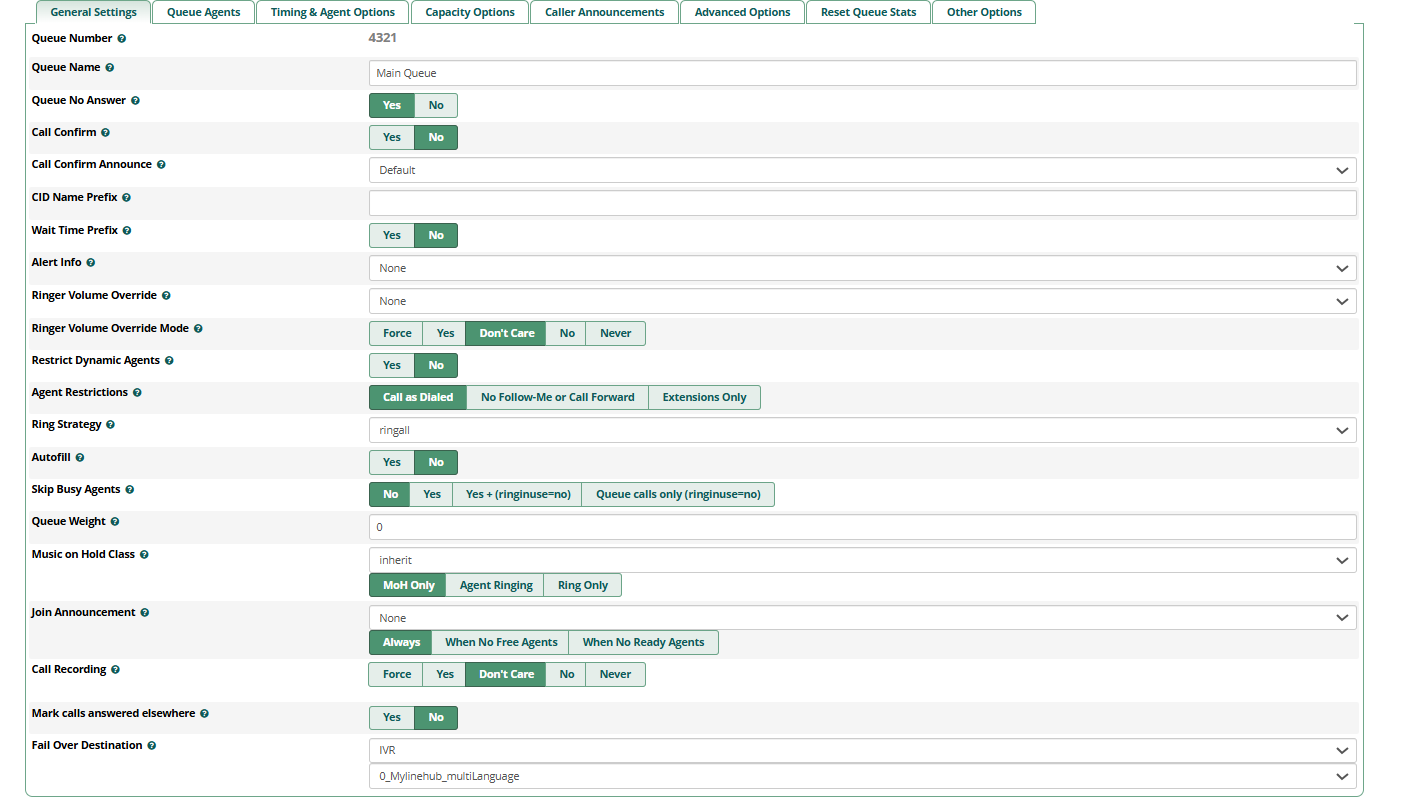
The General Settings tab defines what the queue “is” and the default call behavior: queue number/name, ring strategy, whether to skip busy agents, music on hold behavior, call recording policy, and what happens if the queue cannot be answered.
Production recommendations
- Queue Number / Name: choose a clean numbering plan (example: 600 Sales, 601 Support, 602 Billing).
-
Ring Strategy:
- ringall: simple for small teams (everyone rings)
- leastrecent / fewestcalls: better fairness as team grows
- Skip Busy Agents: usually Yes for call centers so Asterisk doesn’t waste time ringing busy agents. If you use phones that don’t report busy correctly, test both modes.
- Music on Hold: keep a calm MOH class and decide whether MOH plays only or while agents are ringing (depends on your customer experience choice).
- Call Recording: enable for QA/training/disputes (choose policy based on compliance).
- Fail Over Destination: always set a safe destination (IVR, voicemail, callback IVR, another queue). Never leave callers stuck.
Common mistakes
- Queue created but no failover → callers hang forever or get dropped unexpectedly.
- Using ringall with large teams → chaos and low answer efficiency.
Tab 2: Queue Agents (Who Answers Calls)
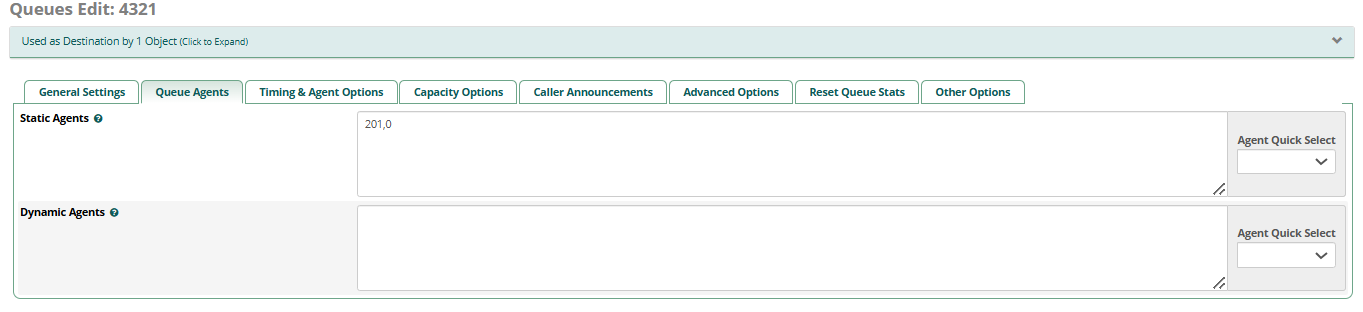
The Queue Agents tab decides which extensions are members of the queue. FreePBX supports two common patterns:
- Static Agents: always members (good for fixed teams)
- Dynamic Agents: agents log in/out per shift (best for real call centers)
Best practice
- For shift-based teams: prefer Dynamic Agents so reporting matches real availability.
- Keep agent endpoints stable: avoid adding trunks/external numbers as agents unless you fully understand call-confirm workflows.
If calls never reach agents, the #1 reason is: no agents are actually active (static list empty or dynamic agents not logged in).
Tab 3: Timing & Agent Options (Timeouts, Retry, Wrap-Up, Auto-Pause)
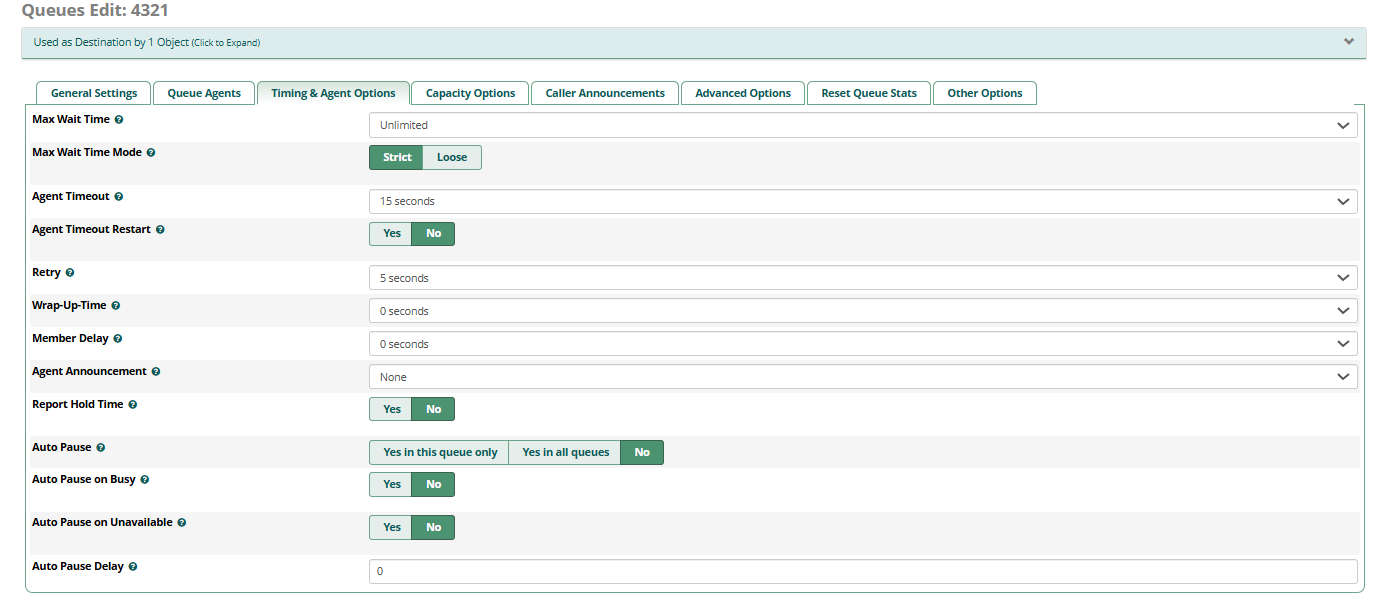
The Timing & Agent Options tab controls how long calls wait, how long each agent rings, how quickly the queue retries the next agent, and whether agents get a wrap-up window after calls.
How to choose values (practical)
- Agent Timeout (how long an agent rings): 10–20 seconds is typical.
- Retry (how fast to try another agent): 3–7 seconds is common.
- Wrap-Up-Time: 5–30 seconds if agents need to update CRM notes after each call.
- Max Wait Time: don’t leave it unlimited unless you intentionally want long holds; use a business-driven limit and failover.
- Auto Pause: helpful to reduce missed calls (auto-pause agents who don’t answer).
Recommended failover design
If the caller waits too long, route to a fallback: voicemail, callback IVR, or “press 1 to request a callback”. This improves customer satisfaction and prevents abandonment.
Tab 4: Capacity Options (Max Callers + Empty Queue Rules)
The Capacity Options tab protects your queue from overload and defines what happens when the queue has no eligible agents.

Key fields explained
- Max Callers: set a real limit for your team. If you set it too high, callers will wait forever and you’ll lose trust.
- Join Empty: controls whether callers are allowed to enter the queue when there are no available agents. Safer production choice is usually Strict or stronger (depends on your operations).
- Leave Empty: controls whether callers should be removed from the queue if the queue becomes empty while they are waiting.
- Penalty Members Limit: advanced distribution behavior; keep defaults unless you use penalty-based routing tiers.
Practical recommendation
If your business cannot serve calls when no agents are logged in, set Join Empty strict, and route callers immediately to an IVR or voicemail rather than holding them endlessly.
Tab 5: Caller Announcements (Position + Periodic Messages)
The Caller Announcements tab controls what callers hear while waiting: queue position announcements, hold-time announcements, and optional periodic messages.
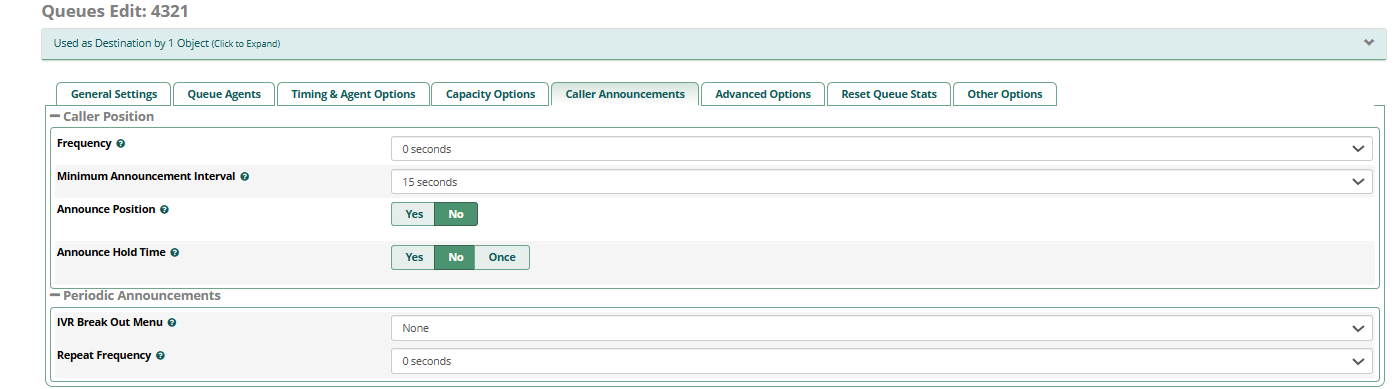
Best practice for announcements
- Don’t announce too frequently (it irritates callers). Use a sensible minimum interval (example: 15–30 seconds).
- Use IVR Break Out Menu if you want callers to press a key for options like callback, WhatsApp support, or voicemail.
- Keep periodic announcements short and clear (“All agents are busy, please stay on the line…”).
Tab 6: Advanced Options (Service Level + Agent Regex Filter)
The Advanced Options tab includes reporting-oriented settings. Two useful fields shown in the screenshot are:
- Service Level: your SLA threshold (example: answer within 60 seconds)
- Agent Regex Filter: advanced filtering of agent members (leave blank unless you know why you need it)

How Service Level helps
Service Level is used in reporting to calculate “% calls answered within X seconds”. Pick a number that matches your business promise (like 30s, 60s, 90s).
Tab 7: Reset Queue Stats (Use Carefully)
This tab controls whether queue statistics should be reset. In production, resetting stats can affect trend reporting, so do it only when you intentionally want a clean slate (for example, after a major configuration change or at the start of a new reporting period).

Tab 8: Other Options (Optional Integrations)
The Other Options tab often includes optional integrations. In your screenshot, it shows an iSymphony option.

Apply Config + Test (Minimum Real-World Checks)
- Click Submit
- Click Apply Config
- Test with an external call: IVR → queue → agent answers
- Test “no agent available”: ensure failover works (IVR/voicemail/callback)
- Test announcements: confirm frequency is not annoying
Quick troubleshooting map
- Calls never reach agents: agents not in Static list, or Dynamic agents not logged in.
- Rings agents but drops / no audio: SIP NAT/RTP or codec mismatch (fix SIP settings first).
- Queue waits forever: Max Wait Time + failover not designed.
- Bad customer experience: announcements too frequent, no break-out option, no callback path.
Production Checklist
- General Settings: ring strategy chosen for your team size + failover destination set
- Agents: static/dynamic membership works (agents really available)
- Timing: agent timeout/retry/wrap-up tuned for your workflow
- Capacity: Join Empty / Leave Empty prevent “dead queue” caller frustration
- Announcements: not too frequent; optional IVR break-out configured
- Service Level: SLA set (for reporting/monitoring)
- Stats: reset only when intentional
- Other Options: enable only if you use those integrations
Once queues are stable, the next production step is connecting call outcomes to your CRM and automation layer (callbacks, WhatsApp follow-ups, agent performance dashboards, and AI-driven routing).
Want to see API-driven CRM + Telecom workflows in action? Try the WhatsApp bot or explore the demos.
Comments (0)
Be the first to comment.