FreePBX SysAdmin Module: Updates, Backups, and Security
Screenshots + clean steps to configure this FreePBX module in a production-safe way.

FreePBX SysAdmin Module: Updates, Backups, and Security
The SysAdmin module in FreePBX is the operational control center for your PBX server. It covers “server health” items that silently break production systems: DNS, hostname, HTTPS, ports, storage alerts, and support bundles for debugging.
Navigate to: Admin → System Admin
In this guide, each section maps directly to the screenshots you captured, so the steps are clear and not generic.
1) System Activation
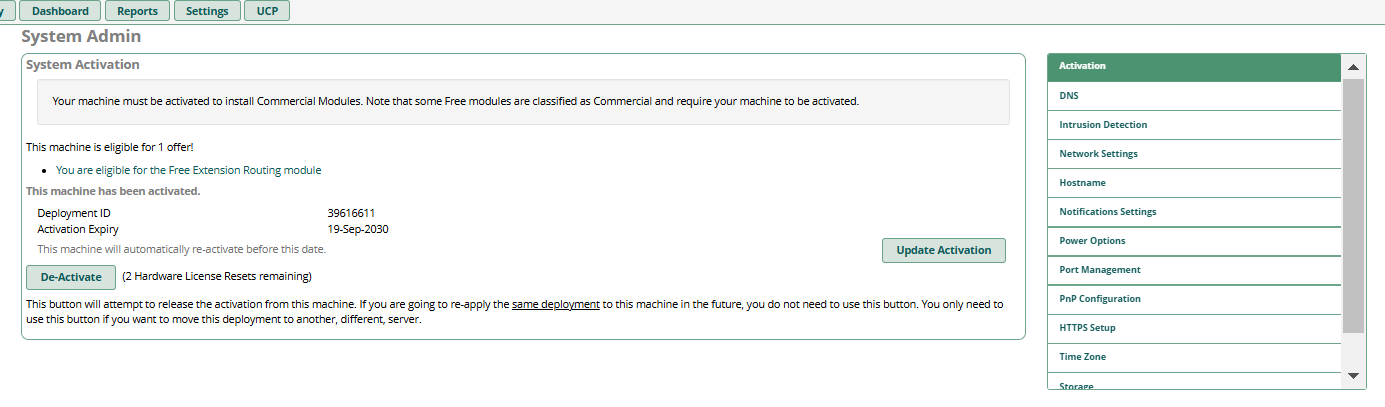
Activation is FreePBX deployment licensing (commercial modules eligibility, update access, and machine identity). If you migrate servers or re-install, you may need to re-activate or de-activate from the old machine.
Production notes
- Do not “De-Activate” unless you are intentionally moving this PBX deployment to a different machine.
- Keep the deployment details documented (server name, public IP, hostname, purpose) for faster recovery later.
2) DNS
DNS impacts everything: updates, certificate renewals, outbound email/notifications, and any provider hostname-based SIP trunks. A broken DNS setup can look like “random” failures (cert renewal fails, module downloads fail, hostname won’t resolve).
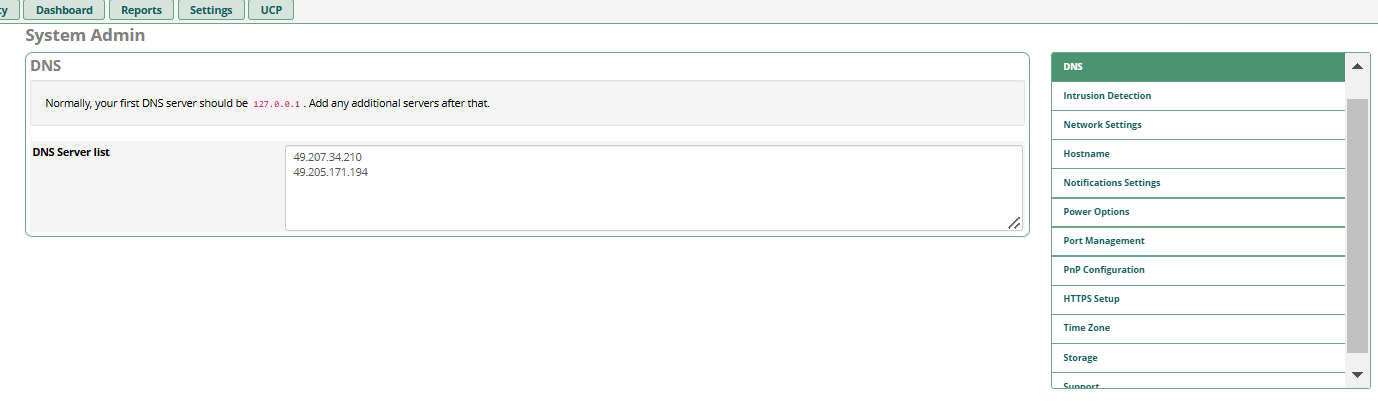
127.0.0.1 as first resolver, then upstream DNS after that.
Production rules
- Use reliable DNS resolvers (ISP + public DNS, or your organization DNS).
- If your SIP trunk uses a hostname (not IP), DNS reliability is critical.
- After DNS change, verify the server can resolve names (e.g., repo URLs, your SIP provider hostname, Let’s Encrypt endpoints).
3) Hostname
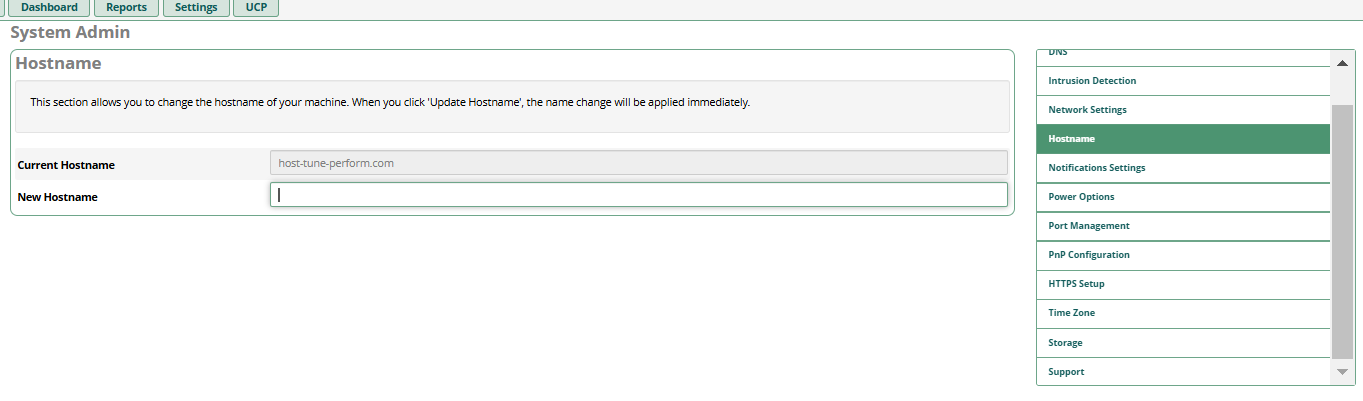
Hostname affects certificates, HTTPS access, and sometimes SIP identity. In production, pick a stable FQDN early
(example: pbx.company.com) and avoid changing it frequently.
Best practice
- Set hostname to your real FQDN that points to this server (A/AAAA record).
- After changing hostname, re-check HTTPS certificate selection and renewals.
- If you use WebRTC later (WSS/HTTPS), hostname + valid certificate becomes mandatory.
4) Port Management
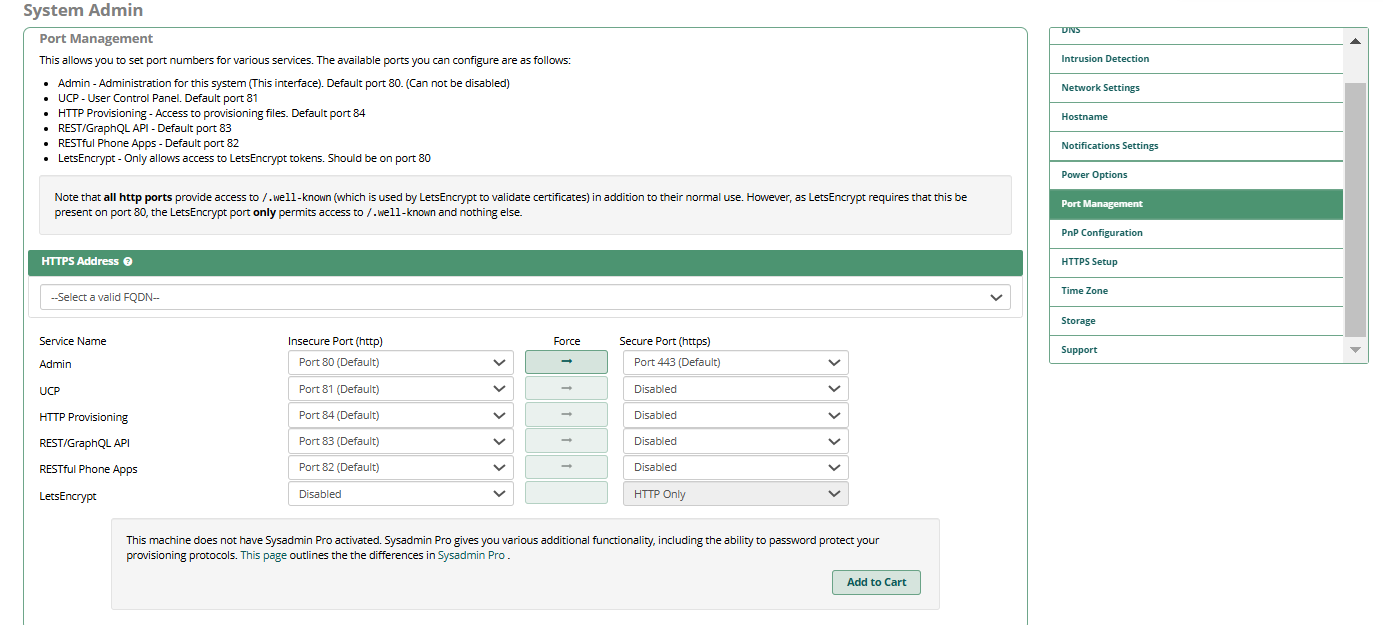
Port Management controls which local web services listen on which ports (Admin GUI, UCP, provisioning, REST APIs, etc.) and whether each service is forced to HTTPS.
Production recommendations
- Expose only what you need. If you don’t use UCP/provisioning/API externally, keep them blocked at firewall level.
- Prefer HTTPS for the Admin GUI and any exposed web interface.
- Be mindful of Let’s Encrypt validation: HTTP
/.well-knownis commonly required on port 80. - Do not change ports randomly—document changes (security teams, load balancers, reverse proxies).
5) PnP Configuration
PnP (Plug and Play) is for auto-configuring compatible phones (commonly Sangoma phones) on the same network. If you are not using phone provisioning/PnP in your environment, it should remain disabled to reduce attack surface.
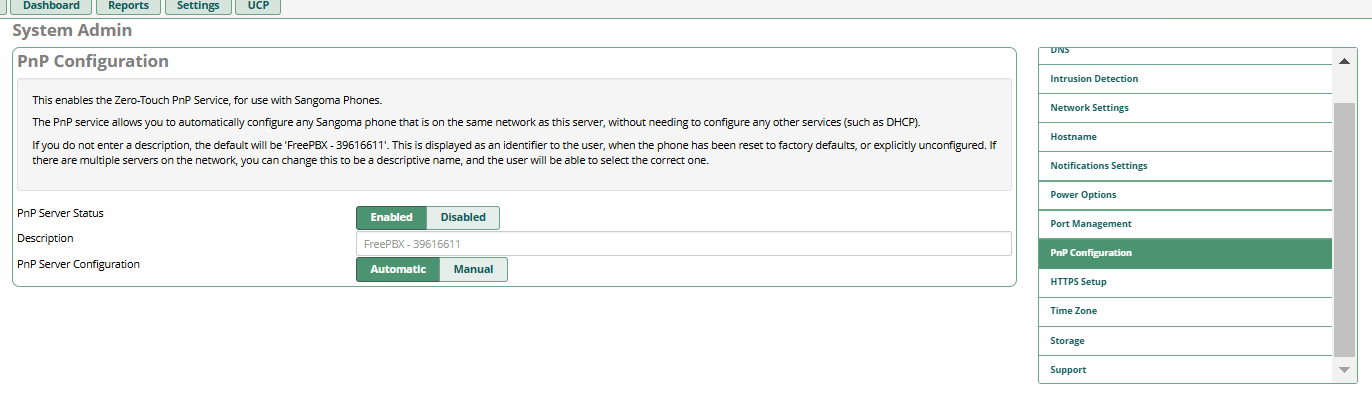
Production guidance
- Keep PnP disabled unless you truly use it for phone deployment.
- If enabled, restrict access to your LAN/VPN only (do not expose provisioning services to the public internet).
6) HTTPS Setup
HTTPS Setup is where SysAdmin binds a certificate (from Certificate Manager) to Apache/FreePBX GUI and controls SSL/TLS protocol policy. This directly impacts browser trust, secure logins, and any future WebRTC/WSS use.
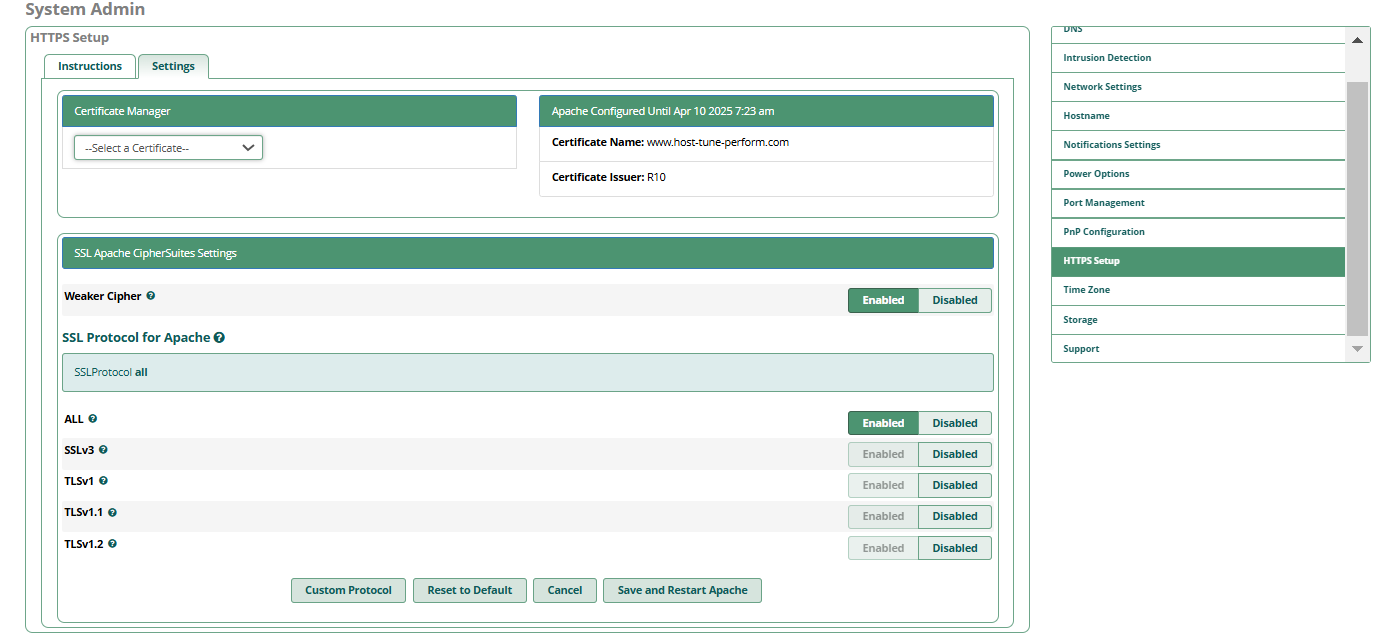
Secure defaults
- Use a valid certificate for the exact hostname you access in browser (FQDN).
- Disable old protocols where possible (avoid SSLv3, TLSv1.0, TLSv1.1).
- If anything breaks after tightening TLS, fix client/proxy compatibility—don’t downgrade security for production.
7) Storage
Storage failures are the #1 “sudden PBX outage” cause. When disk fills up, symptoms include call failures, recording failures, voicemail issues, database errors, and FreePBX GUI slowness/crashes.
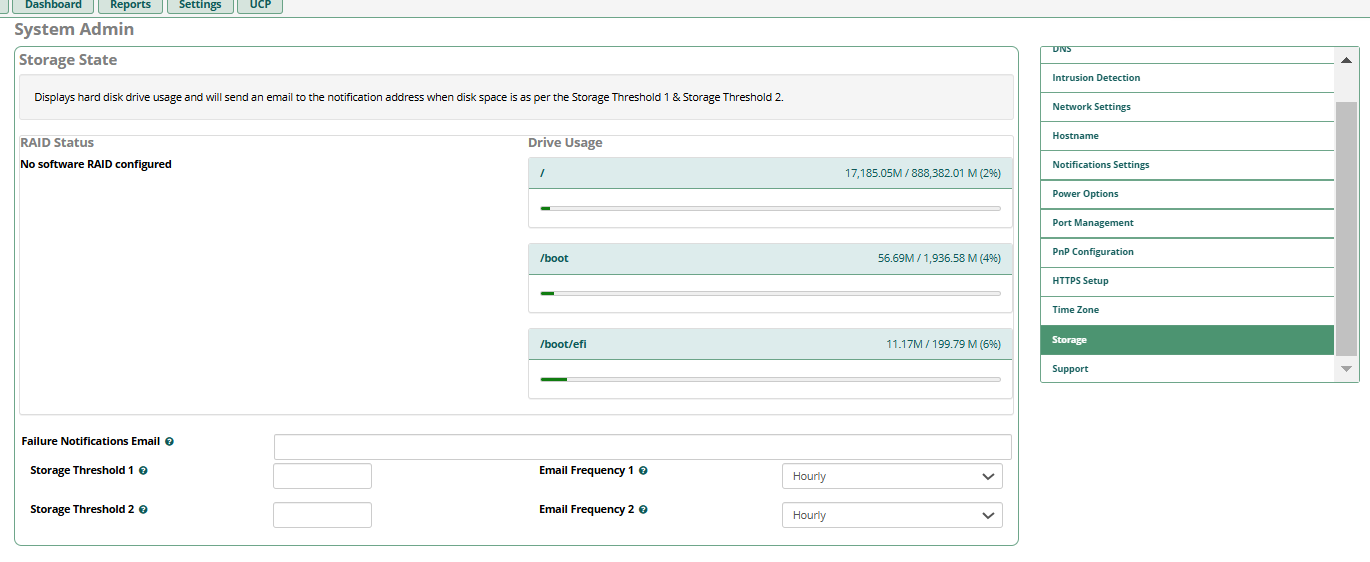
Production checklist
- Set alert thresholds (example: warn at 70%, critical at 85–90%).
- Recordings and voicemails grow fast—plan retention/archival.
- Rotate logs and keep an eye on runaway debug logs during troubleshooting.
8) Support Bundle
When debugging production issues or working with vendors/teams, the Support section helps you export the right system data (versions, logs, firewall settings, dialplan, SIP/PJSIP settings) in a clean bundle.
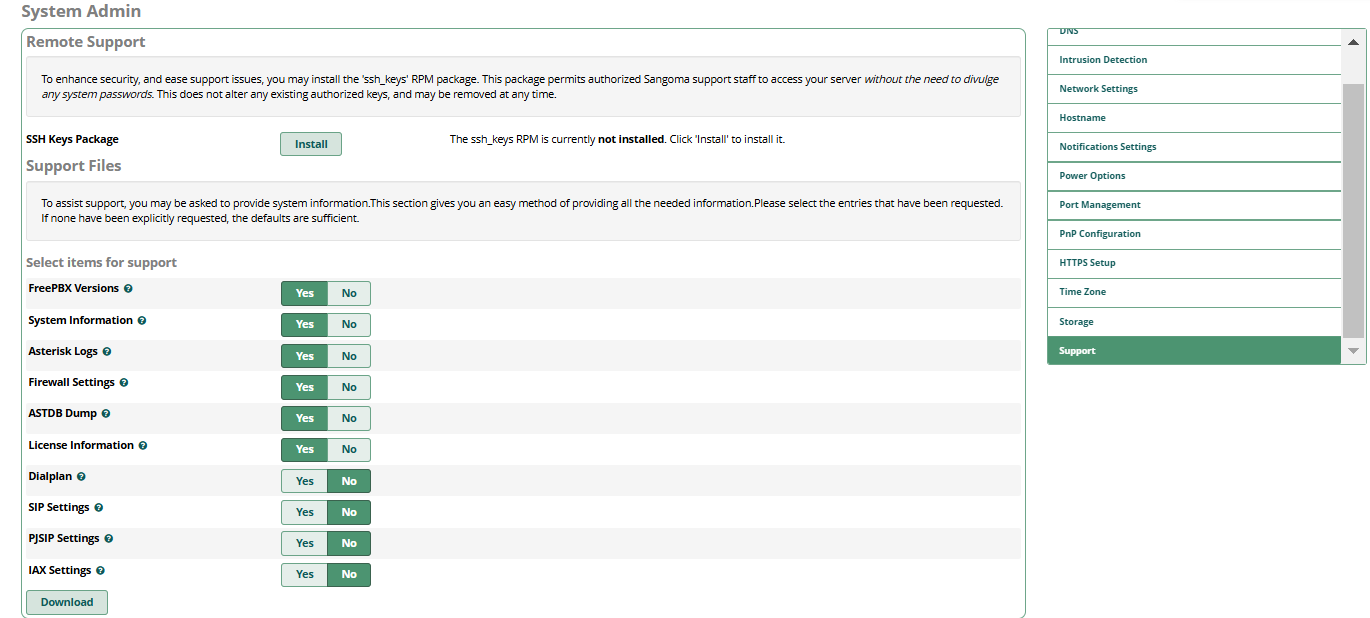
Security notes
- Support bundles can contain sensitive data (IPs, configs, logs). Share only with trusted teams.
- If enabling remote support/SSH keys packages, do it only when needed and remove/disable afterward.
Production Summary
- Activation: keep deployment stable; de-activate only when migrating.
- DNS: set reliable resolvers; DNS issues cause “random” failures.
- Hostname: pick a stable FQDN; hostname impacts certs and WebRTC readiness.
- Ports: expose minimal services; prefer HTTPS; document changes.
- PnP: disable unless you truly provision phones.
- HTTPS: use correct cert; enforce modern TLS; restart Apache after changes.
- Storage: configure alerts; manage recordings/logs; prevent disk-full outages.
- Support: export clean bundles for troubleshooting without sharing unnecessary data.
Once SysAdmin is clean, your FreePBX becomes operationally stable—which is the base requirement before scaling trunks, IVRs, queues, and integrations like MYLINEHUB VoiceBridge.
Want to see API-driven CRM + Telecom workflows in action? Try the WhatsApp bot or explore the demos.
Comments (0)
Be the first to comment.