FreePBX Trunks: SIP Provider Setup, Registration, and Identify/Match
Screenshots + clean steps to configure this FreePBX module in a production-safe way.

FreePBX Trunks: SIP Provider Setup, Registration, and Identify/Match
A Trunk is the connection between your FreePBX/Asterisk server and the outside world (your SIP provider). If trunks are misconfigured, you’ll face issues like:
- Inbound calls not reaching FreePBX (DID not matching, provider rejected)
- Outbound calls failing (403/401, “All circuits are busy”, or no route)
- One-way audio (NAT/RTP problems)
- Calls rejected due to missing caller ID or wrong From/Contact headers
- “No matching endpoint found” or repeated authentication challenges
This guide explains trunks in a practical and production-safe way, with the exact places you must configure: Registration (optional), Trunk settings, and Identify/Match.
Where to Create Trunks in FreePBX
Go to:
- Connectivity → Trunks
- Click Add Trunk → choose Add SIP (chan_pjsip) Trunk
Always prefer PJSIP trunks for modern Asterisk/FreePBX deployments. chan_sip is legacy and creates more NAT / compatibility issues.
Understand Two Provider Styles: Registration vs IP Authentication
Providers generally use one of these approaches:
1) Registration-based trunk
- Your PBX authenticates using username/password
- PBX sends REGISTER to provider
- Inbound calls typically arrive because provider knows your PBX is “registered”
2) IP-auth trunk (no registration)
- Provider authenticates by your static public IP
- No REGISTER needed
- Inbound calls arrive from provider IPs; you must configure Identify/Match
Your trunk configuration depends heavily on which one your provider uses. If you set “Registration” when the provider expects IP-auth, or vice versa, calls will fail.
Step 1: General Trunk Details (Naming + Type)
Start with clean trunk naming. Use names that match your provider and purpose:
- {{org}}_{{id}}_Primary

Keep trunk names stable. If you rename frequently, outbound routes and troubleshooting become messy.
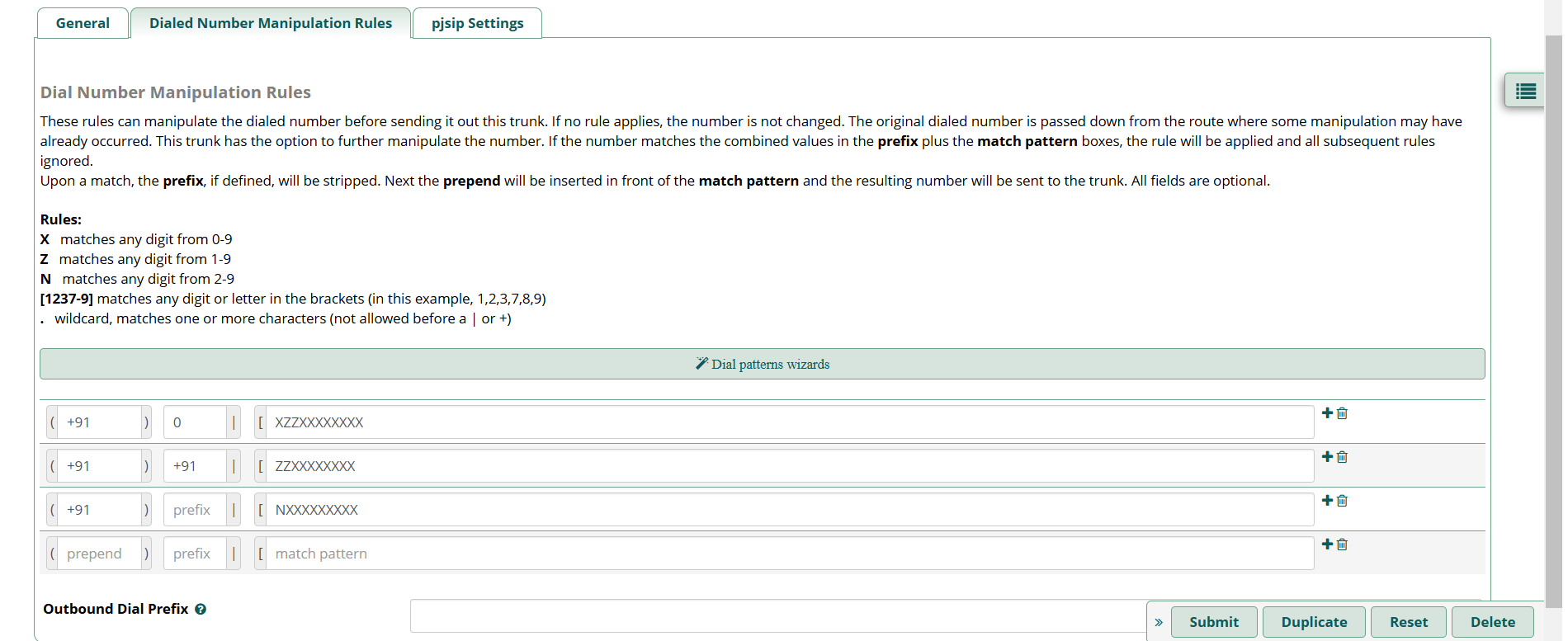
Step 2: DIAL Number Manipulation Rules
- Before call goes out system check number and transform it as per rules here.
- Setting up rules here helps in configuring business scenarios such as click to call
Step 3: PJSIP Settings (SIP Server / Authentication / From Domain)
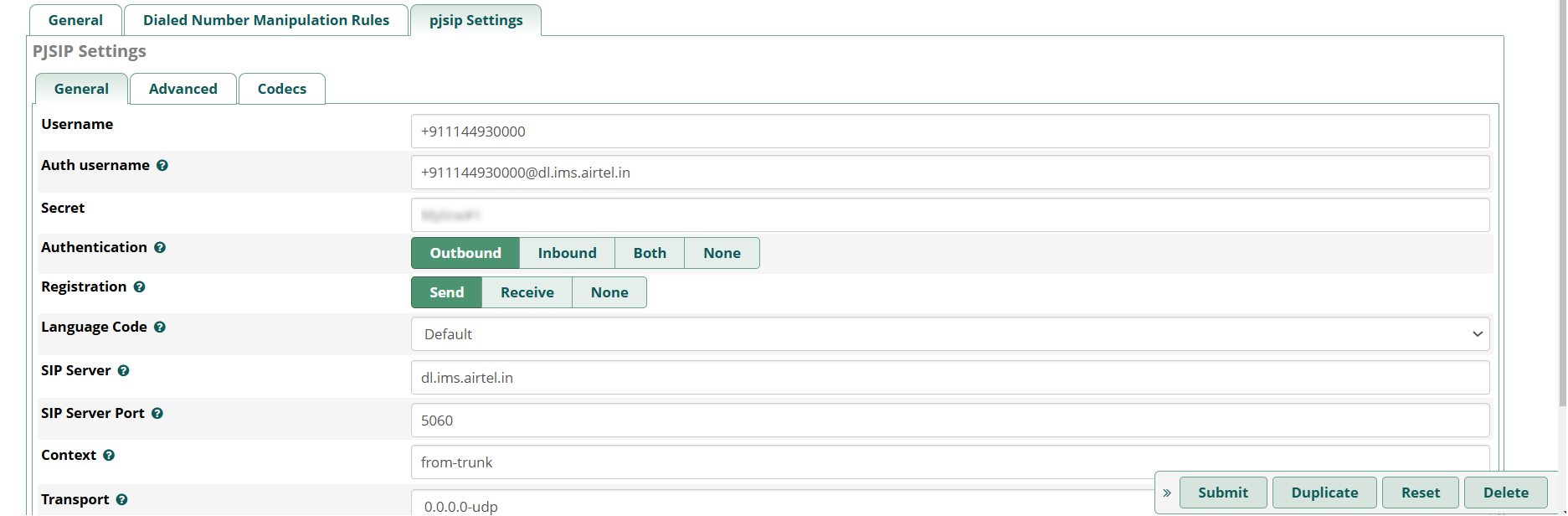
In the trunk’s PJSIP settings, you define:
- SIP Server (provider host/IP)
- SIP Server Port (usually 5060 or 5061 for TLS)
- Username / Secret (only if registration/auth required)
- From Domain (some providers require exact From domain)
- Context / Inbound Destination mapping happens later (Inbound Routes), not here
Production notes
- If provider gave an IP, use IP. If provider gave a hostname, ensure DNS works reliably.
- If using TLS (5061), ensure certificates are valid and firewall allows it.
- Do not guess auth fields—match provider docs exactly.
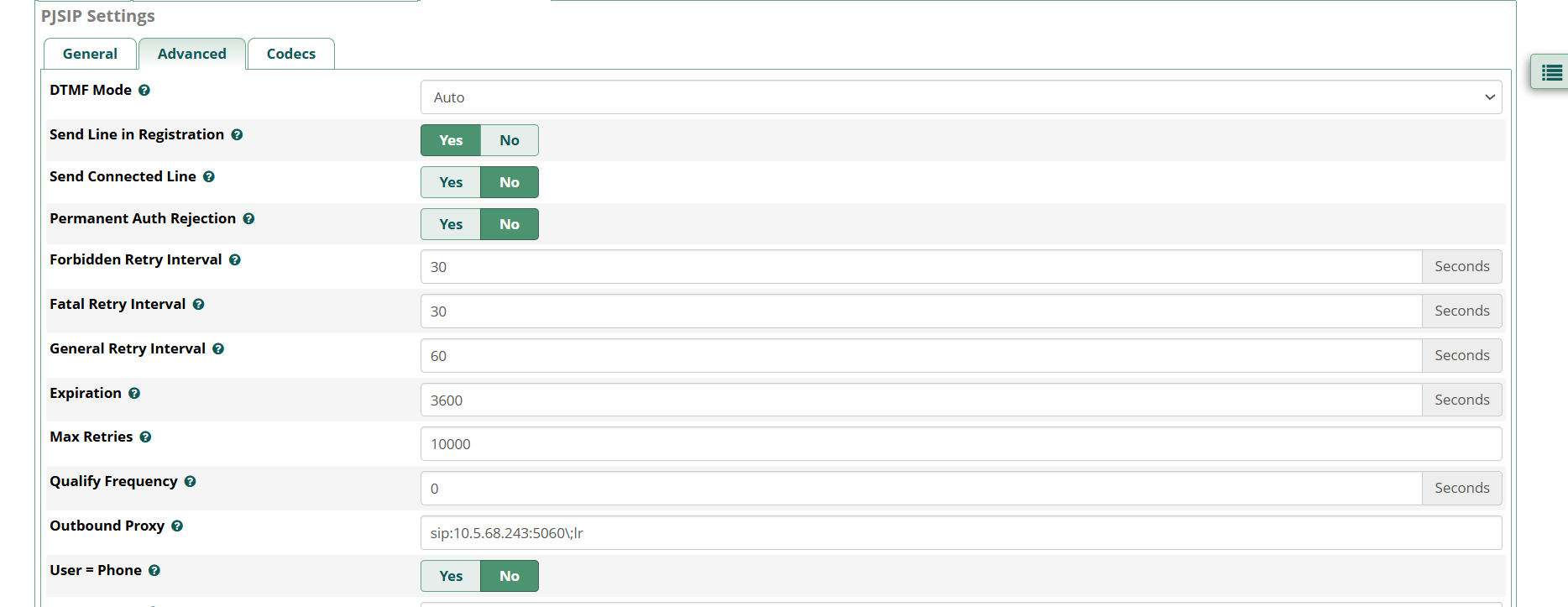
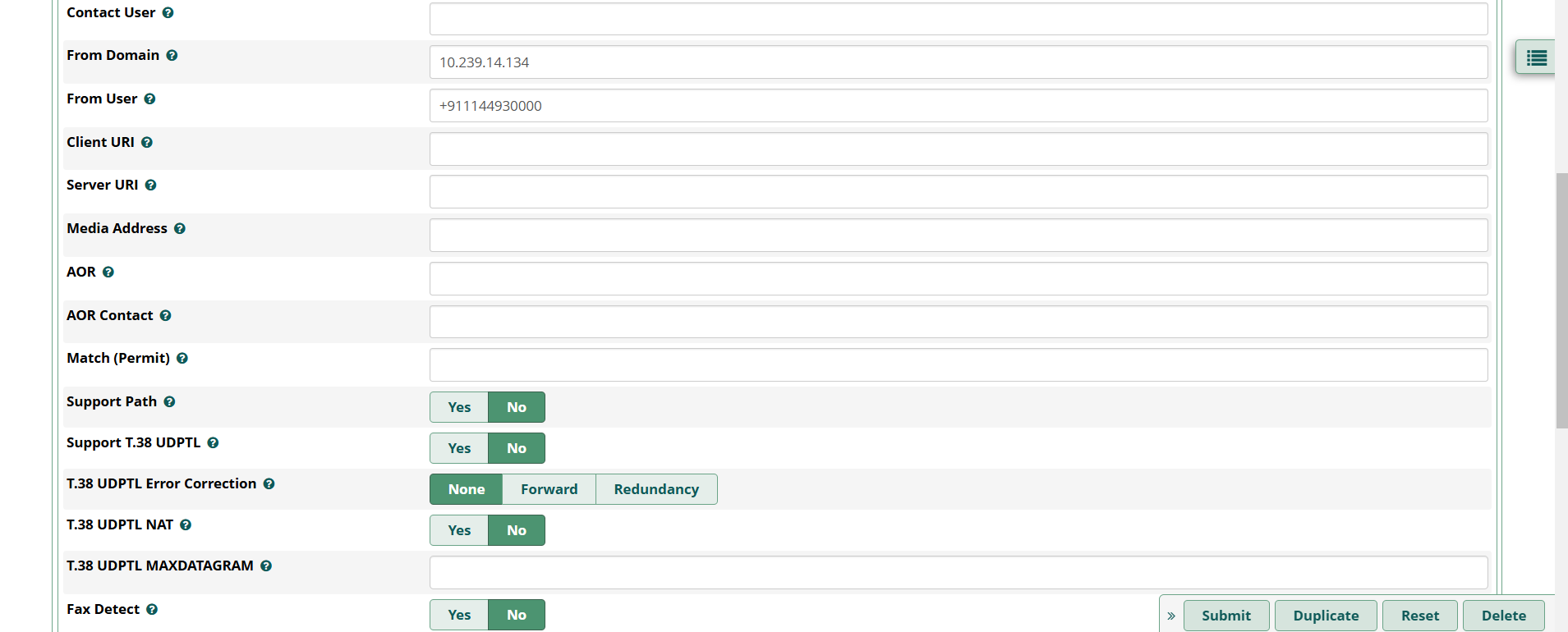
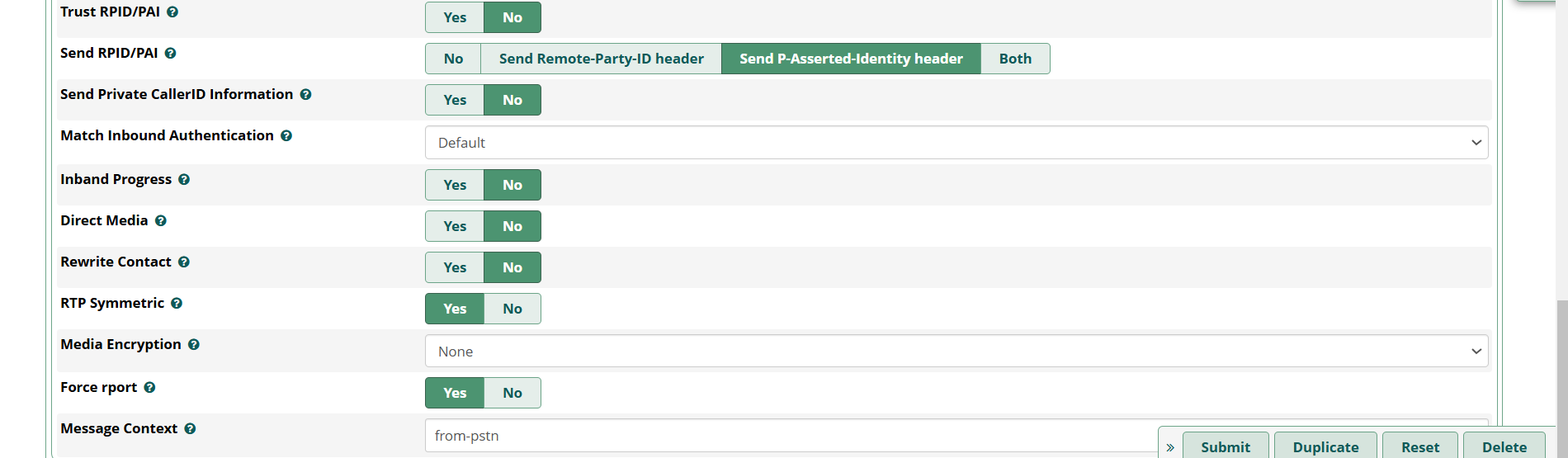
Step 4: Advance SIP Settings
Advance settings decide how SIP headers are thrown to trunk, control RTP behavior and much more
- Call connects but no audio
- DTMF not working in IVR (“press 1 doesn’t register”)
- Call drops quickly due to negotiation failure
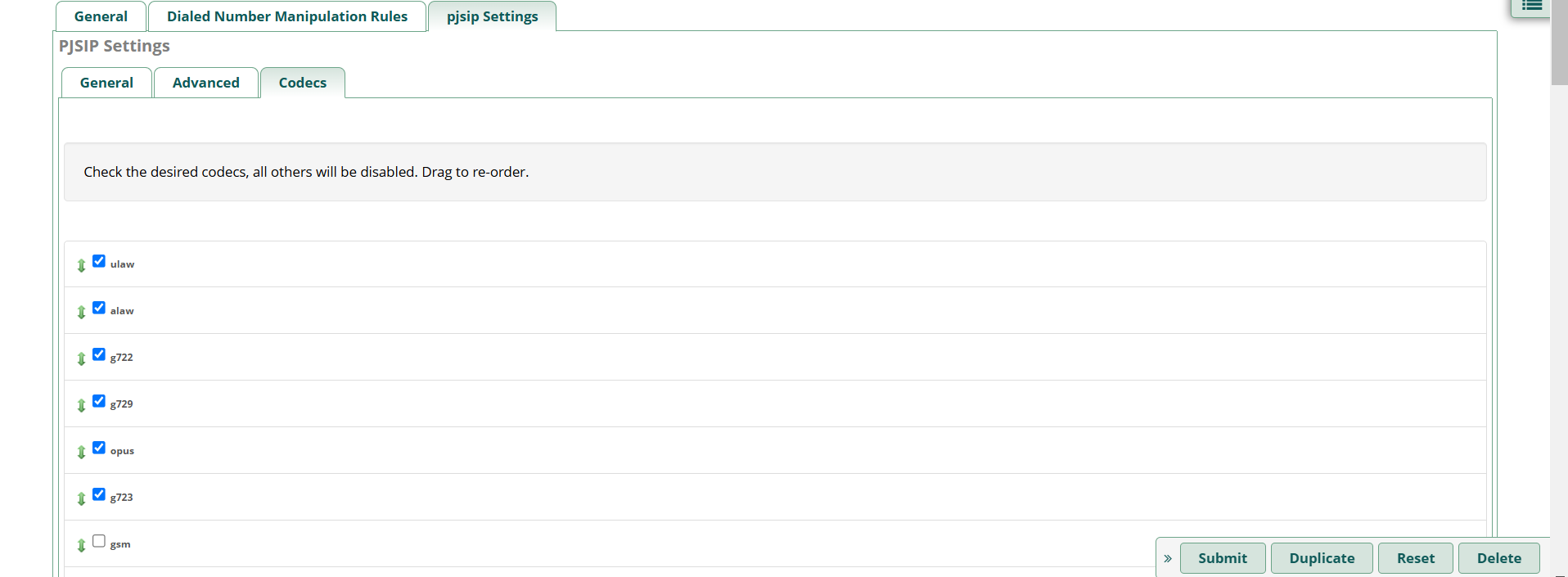
In production, keep codecs minimal and aligned with your provider:
- Most stable: PCMU (G.711 u-law) / PCMA (G.711 A-law)
- If provider supports: Opus can work but depends on path (especially with SBCs)
Recommended DTMF
- RFC4733 (aka RTP Events) is the safest for IVR/DTMF
Common Trunk Troubleshooting Patterns
1) Outbound fails immediately
- Wrong username/password
- Wrong SIP server/port
- Outbound route not pointing to this trunk
2) Inbound never reaches FreePBX
- Missing Identify/Match for provider IPs
- DID mismatch in inbound routes
- Firewall blocking SIP from provider IP
3) Call connects but audio is one-way
- NAT/RTP ports not configured correctly
- Firewall not allowing RTP range
- SIP ALG interfering on router
If audio is the issue, check your FreePBX SIP Settings and network/NAT guide: ensure correct External Address, Local Networks, and open RTP ports.
Production Checklist
- Trunk type is PJSIP and named clearly
- Provider host/port correct
- Registration configured only if required
- Codecs kept minimal (PCMU/PCMA) + RFC4733 DTMF
- Identify/Match includes every provider SBC IP
- Firewall allows SIP from trusted provider IPs + RTP range
- Apply Config after every change
Once trunk is stable, the next steps are: Inbound Routes (DID mapping) and Outbound Routes (dial patterns and trunk selection).
Want to see API-driven CRM + Telecom workflows in action? Try the WhatsApp bot or explore the demos.
Comments (0)
Be the first to comment.