FreePBX Bulk Handler / Admin: Handling Bulk Updates Safely
Screenshots + clean steps to configure this FreePBX module in a production-safe way.
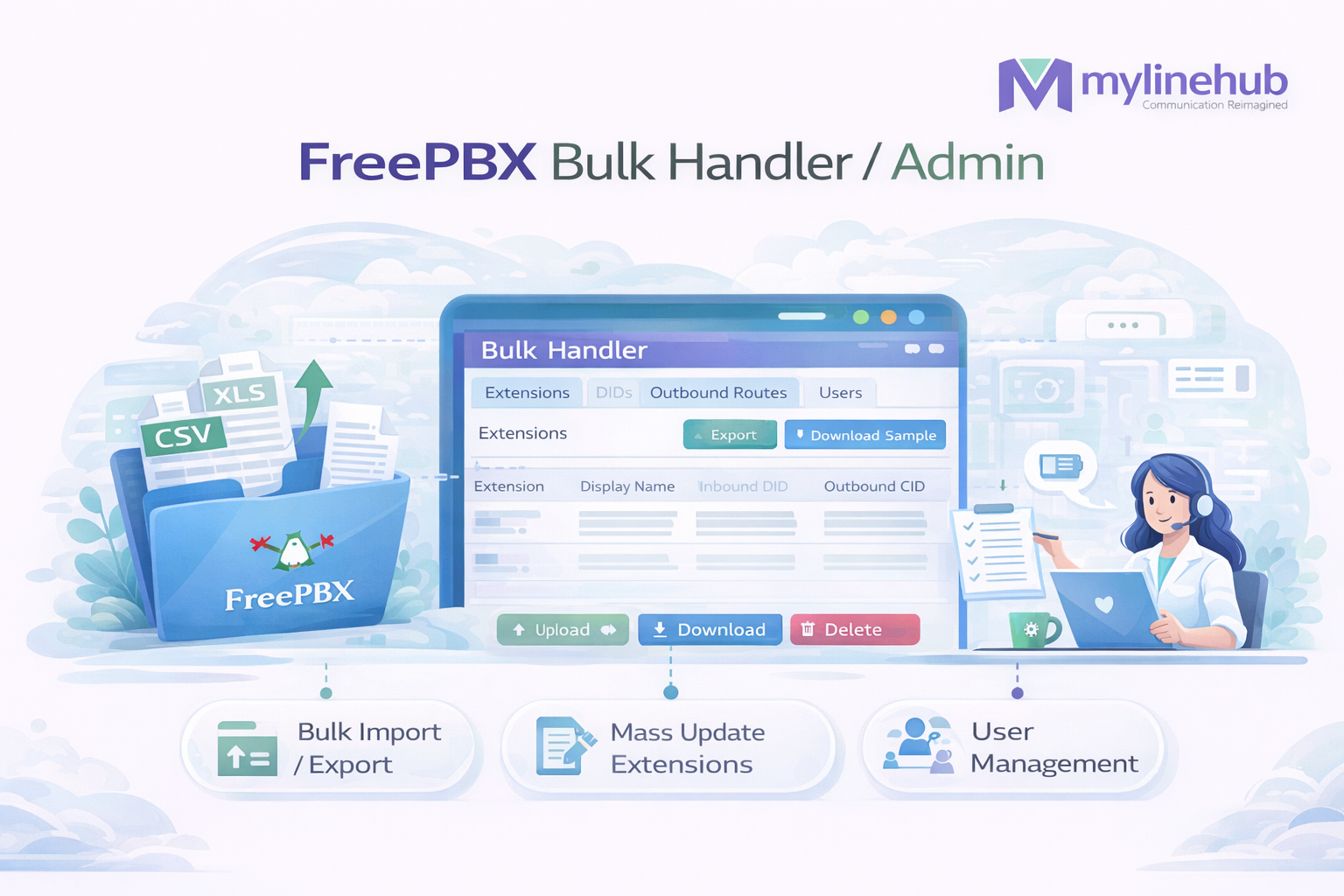
FreePBX Bulk Handler (Admin): Export Raw CSV, Fill in Excel, Import Safely
In production, you rarely configure a PBX “one extension at a time”. When you need to onboard 20/200/2000 users, update caller IDs, migrate DIDs, or add trunks, FreePBX provides Bulk Handler to export current configuration as CSV, let you edit it in Excel/Sheets, and then import it back safely.
- Best practice: always Export first to get the exact columns FreePBX expects.
- Don’t guess headers: Bulk Handler imports fail mostly because headers/columns don’t match.
- Think like deployment: backup → edit → validate → import → apply config → test calls.
Where to Find Bulk Handler
Usually under: Admin → Bulk Handler. In some versions it may appear inside modules that support bulk actions.
Screenshot 1 — Bulk Handler Screen (Export/Import + Tabs)
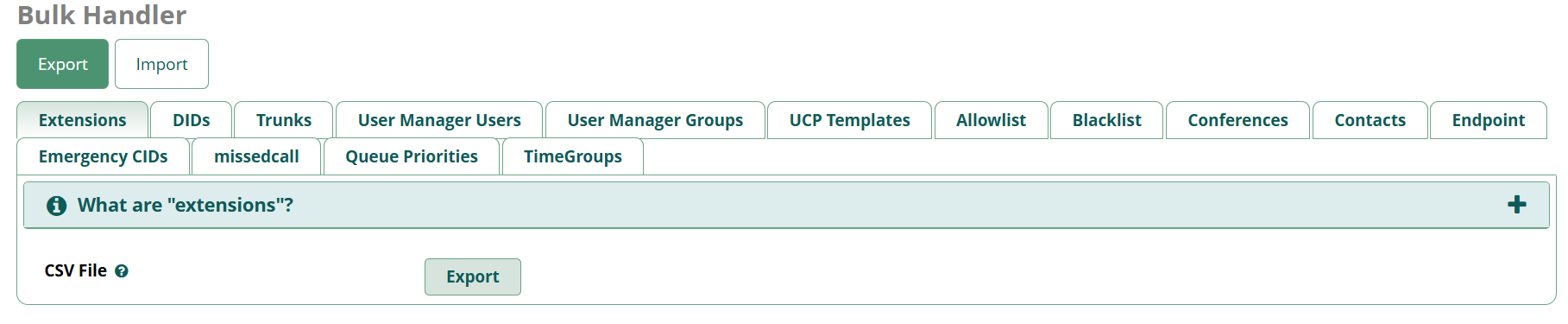
In this screen, you can switch tabs for different objects (Extensions, DIDs, Trunks, etc.). The common workflow is: Export → edit CSV → Import.
How to Extract the “Raw File” (CSV) for Excel
Bulk Handler export gives you a CSV that already contains the correct columns and formatting. Even if it looks “empty”, it’s still a valid template because the headers are what matters.
Step-by-step (as per the image)
- Go to Admin → Bulk Handler.
- Click the tab you want (example shown: Extensions).
- Click Export.
- Your browser downloads a .csv file (open it in Excel or upload to Google Sheets).
If your CSV opens and looks blank: check row 1 — the header row is the real “template”. Some exports also include existing rows; others export only headers depending on module/version/settings.
How to Fill the CSV in Excel (Important Rules)
Rule 1 — Never change the header names
- Do not rename columns.
- Do not reorder columns unless you re-export and confirm it still imports.
- Do not add extra columns.
Rule 2 — Avoid Excel auto-format mistakes
- Set extension numbers / IDs as Text (Excel sometimes removes leading zeros or changes formats).
- Avoid formulas; keep values plain.
- Don’t add commas inside fields unless quoted properly (CSV delimiter issues).
Rule 3 — Save correctly
- Save as: CSV (Comma delimited)
- If you have non-English names, prefer UTF-8 CSV (Excel has options depending on version).
How to Upload (Import) the CSV Back into FreePBX
After filling the CSV:
- Go back to Bulk Handler.
- Click Import (top area).
- Select the same object type/tab you exported (example: Extensions).
- Upload your edited CSV file.
- Use the preview/validation step (fix errors, re-upload if needed).
- Commit the import.
- Click Apply Config in FreePBX to push changes into Asterisk runtime.
Important: Importing without Apply Config often results in “it shows in GUI but not working in calls”.
What All You Can Export/Import from Bulk Handler
The exact list depends on installed modules, but your screen (image) shows common objects such as:
- Extensions: bulk create/update users, secrets, voicemail fields, caller ID fields
- DIDs: inbound DID mappings (and related routing data depending on module support)
- Trunks: trunk parameters (use carefully; validate providers after import)
- User Manager Users / Groups: bulk user provisioning for UCP/admin access
- UCP Templates: bulk assign/update UCP templates
- Allowlist / Blacklist: bulk add trusted/blocked numbers
- Conferences: bulk manage conference rooms (numbers, names, options if supported)
- Contacts: bulk contacts directory
- Endpoint: endpoint/device-related bulk operations depending on your deployment
- Other tabs you may see: Emergency CIDs, TimeGroups, Queue Priorities, etc.
Rule: Always export the same tab first, then edit, then import. Don’t build CSV from scratch because each module expects a specific schema.
Example: Bulk Create 3 Extensions (Template Style)
Your exported CSV will contain the real column headers for your FreePBX version. Below is an example structure to understand how rows are filled. When you do it for real, use your exported headers exactly as-is.
extension,displayname,secret,voicemail,vm_password,vm_email,outboundcid
1001,Ravi Sales,7qP!m3K9x2A@pL1,enabled,8392,ravi@company.com,1001
1002,Support Desk 1,8Wk#29nQp1Z@tR7,enabled,6621,support1@company.com,1002
1003,Support Desk 2,5Hn!11xQe9P@kS4,disabled,,support2@company.com,1003
How to read the example
- extension: internal dial number (must be unique)
- displayname: what agents see as caller name internally
- secret: SIP password (keep strong; never 1001/1234)
- voicemail: enabled/disabled (format depends on your export)
- vm_password: voicemail PIN (don’t use 0000/1234)
- vm_email: where voicemail-to-email is sent (if configured)
- outboundcid: outbound caller ID value (depends on your dialplan policy)
Some systems also include columns for: language, emergency CID, ring timer, follow-me, transport/TLS flags, user manager linkage, etc. Those appear when you export.
Common Errors and Fix
1) “Missing required field”
- Cause: one required column is empty in some row
- Fix: compare against the exported template and fill all required fields
2) “Duplicate / already exists”
- Cause: extension/DID/etc. already exists
- Fix: decide whether you are updating existing rows or creating new numbers
3) Excel broke the CSV
- Cause: Excel auto-formatted values or shifted commas
- Fix: set columns to Text, avoid commas, save as CSV, or edit in a CSV editor
After Import: Verify It Actually Works
- Apply Config in FreePBX.
- Register a few random extensions on softphones.
- Test internal calling: 1001 → 1002 (two-way audio).
- Test DTMF (IVR/feature codes) if relevant.
Optional Asterisk checks:
asterisk -rvvv
pjsip show endpoints
pjsip show endpoint 1001
Security Notes (Bulk = Power)
- Bulk Handler can modify a lot of configuration fast — limit access to trusted admins only.
- CSV exports can contain sensitive data (extensions, emails, internal structure). Store securely.
- Never use weak SIP secrets in bulk creation — PBX hacking happens most often via weak extension passwords.
Next Steps
Want to see API-driven CRM + Telecom workflows in action? Try the WhatsApp bot or explore the demos.
Comments (0)
Be the first to comment.