FreePBX Certificate Management: HTTPS, PEM, and Renewals
Screenshots + clean steps to configure this FreePBX module in a production-safe way.
FreePBX Certificate Management: HTTPS, SIP TLS, WebRTC (WSS), PEM Imports, and Renewals
Certificates are not just for the “lock icon” in the browser. In FreePBX, certificates impact multiple services: Web GUI (HTTPS), SIP over TLS, and WebRTC (WSS + DTLS-SRTP). If certificates are wrong, you’ll see failures like: browser warnings, WebRTC not connecting, TLS trunks not registering, or WSS handshake errors.
- HTTPS (GUI): secure admin access to FreePBX
- SIP TLS (5061 typical): encrypted SIP signaling (providers/phones that require TLS)
- WebRTC: needs valid cert for HTTPS + WSS; browsers block insecure origins
- Asterisk HTTP / ARI / WS endpoints: can also rely on the deployed cert depending on setup
Before You Start
1) Use a real hostname (FQDN), not an IP
Certificates are issued to domains (example: pbx.mycompany.com),
not to random IP addresses. You can run a PBX by IP, but browsers and WebRTC will fight you.
2) Confirm DNS is correct
- Create an A record for your PBX hostname → your public IP
- Wait for DNS propagation if you just updated it
3) Plan the firewall ports
- Let’s Encrypt HTTP challenge: needs port 80 reachable from the internet (HTTP-01)
- GUI access: typically 443 (restrict to trusted IPs/VPN in production)
- SIP TLS: typically 5061 (only if you use TLS phones/trunks)
4) Backup first
Before certificate changes on a production PBX: take a FreePBX backup or VM snapshot. Certificate mistakes can break GUI + calling.
Where to Find Certificate Manager
Go to: Admin → Certificate Management (menu wording can vary slightly by FreePBX version).
Screenshot 1 — Certificate Management List (What You See Here)

What each important part means
- Certificate: the primary certificate name/hostname (Common Name)
- Type: how it was created (Let’s Encrypt vs uploaded/imported)
- Default: the system “default” certificate for services that rely on default selection
- Action icons: edit/view details, delete (use delete carefully)
Important production rule: Setting a certificate as Default influences which certificate FreePBX uses in places that reference the “default certificate” (and it can also place standard cert/key copies under Asterisk key locations for other services to use). Don’t change Default casually on a live system.
Screenshot 2 — Edit Certificate (Let’s Encrypt Example)
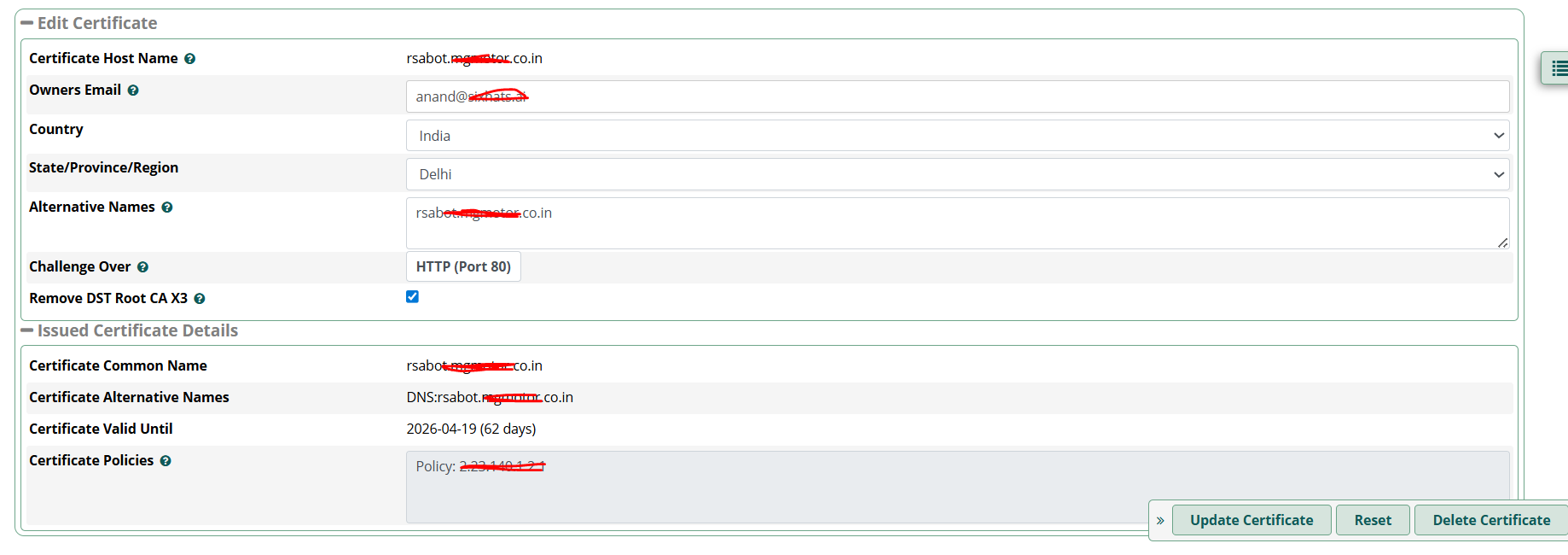
Fields you must understand (matches what you see on this screen)
1) Certificate Host Name
- The main hostname for the certificate (Common Name)
- Must match the domain you will use in browser/clients (example:
pbx.mycompany.com)
2) Owner’s Email
- Used for Let’s Encrypt notifications and certificate identity metadata
- Use a monitored email in production
3) Alternative Names (SAN)
- Extra hostnames this same cert should be valid for
- Example:
pbx.mycompany.com+www.pbx.mycompany.com - Rule: Only add names you truly use. Keep it minimal.
4) Challenge Type (HTTP Port 80)
- If set to HTTP (Port 80), your PBX must be reachable from the public internet on port 80
- If port 80 is blocked (ISP/datacenter/firewall), Let’s Encrypt issuance/renewal can fail
5) Issued Certificate Details (Valid Until)
- This is the real expiry date you must watch
- Let’s Encrypt is short-lived by design; renewals must work reliably
After editing/changing anything here, use Update Certificate and then verify your active services (GUI/TLS/WSS).
Certificate Pieces (So You Don’t Break Imports)
When importing or troubleshooting, you must know the three parts:
- Certificate (CRT/PEM): public server certificate for your domain
- Private Key (KEY): must match the certificate (keep secret)
- Chain/Bundle: intermediate CA certificates needed for trust
Most “installed but not trusted” issues are chain problems. Browsers and WebRTC are very strict: if the chain is incomplete, WSS can fail even if HTTPS seems “okay” in some cases.
Deploying Certificates vs Creating Certificates
Creating/renewing a certificate is step one. Step two is ensuring the correct certificate is actually used by the services you care about:
- FreePBX Web GUI (HTTPS)
- PJSIP TLS transport (if you use SIP TLS)
- WebRTC WSS (browser signaling over secure WebSocket)
In production, always validate after changes:
- Open GUI on the hostname:
https://your-hostname(no warnings) - Confirm the certificate CN/SAN matches your hostname
- If using TLS trunks/phones: confirm registrations and make 1 outbound test call
- If using WebRTC: confirm WSS connects (browser devtools shows cert/WSS errors clearly)
Quick CLI Validation (Optional but Powerful)
GUI certificate (443):
openssl s_client -connect pbx.mycompany.com:443 -servername pbx.mycompany.com -showcertsSIP TLS (5061, only if enabled):
openssl s_client -connect pbx.mycompany.com:5061 -servername pbx.mycompany.com -showcertsIf you see verification errors, it usually means: wrong certificate deployed, missing intermediate chain, or the service is still using an older certificate file.
Common Production Mistakes (And the Fix)
1) Using IP in browser
If your cert is for pbx.mycompany.com but you open https://1.2.3.4,
you will get a mismatch warning. Always use the hostname.
2) Port 80 blocked (Let’s Encrypt HTTP challenge fails)
- Symptom: issuance/renewal fails
- Fix: allow inbound 80 temporarily/permanently, or use a different validation strategy if available in your environment
3) Certificate renewed but services still serve the old cert
- Symptom: GUI still shows old expiry
- Fix: re-deploy/apply the correct certificate and reload/restart services if required
4) Confusing “GUI cert” and “Asterisk TLS/WSS cert”
Some setups secure the GUI but Asterisk (TLS/WSS) still points to another certificate. Always verify each service you use.
WebRTC Note (Why Certificates Become Mandatory)
Browsers require secure origins for real-time calling. For WebRTC calling to work cleanly in production you need:
- HTTPS for the web page
- WSS for WebSocket signaling
- DTLS-SRTP for media encryption
If the certificate is invalid/untrusted, browsers will refuse WSS or block mic/call flows, and it looks like “WebRTC is broken” when the real issue is certificate trust.
MYLINEHUB Practical Notes
- If VoiceBridge connects to Asterisk HTTP endpoints (ARI/WS), keep those endpoints behind trusted networks and use valid HTTPS/WSS certificates.
-
Keep folders consistent (no spaces):
/images/freepbx/certificate-management/
Next Steps
Want to see API-driven CRM + Telecom workflows in action? Try the WhatsApp bot or explore the demos.
Comments (0)
Be the first to comment.