How to Find and Open MYLO on Your Office Network
To open MYLO on an office network, first identify the local IP address assigned to the appliance’s office-facing network port, then enter that address in a supported browser from an authorised computer on the same reachable network.
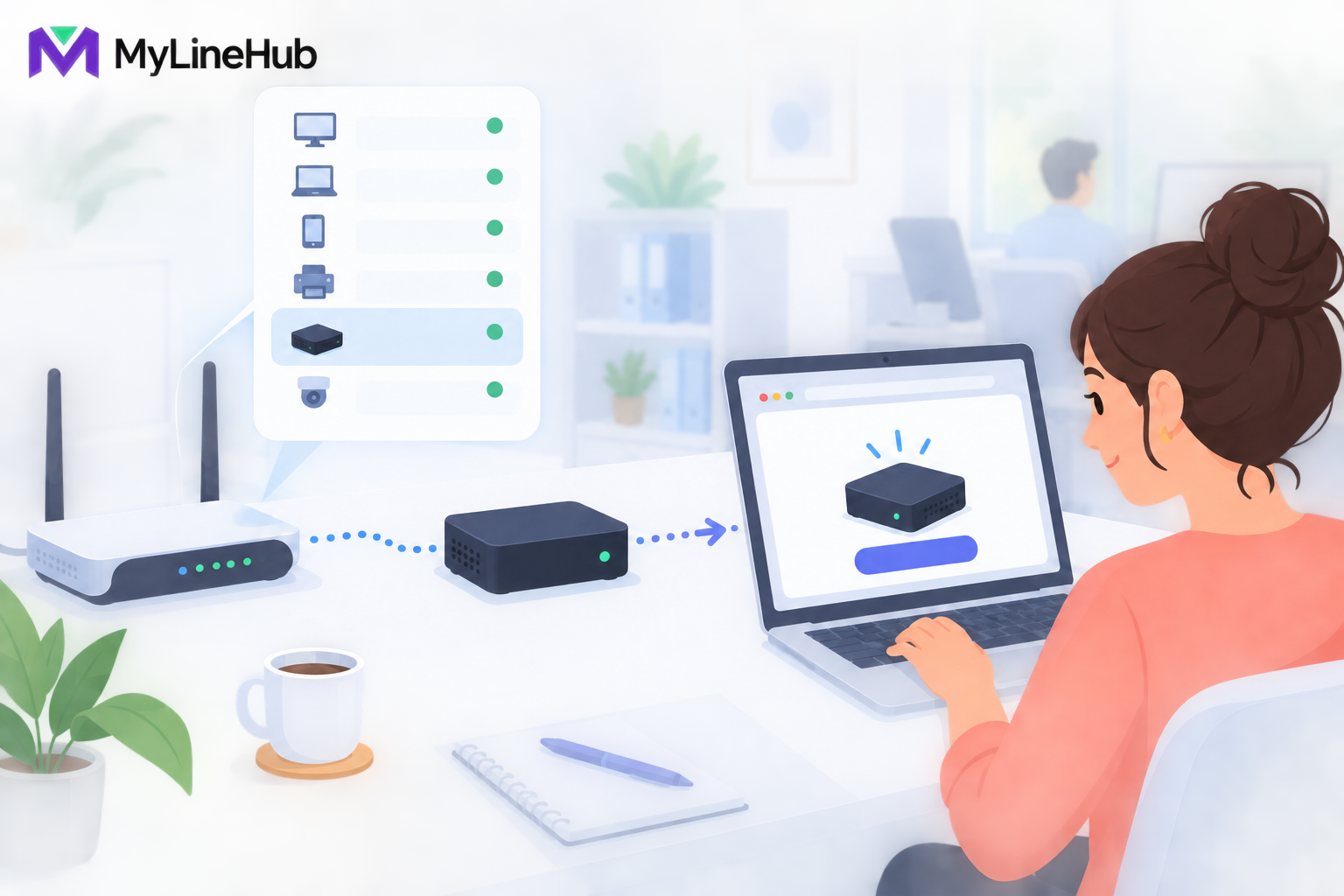
To open MYLO on an office network, first identify the local IP address assigned to the appliance’s office-facing network port, then enter that address in a supported browser from an authorised computer on the same reachable network. In a typical small office, the router’s connected-device or DHCP-client list can show the address. In a managed network, an administrator may have assigned it through an existing address plan. The exact router screen varies, so MYLO should not publish a fictional universal screenshot. Finding the page confirms local network and browser reachability; it does not confirm that the SIP trunk, external numbers, routes, or audio are working. Secure the first login and record the address using the office’s approved documentation process.
Why MYLO Needs a Local Network Address
Every device communicating on an IP network needs an address. MYLO’s office-facing address tells authorised computers where to reach its browser interface. It is similar to a room number inside a building: it identifies a local destination, while the router and network rules determine who can reach it.
A local address is commonly written as four numbers separated by dots. It is not necessarily a public Internet address, and knowing it does not mean the appliance should be exposed outside the office. Local browser access is the normal starting point because it keeps the initial administration journey within the controlled office network.
How DHCP Can Supply the Address
Many routers run a service called DHCP, which assigns network settings to connected devices. When MYLO starts with the office cable attached, the router may offer it an available address. The router then records the assignment in a connected-device, client, LAN, or DHCP list.
DHCP is common, but it should not be assumed without evidence. A managed site may use a fixed address, a reservation, a separate VLAN, or another arrangement. Before recommending that an observed address be converted or reserved, confirm how it was obtained from current router and operating-system evidence.
The address may change later if it is dynamically assigned and no reservation or approved fixed configuration exists. Once the installation is working, the network administrator should decide how MYLO’s address will remain predictable without creating a conflict.
Finding MYLO in the Router List
- Confirm that MYLO is powered on and connected to the intended office LAN port.
- Open the router or network-management interface using the organisation’s approved administrative method.
- Look for a connected-device, client, LAN-host, or DHCP-leases page.
- Identify the appliance using the documented hostname, device label, or network identifier rather than guessing from address alone.
- Record the current local address and the time it was observed.
Router brands use different labels and layouts. Some show only active clients; others retain old leases after a device is disconnected. Compare the router entry with the physical appliance information and current link state. Never publish the router administrator password or a screenshot containing other office devices.
Opening MYLO in a Browser
Use a workstation on the authorised office network and enter the confirmed address into the browser’s address bar. Include the scheme or port only when the approved setup documentation requires it. A search-engine box is not the same as the address bar and may send the private address to an external service instead of opening it locally.
If the page loads, confirm that it is the expected MYLO interface before entering credentials. The browser may display certificate information depending on the deployment. Do not dismiss unexpected warnings blindly; have the administrator confirm the approved local access method.
Bookmarking the local page can help the administrator, but the bookmark should have a clear label and remain on a controlled device. The underlying address must still be documented for recovery and support.
Protecting the First Login
The first administrator account is consequential because it controls later users, approvals, credentials, and system changes within the supported product. Create it in a private setting, use a strong unique password, and store recovery information through the business’s approved secure process.
Do not send passwords or provider secrets through ordinary chat, screenshots, or shared spreadsheets. Where MYLO provides a protected credential action, use that surface rather than asking an AI assistant to repeat the secret. If one active administrative session is allowed, sign out cleanly before another responsible administrator attempts to sign in.
When the Appliance Is Not Visible
Check the physical path
Confirm power, startup, cable seating, the correct MYLO interface, and the intended switch or router port. Link lights can reveal a disconnected cable but do not prove usable IP configuration.
Check network placement
The computer and appliance may be on different VLANs or subnets without a permitted route between them. Guest Wi-Fi often blocks access to office devices. Move to the authorised administration network rather than weakening isolation controls.
Check the address source
The router may not have assigned a lease, or MYLO may already have an approved fixed address. An authorised technician can inspect live Linux interface and route state. Do not assign a random address that could duplicate another device.
Check the browser and service
If the address responds but the page does not load, confirm the correct URL, local firewall, browser policy, and MYLO service state. Keep network reachability and application availability as separate diagnostic questions.
A Practical Small-Office Example
A clinic connects MYLO to its office switch and powers it through the same protected equipment chain as the router. The office manager signs into the router, finds a new client matching the documented appliance identifier, and notes its local address. From a wired reception computer on the office LAN, the manager opens that address and creates the first administrator account.
A laptop on guest Wi-Fi cannot open the page. This is expected because guest devices are isolated. The clinic keeps that boundary instead of opening access broadly. Later, its network administrator creates an approved reservation so the known address remains predictable, then records the decision without including passwords.
What Browser Access Does and Does Not Prove
A successful page load proves that the workstation can reach the MYLO web service over the local network at that moment. It helps establish that power, the office cable, address, route, and application are functioning on that path.
It does not prove carrier activation, SIP authentication, inbound DID delivery, outbound caller-ID authorisation, extension registration, recording, DTMF, or two-way audio. Each outcome needs appropriate evidence and, for telephony, representative real-call testing. Treat setup as a chain of verified checkpoints rather than one “online” indicator.
Local Access Checklist
- Connect the office-facing port to the intended office network.
- Confirm MYLO has completed startup.
- Use the router list or approved network record to identify the address.
- Verify the device identity instead of guessing from the newest address.
- Open the address from an authorised computer on a reachable network.
- Create a protected administrator account and keep credentials out of ordinary messages.
- Agree how the address will remain predictable.
- Record the access method without exposing sensitive network details.
- Test telecom functions separately after provider configuration.
If the cabling stage is not complete, return to connecting the MYLO box. After browser access works, continue with creating the first MYLO administrator. Contact MyLineHub or the organisation’s network administrator if the live addressing or routing evidence is unclear.
Use a Safe Discovery Order
Start with the information supplied for the installed appliance and the office network owner’s records. Confirm that the appliance is powered, the intended Ethernet port shows link, and the connected switch or router port is active. From an authorised computer on the same permitted management network, use the documented MYLO address or local name. Do not guess public addresses, scan networks you do not administer, or expose the management page to the Internet simply to make access easier.
If the expected address is unknown, ask the router or DHCP administrator to identify the lease associated with the appliance, or inspect the appliance locally through the supported method. Linux is the authority for the machine’s current interface and address state. A stale installation note or database record can help locate evidence but cannot override the running network.
Troubleshoot Without Breaking Calling
Separate browser, network, and service questions. Confirm that the user’s computer can reach the local subnet, that the route and firewall permit the management connection, that the hostname resolves when one is used, and that the supported web service is running. A browser certificate warning, timeout, refused connection, and login denial indicate different boundaries. Preserve the exact address, time, browser result, interface link state, and network-owner observations.
Do not reset interfaces, add default routes, disable firewalls, or restart the appliance as a first response. Those actions can interrupt SIP and RTP even when the telephone service was still working. Any consequential network change should be proposed, approved, backed up where supported, applied with local recovery access, and followed by checks of browser management, Internet reachability, provider signalling, real inbound and outbound calls, and two-way audio.
Keep Access Controlled After It Works
Bookmark the approved local address, document which network may reach it, and give administrator credentials only to authorised staff. Keep passwords and API keys out of general messages. If remote administration is required, use the organisation’s reviewed secure-access design rather than forwarding the MYLO management port directly from the public Internet.
Continue planning
Continue with What Is a Telephony Appliance for a Small Business?; Connecting the MYLO Box: The Two-Cable Journey; Creating the First MYLO Administrator. For deeper implementation context, use MyLineHub technical architecture guidance.
Review current MYLO pricing, or discuss this requirement on WhatsApp.
Want to see API-driven CRM + Telecom workflows in action? Try the WhatsApp bot or explore the demos.
Comments (0)
Be the first to comment.