FreePBX Advanced Settings (Asterisk 20): Secure and Correct Defaults
Screenshots + clean steps to configure this FreePBX module in a production-safe way.
FreePBX Advanced Settings (Asterisk 20): Secure and Correct Defaults
FreePBX Advanced Settings is the “global behavior control room” for your PBX. It impacts how FreePBX generates dialplan and how Asterisk services behave system-wide: the built-in HTTP server (ARI/WSS), AMI, certificates paths, logging, device defaults, call recording defaults, and many internal guardrails.
These toggles are powerful because they affect everything: trunks, inbound routes, outbound routes, IVR, queues, extensions, recordings, and automation. A single wrong change here can break ARI, WebRTC/WSS, call progress, or security posture.
This guide is screenshot-based. Every screenshot below is explained using the exact fields shown on your screen, so you can match image → setting → real impact without guessing.
Screenshots Used in This Guide
- Image 1: Global module warning + Advanced Settings Details + start of Asterisk mini-HTTP server toggles
- Image 2: mini-HTTP bind/ports + TLS versions + cert/key paths + session timers + start AMI
- Image 3: AMI credentials/port + ARI enable/origins + ARI credentials + call accounting priority
- Image 4: Time Conditions hook + Call Recording options + CDR logging/batching + start CEL
- Image 5: CEL + Certificate Manager validity + Conferences forced recording + Contacts + Cron jobs
- Image 6: DAHDI configuration paths + echo cancel + dashboard stats/firewall toggles
- Image 7: Developer & Customization toggles + debug logging + caching/perf + reload scripts
- Image 8: Device Settings: SIP defaults (DTMF/NAT/RPID) + qualify + allow/disallow + groups
Before You Change Anything (Non-Negotiable)
- Backup first: FreePBX backup or VM snapshot.
- Record baseline tests: inbound, outbound, IVR DTMF, audio both ways, queue behavior (if used).
- Change in small batches: only a few related toggles at a time.
- Apply Config + test immediately after each small batch.
- Security rule: do not expose AMI/ARI/GUI to the public internet without allowlists/VPN.
Where to Find Advanced Settings
In FreePBX: Admin → Advanced Settings
Screenshot 1: Module Warning + Advanced Settings Details + mini-HTTP toggles
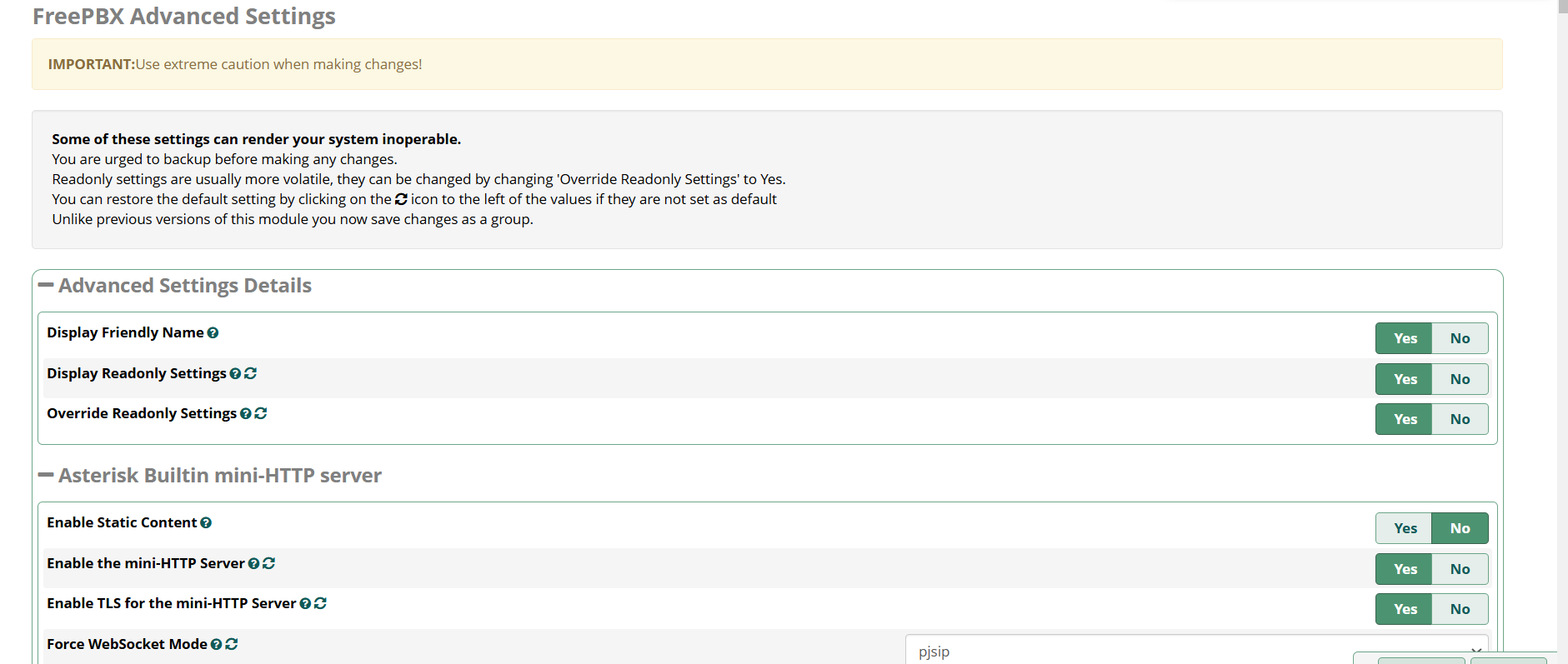
What this screen is telling you (important)
- Some settings can make the PBX inoperable (FreePBX itself warns you).
- Read-only settings exist for a reason. You should not override them casually.
- Many changes are saved as a group. You still must Apply Config for runtime impact.
Advanced Settings Details (top controls)
- Display Friendly Name: UI display preference (not a telephony feature). Safe.
- Display Readonly Settings: shows/hides read-only items. Useful for audits.
- Override Readonly Settings: enables changing read-only settings. High risk—only do this if you have a specific reason and rollback plan.
Asterisk Builtin mini-HTTP server (why you should care)
This section controls Asterisk’s internal HTTP server, which commonly serves: ARI (Asterisk REST Interface), WebSocket endpoints (for ARI/WSS), and other HTTP-based integrations. For MYLINEHUB VoiceBridge and browser/WebRTC work, this matters a lot.
Key toggles shown in the screenshot
- Enable Static Content: allows serving static files from the Asterisk HTTP server. Usually not required for ARI; enable only if you know why.
- Enable the mini-HTTP Server: must be enabled for ARI/WebSocket endpoints to work.
- Enable TLS for the mini-HTTP Server: required if you want HTTPS/WSS from Asterisk directly (or if you are not terminating TLS at a reverse proxy).
- Force WebSocket Mode (shown as
pjsip): tells Asterisk which SIP stack behavior to align with for WebSocket usage (modern systems use PJSIP).
Production guidance: If you plan browser calling or secure ARI access, you will typically need TLS enabled here (or terminate TLS in Nginx/HAProxy and proxy to Asterisk internally).
Screenshot 2: mini-HTTP Bind/Ports + TLS Versions + Cert/Key Paths + Sessions
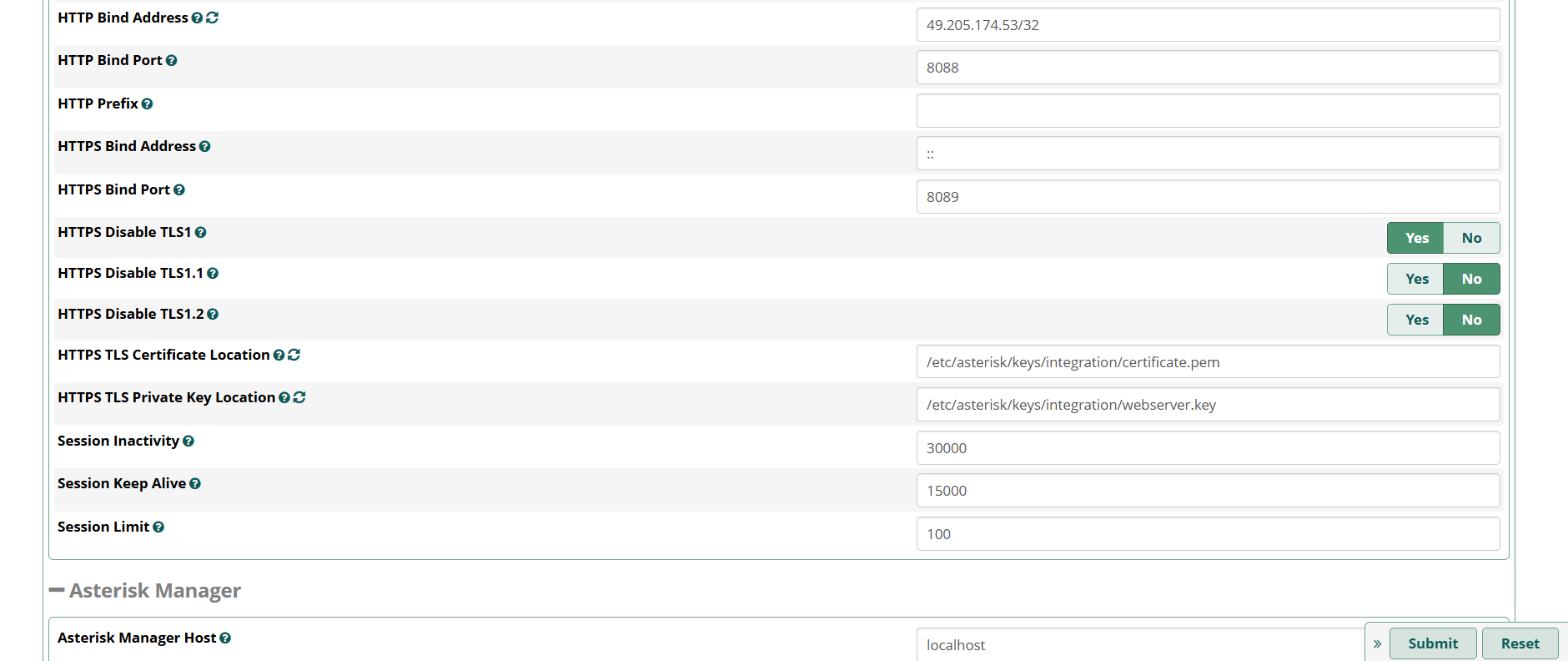
HTTP vs HTTPS in this section
- HTTP Bind Address and HTTP Bind Port (example shows port 8088): plain HTTP. Useful for internal LAN access or reverse proxy backends.
- HTTPS Bind Address and HTTPS Bind Port (example shows port 8089): TLS-enabled endpoint for HTTPS/WSS from Asterisk.
- HTTP Prefix: optional path prefix. Most setups leave it empty unless integrating with a larger URL structure.
Critical: binding safely
- If you bind HTTP/HTTPS to a public interface, you are exposing ARI/WS endpoints to the internet. This is dangerous without strict firewall/allowlist.
- Best practice: bind to localhost or private interface, and expose only via VPN/allowlisted proxy if needed.
TLS version disable toggles (security + compatibility)
You can see toggles like: HTTPS Disable TLS1, HTTPS Disable TLS1.1, HTTPS Disable TLS1.2.
- In modern deployments, TLS 1.0 and 1.1 should be disabled (they are obsolete).
- Be careful with disabling TLS 1.2 unless you know your clients fully support TLS 1.3.
Certificate and private key paths (these must be correct)
- HTTPS TLS Certificate Location (shown):
/etc/asterisk/keys/integration/certificate.pem - HTTPS TLS Private Key Location (shown):
/etc/asterisk/keys/integration/webserver.key
These file paths must match the certificate you deployed in FreePBX Certificate Manager. Wrong paths = HTTPS/WSS failures = ARI/WebRTC issues that look like “network problems” but are actually cert problems.
Session tuning (stability under load)
- Session Inactivity (example:
30000): how long an idle session can stay open. - Session Keep Alive (example:
15000): heartbeat interval to keep sessions alive. - Session Limit (example:
100): cap to prevent runaway resource use.
MYLINEHUB note: if you have multiple ARI clients (multi-org apps, test tools, failover bots), session limits and keep-alives matter. Keep them sane and monitor Asterisk logs when scaling.
Screenshot 3: AMI + ARI Settings (Most Important for Automation)
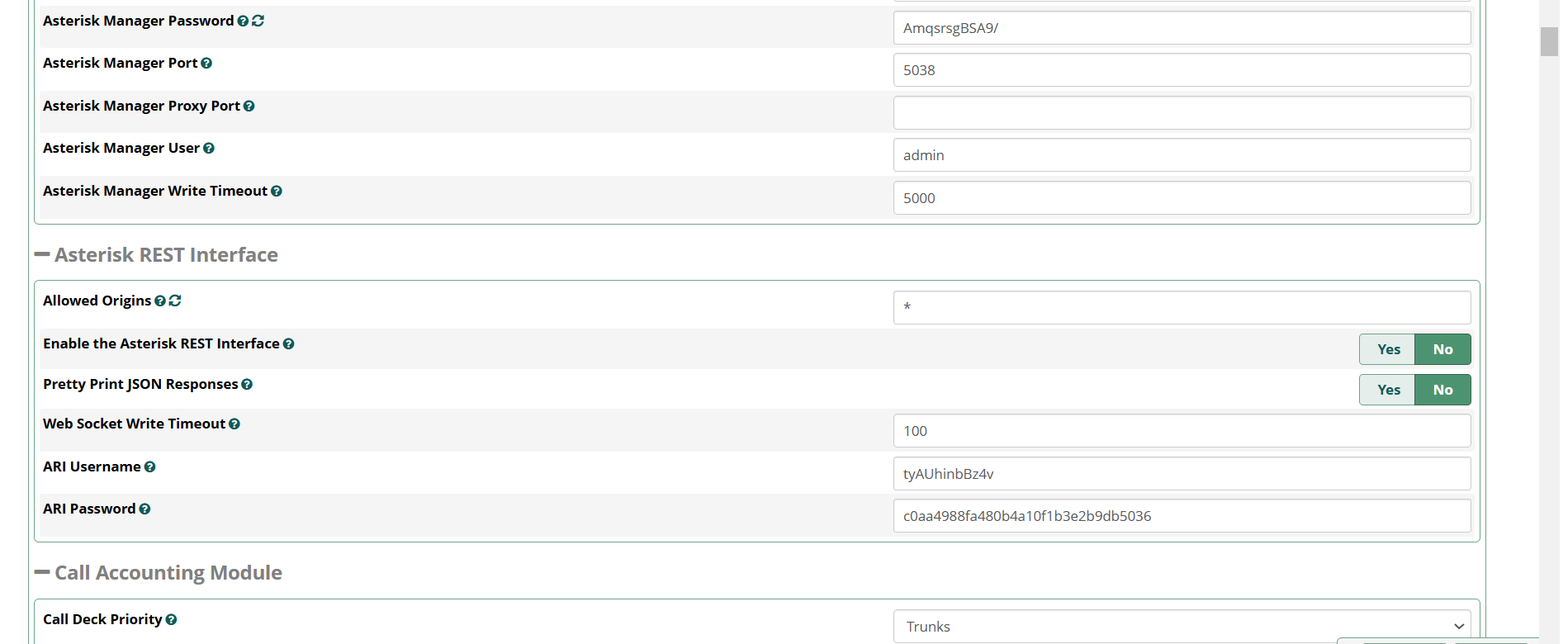
Asterisk Manager (AMI)
AMI is a TCP management interface used for events and control operations. It is powerful and also a frequent target in compromised PBX incidents.
- Asterisk Manager User (example shown):
admin - Asterisk Manager Password: must be strong (treat like root password)
- Asterisk Manager Port (shown):
5038 - Asterisk Manager Proxy Port: optional (often left blank)
- Asterisk Manager Write Timeout (shown):
5000
Security rule: never expose port 5038 to the internet. Allowlist only trusted application servers (example: your VoiceBridge backend) at the firewall level.
Asterisk REST Interface (ARI)
ARI is the REST/WebSocket interface used by Stasis apps (VoiceBridge is typically ARI-driven). If ARI is off or blocked, your Stasis automation won’t work.
Fields shown in the screenshot
- Allowed Origins (example:
*): CORS/origin policy. Star means “allow all”. Convenient for testing, risky for production. - Enable the Asterisk REST Interface: must be enabled for ARI usage.
- Pretty Print JSON Responses: mostly a developer convenience.
- Web Socket Write Timeout (example:
100): helps avoid stuck WS writes under weird network conditions. - ARI Username and ARI Password: your ARI client credentials (store securely, rotate when needed).
Production-safe guidance (very important)
- Do not use
*origins in production unless you fully understand the exposure. Prefer exact origins or keep ARI private behind VPN/proxy. - Prefer ARI over HTTPS/WSS or keep it internal and proxy securely.
- Rotate ARI credentials if you suspect leakage (logs, screenshots, shared access, etc.).
Call Accounting Module (start of section)
You can see Call Deck Priority set to Trunks. This affects how call accounting/call deck logic orders or prioritizes tracking. Most systems keep defaults unless integrating with a billing workflow.
Screenshot 4: Time Conditions Hook + Call Recording + CDR Batch Controls
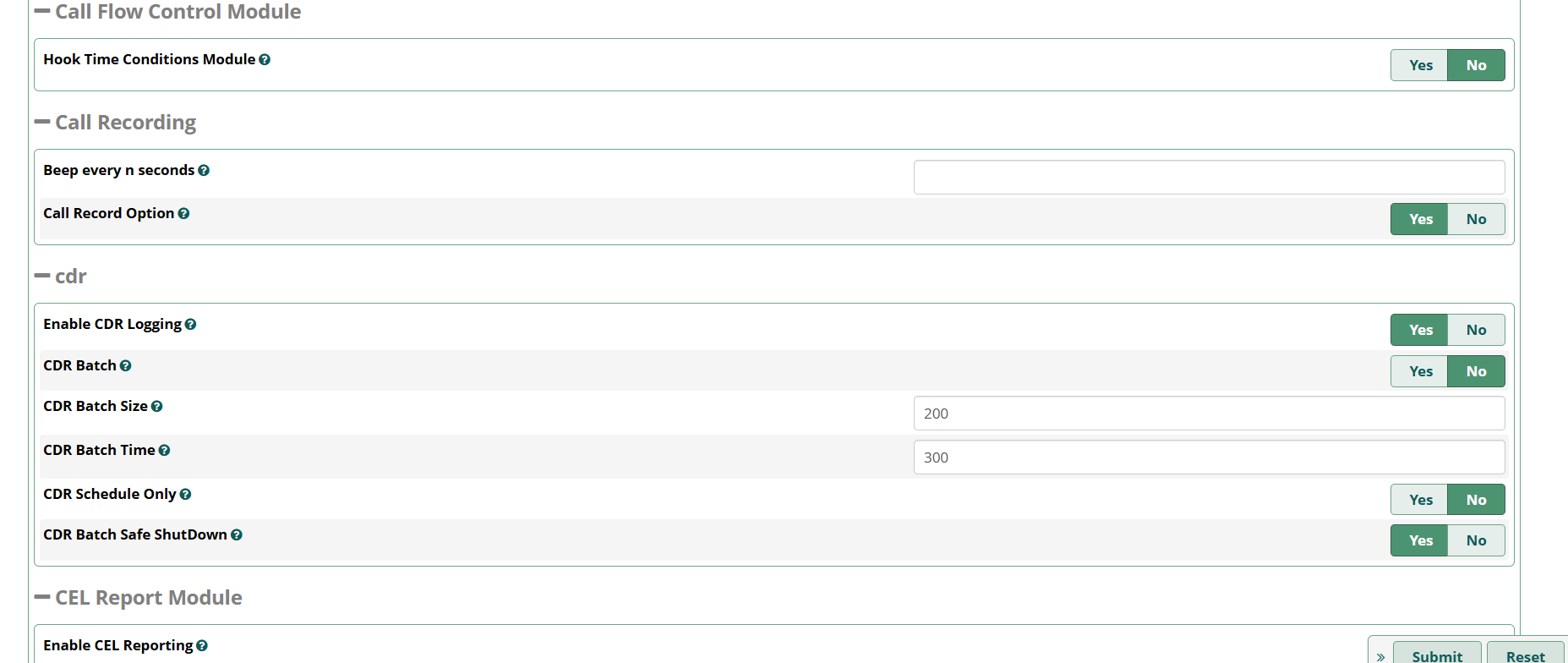
Call Flow Control Module
- Hook Time Conditions Module: controls integration behavior with time conditions. Usually leave default unless you know your time-routing needs a global hook behavior.
Call Recording (global behavior)
- Beep every n seconds: inserts periodic beep tone (compliance use-case). Leave blank unless legally required.
- Call Record Option: global recording toggle/behavior. Prefer controlling recording per extension/queue/inbound route instead of “global record everything”.
CDR (Call Detail Records) logging
CDR affects reporting, billing, analytics, and debugging. Turning it off makes troubleshooting much harder.
- Enable CDR Logging: keep enabled in most production systems.
- CDR Batch: batches DB writes (performance tuning).
- CDR Batch Size (example:
200) and CDR Batch Time (example:300): tuning knobs for throughput vs immediacy. - CDR Schedule Only: only write on a schedule (advanced tuning).
- CDR Batch Safe ShutDown: helps flush data safely on shutdown.
Operational tip: If you scale call volume and see DB load spikes, batching helps. If you need “near real-time” dashboards, batching may delay updates—choose intentionally.
Screenshot 5: CEL + Certificate Validity + Conferences Recording + Contacts + Cron Jobs
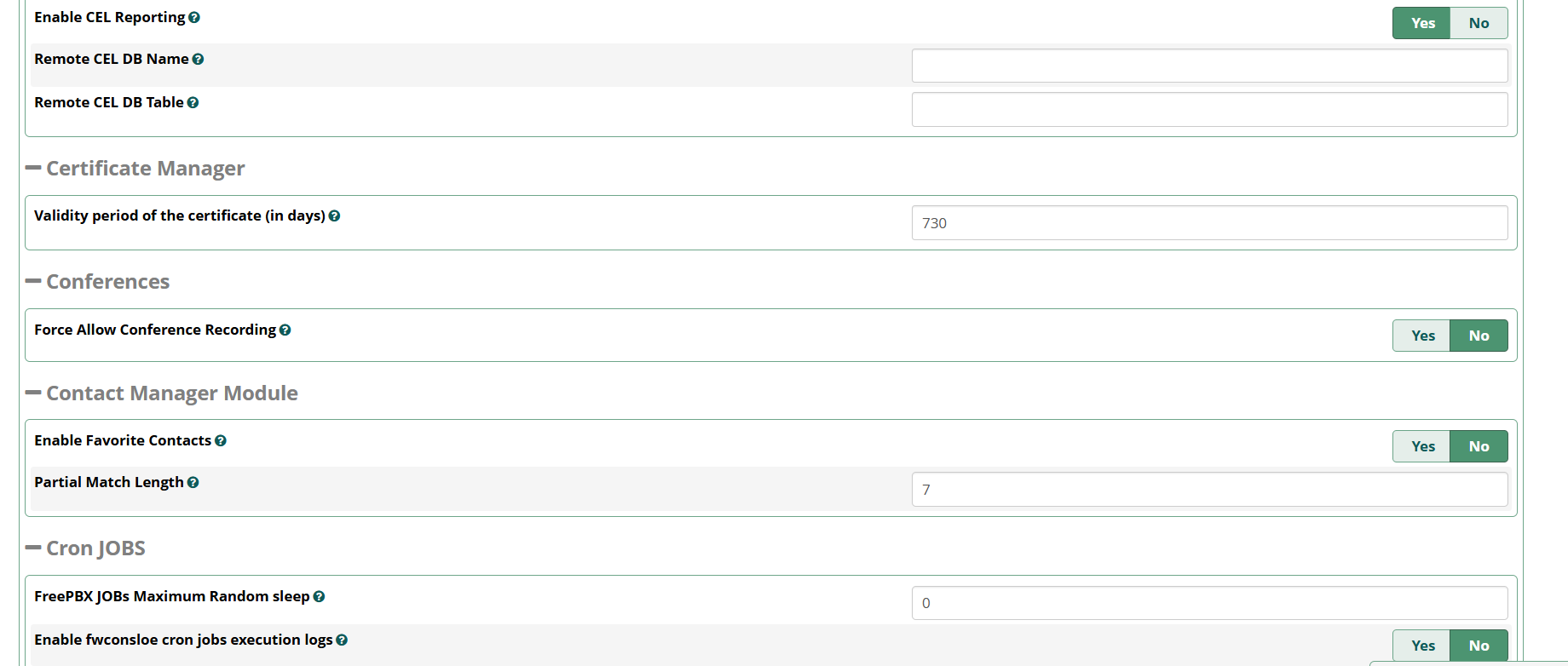
CEL (Channel Event Logging)
CEL can provide deeper call-flow event traces than CDR in certain debugging scenarios.
- Enable CEL Reporting: enable if you need advanced event auditing; otherwise defaults are fine.
- Remote CEL DB Name / Remote CEL DB Table: advanced setups where CEL is stored remotely.
Certificate Manager: Validity period
- Validity period of the certificate (in days) (example:
730): default lifetime setting used by some certificate workflows.
Reminder: For Let’s Encrypt, actual validity is defined by LE (short-lived) and renewals are frequent. Always verify what cert is actively deployed to GUI and Asterisk services.
Conferences: Force allow conference recording
- Force Allow Conference Recording: when enabled, conferences can be recorded regardless of other policy defaults.
If you enable this, ensure you have: storage planning, retention rules, and consent/compliance policy.
Contact Manager Module
- Enable Favorite Contacts: UI/UX feature for quick dialing.
- Partial Match Length (example:
7): controls how many digits are used for partial number matching (can affect caller ID/contact matching).
Cron Jobs
- FreePBX JOBs Maximum Random sleep (example:
0): adds jitter to cron runs (useful in clustered environments; single server often keeps 0). - You can also see the start of fwconsole cron jobs execution logs (continued in the next screenshot).
Screenshot 6: DAHDI Configuration + Dashboard Statistics Toggles
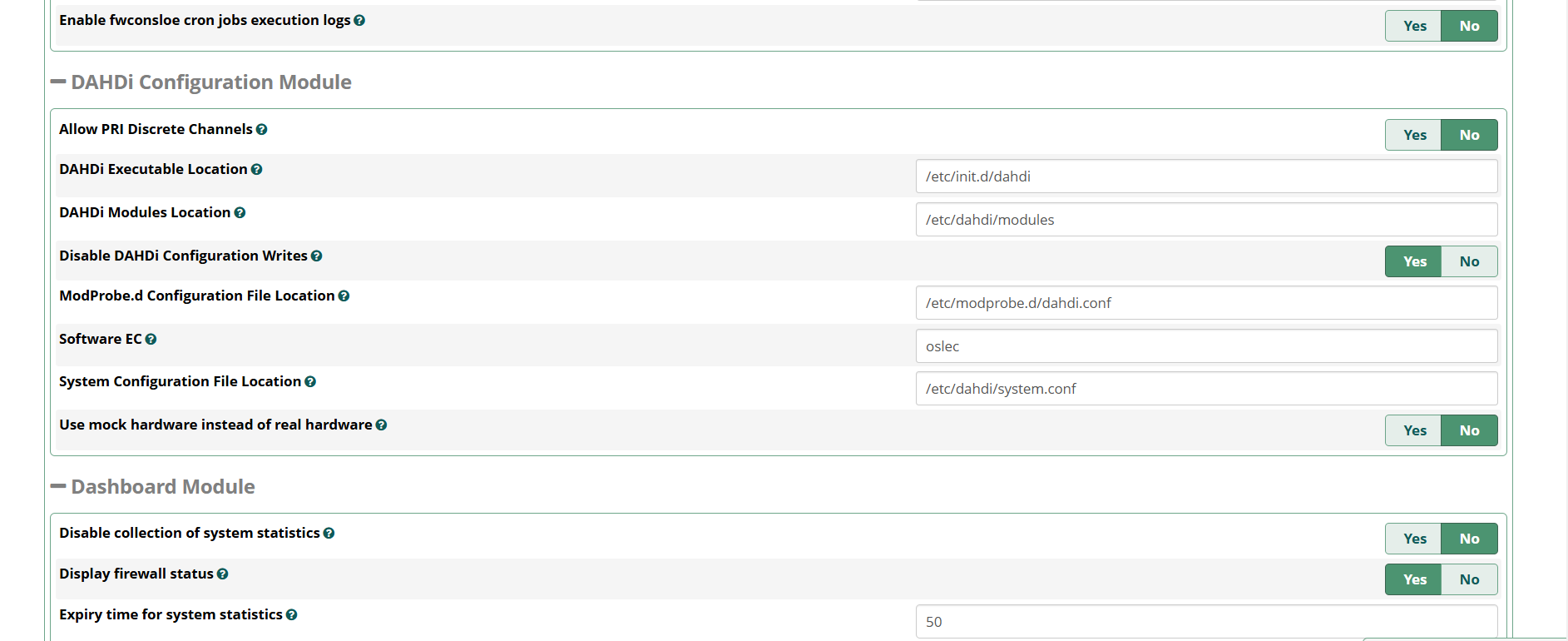
fwconsole cron logs (top of screenshot)
Enable fwconsole cron jobs execution logs: useful when debugging background FreePBX maintenance tasks. Enabling logs can help diagnose “why something didn’t run”, but don’t keep excessive logging forever on small disks.
DAHDI Configuration Module
DAHDI matters if you use PRI cards, analog FXO/FXS cards, or certain hardware telephony interfaces. Pure SIP-only systems may never touch this.
- Allow PRI Discrete Channels: PRI behavior option (advanced; keep default unless PRI vendor guidance requires it).
- DAHDI Executable Location (example:
/etc/init.d/dahdi) - DAHDI Modules Location (example:
/etc/dahdi/modules) - Disable DAHDI Configuration Writes: lock the configuration if you manage DAHDI manually.
- ModProbe.d Configuration File Location (example:
/etc/modprobe.d/dahdi.conf) - Software EC (example:
oslec): software echo cancellation choice. - System Configuration File Location (example:
/etc/dahdi/system.conf) - Use mock hardware instead of real hardware: testing-only behavior.
Dashboard Module (stats and firewall visibility)
- Disable collection of system statistics: reduces background collection (lighter system, less telemetry).
- Display firewall status: helps admins see firewall status quickly in UI.
- Expiry time for system statistics (example:
50): how long cached stats remain.
Screenshot 7: Developer & Customization (Debugging + Performance Controls)
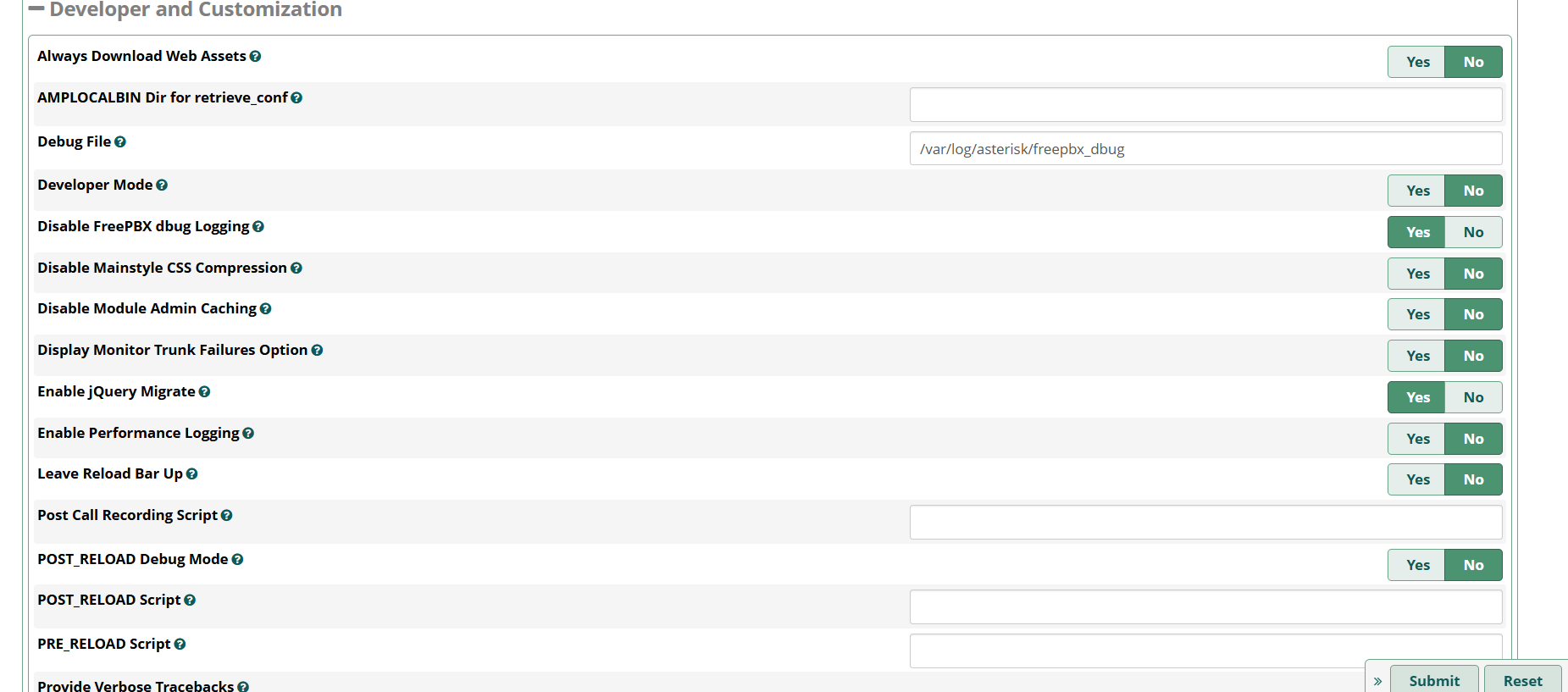
Why this section matters
These toggles affect supportability and performance. Turning on too much debug can fill disks fast. Turning off the wrong caching can slow the UI. Use this area intentionally.
Key fields shown
- Debug File (example:
/var/log/asterisk/freepbx_debug): where FreePBX writes debug logs. - Developer Mode: enables developer-friendly behavior in UI/modules.
- Disable FreePBX dbug Logging: reduces debug noise; helpful once stable.
- Disable Mainstyle CSS Compression: dev-only (helps debugging UI), not recommended for production performance.
- Disable Module Admin Caching: can help when debugging module issues; may reduce performance if left disabled.
- Display Monitor Trunk Failures Option: operational visibility feature.
- Enable jQuery Migrate: compatibility toggle for older modules/UI behaviors.
- Enable Performance Logging: useful for diagnosing slow admin UI or module operations.
- Leave Reload Bar Up: UI behavior preference during Apply Config.
Reload script hooks (advanced automation)
- Post Call Recording Script: script hook after recording operations (ensure permissions and security review).
- POST_RELOAD Debug Mode and POST_RELOAD Script: actions after reload.
- PRE_RELOAD Script: actions before reload.
Production rule: if you add scripts here, treat them like production code: version control, strict permissions, and audit logs. A bad script can break reloads system-wide.
Screenshot 8: Device Settings (SIP Defaults That Affect Real Calls)
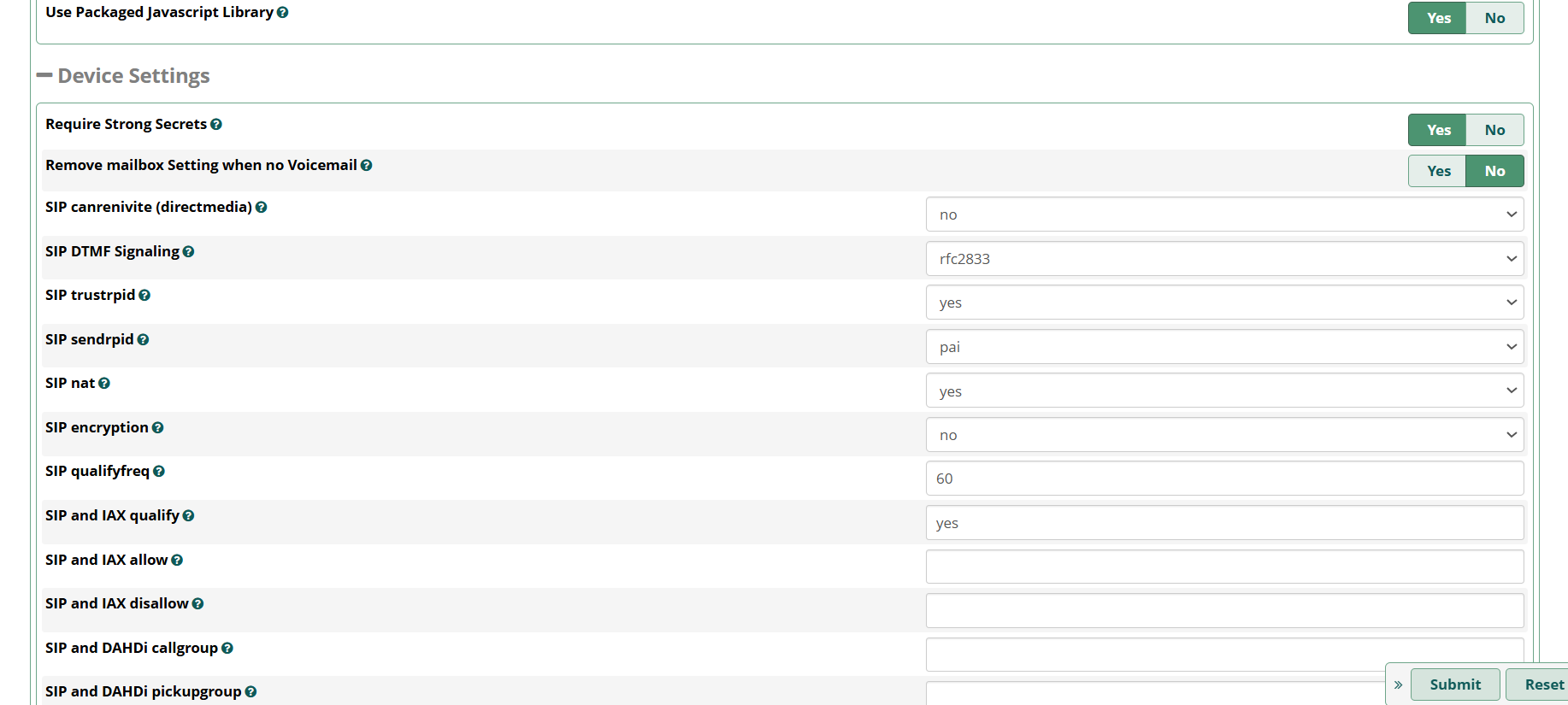
Why this screen is critical
These are global defaults that can impact: IVR DTMF detection, phone registration stability, one-way audio likelihood, and trunk interoperability. If you change these, you must re-test inbound/outbound and IVR digits immediately.
Security-related toggles
- Require Strong Secrets: should be enabled in production (prevents weak extension passwords).
- Remove mailbox setting when no Voicemail: keeps device config cleaner when voicemail is off.
SIP behavior defaults shown
- SIP canreinvite (directmedia) (shown:
no): keeping this “no” is common behind NAT to avoid media path issues. - SIP DTMF Signaling (shown:
rfc2833): this is the most common reliable choice for IVR/DTMF in SIP networks. - SIP trustrpid (shown:
yes) and SIP sendrpid (shown:pai): controls identity headers like PAI/RPID. Important for caller ID correctness with certain trunks. - SIP nat (shown:
yes): typical when phones are behind NAT or remote. Must align with your network design and SIP Settings. - SIP encryption (shown:
no): SRTP/TLS is a separate design choice; enable only when you deploy certificates and client support is confirmed. - SIP qualifyfreq (shown:
60): keepalive frequency (helps detect dead endpoints). - SIP and IAX qualify (shown:
yes): health checks for endpoints.
Allow/Disallow and group fields
- SIP and IAX allow/disallow: codec allowlists/denylists (leave blank here if you manage codecs per endpoint/trunk).
- SIP and DAHDI callgroup / pickupgroup: call pickup grouping features (optional, business-specific).
Troubleshooting note: If IVR digits fail, check that endpoints and trunks use RFC2833/RFC4733 consistently. If you also see one-way audio, fix NAT/RTP/firewall first—DTMF issues often follow RTP instability.
Safe Change Process: Save vs Apply Config
In Advanced Settings, saving values stores them in FreePBX configuration, but many changes only affect the running PBX after you Apply Config.
- Change a small group of related toggles.
- Click Submit / save.
- Click Apply Config.
- Test: inbound, outbound, IVR digits, and any ARI/AMI integrations.
- Only then proceed to the next group.
Common Production Mistakes to Avoid
- Exposing ARI/AMI publicly: leads to compromise. Always allowlist/VPN.
- Using
*Allowed Origins in production: convenient for testing, risky for real deployments. - Changing DTMF mode casually: breaks IVR/queue menus.
- Enabling TLS without correct cert/key paths: causes HTTPS/WSS failures that look like “random network bugs”.
- Turning on heavy debug logging without disk monitoring: can fill disk and crash services.
MYLINEHUB VoiceBridge Notes
- If your VoiceBridge uses ARI (Stasis apps), ensure: mini-HTTP server enabled, ARI enabled, and credentials are securely stored and allowlisted.
- If you plan WebRTC/browser calling: TLS and certificates must be correct (Asterisk HTTPS/WSS or a reverse proxy that terminates TLS properly).
- Keep a consistent security boundary: ARI/AMI should be reachable only from your application servers (not from the public internet).
Next Steps
After Advanced Settings, most production setups should follow this order: SIP settings → firewall → trunks → inbound routes → IVR → queues.
- FreePBX SIP Settings: PJSIP, NAT, RTP Ports, Codecs
- FreePBX Firewall: Lock Down SIP, RTP, GUI, and Admin
- FreePBX Trunks: PJSIP Trunk Setup, Registration, Failures
- FreePBX Inbound Routes: DID Mapping, CID Rules, Debugging
- FreePBX IVR: Prompts, Menus, DTMF Troubleshooting
- FreePBX Queues: Agent Strategy, Ring Rules, Recording
Want to see API-driven CRM + Telecom workflows in action? Try the WhatsApp bot or explore the demos.
Comments (0)
Be the first to comment.